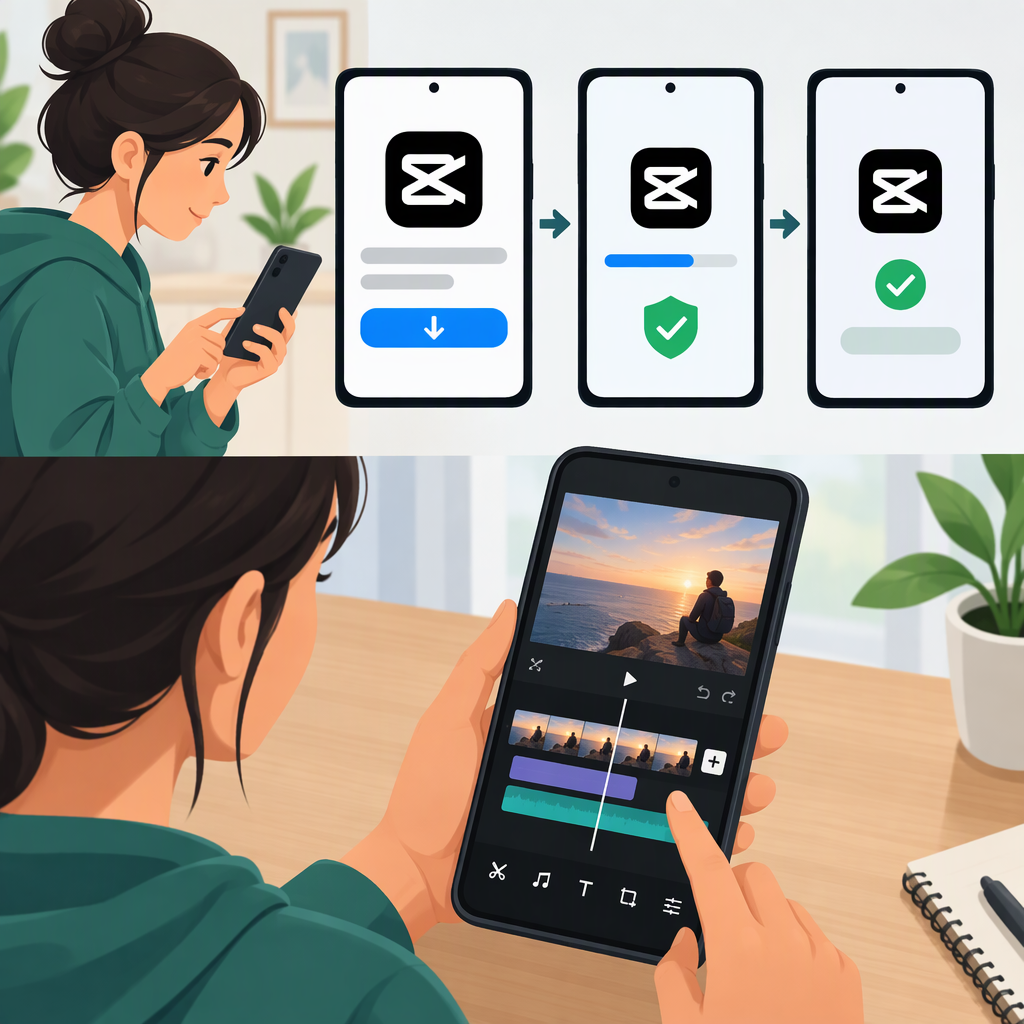
CapCut Tutorial and Apk Download: Android Download Checks and a First Edit
For Android users in the United States: Start with the Google Play listing for CapCut – Video Editor. It names Bytedance Pte. Ltd. as the developer. Whether you can install it depends on what Google Play shows for your account and device. If you’re considering an APK instead, use only a download route you can verify as belonging to CapCut’s publisher; a third-party listing or an “official” label on a download page is not enough to establish provenance. (play.google.com)
This guide covers the Android download decision, practical checks before installing or updating an APK, and a simple first-edit workflow. CapCut’s interface can vary by app version and device; the editing steps below are a beginner workflow, not a claim that every control has the same name or position in every release.
Where to Download CapCut for Android
On an Android device with Google Play, search for CapCut in the Play Store and confirm that the listing names Bytedance Pte. Ltd. before installing. Google’s instructions are to find an app in Play Store, select it, and follow the on-screen installation steps. The listing and installation options may differ by account, device, or region, so a listing’s existence does not guarantee that it will be available to everyone. (play.google.com)
Play Store or Apk?
- Play Store: Usually the simpler choice when the app is available for your device. You install and later update it through the store, and the developer name is shown on the listing. Google recommends getting apps from Play, while noting that Android users can install apps from other sources too. (play.google.com)
- APK sideload: Consider this only if you have a specific reason and can verify the download route and publisher. CapCut has published an Android APK download page on its own domain, but a page mentioning an APK does not by itself establish that a particular file came from the publisher or is current. Avoid third-party reuploads, modified (“mod”) APKs, and pages that do not make the source clear. (capcut.com)
Practical choice: If the Play Store listing is available, use it. If it is not, do not assume a third-party APK is a safe substitute. Confirm that the download route is genuinely on CapCut’s own domain and that the file is offered by the publisher before proceeding. If you cannot establish that, the source remains unverified—skip the file rather than relying on its filename or a site’s claims.
Before Installing or Updating an Apk
Use this checklist for an APK you are considering. It can help you spot warning signs, but it cannot guarantee that a file is safe.
- Check the source before downloading. Navigate to the publisher’s site yourself rather than following an unfamiliar download button, ad, or mirror link. A third-party page’s use of “official” is not proof of publisher ownership.
- Check the app identity. Compare the app name and developer with the publisher’s own information or its Play Store listing. If the source or identity does not match, stop.
- Read Android’s warnings. Pay attention to Play Protect messages and installation prompts. Google says Play Protect checks apps, including apps from outside Google Play, and may block an unverified app that uses sensitive permissions commonly targeted by scammers. Don’t turn off Play Protect just to get an APK installed. (support.google.com)
- Review permissions when prompted. Consider whether the requested access makes sense for what you are doing. Don’t approve access you are uncomfortable with; the specific prompts can depend on the device and Android version.
- Use the same trusted route for updates. Google Play lets you check and install available app updates from Profile → Manage apps & device. CapCut says Android users can update through Google Play and recommends official channels; its help page notes that updates may roll out gradually and vary by region and device. (support.google.com)
If you installed an APK from a source you can’t verify, don’t treat a successful installation as proof of legitimacy. Avoid entering sensitive information into an app whose origin you cannot establish.
Beginner CapCut Tutorial: Make a Basic Edit
The following workflow gets a short video from raw clips to an exported file. CapCut’s public editing guidance describes creating a project and importing media; its app listing describes basic clip trimming and text features. Exact mobile control labels may vary. (capcut.com)
- Create a project and add media. Open CapCut, start a new project, and choose one or more videos or photos from your device. Confirm the selected media appears in the editing workspace.
- Arrange and trim clips. Put clips in the order you want. Select a clip and shorten it by adjusting its ends; split or remove sections you do not want. CapCut lists trimming, shortening, splitting, and merging among its basic editing functions. (play.google.com)
- Add one simple text label. Look for the text tool, add a short title, and place it where it does not cover the important subject. Preview the edit to check that the title appears for the intended part of the video. Text controls and menu names can change between versions.
- Preview from beginning to end. Check the clip order, cuts, and text timing. Make any final adjustments before exporting.
- Export the finished video. Use the export control in the editor, choose from the options shown on your device, and wait for the export to finish. Check your device’s gallery or video library for the result. Export resolutions and options can vary with the device, operating system, and CapCut platform; don’t assume a particular resolution will be offered. (capcut.com)
Expected result: a saved video containing your selected clips, trimmed into the order you chose, with a short text label. If a control is missing or appears in a different place, check your app version and the current mobile interface rather than following desktop instructions as if they were identical. CapCut’s help page explains how to find the mobile app’s version number under Me → Settings → Version. (capcut.com)
Bottom Line
For a U.S. Android user, the clearest starting point is the Google Play CapCut listing, where the developer is named as Bytedance Pte. Ltd. Sideloading adds work: you must assess the file’s source and respond carefully to Android’s warnings, and those checks still do not guarantee safety. Once installed, a first edit can be as simple as importing clips, trimming and arranging them, adding text, previewing, and exporting; menu labels and available export options may vary by version and device.