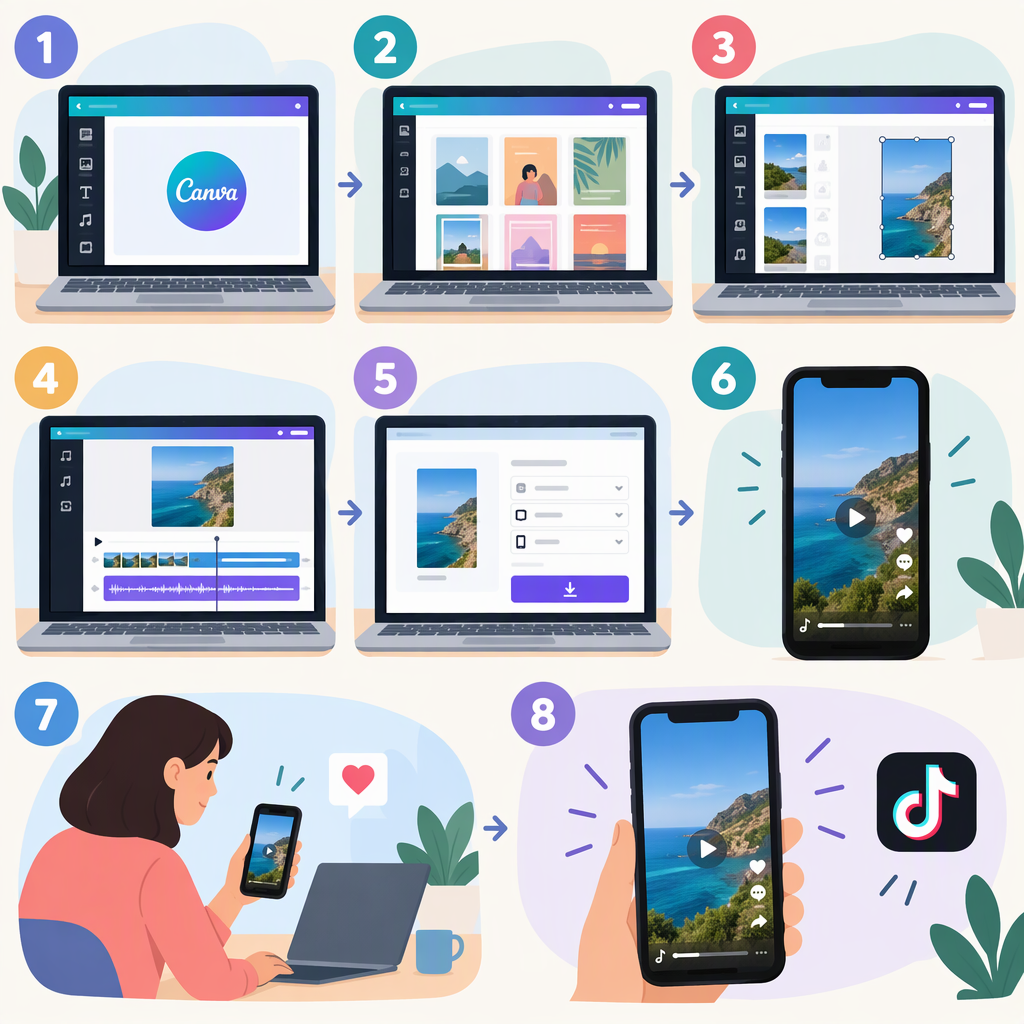
How to Make a TikTok Video in Canva: A Step-By-Step Workflow
How to Make a TikTok Video in Canva
In Canva, search for “TikTok Videos” and choose a design or template, add your own footage, arrange and trim clips, add any essential text, and preview the result. When it’s ready, download it as an MP4 Video and upload that saved file in TikTok. Canva’s TikTok video page describes searching for TikTok Videos, choosing a design, uploading footage, and editing it; Canva’s download instructions give the MP4 export steps. (canva.com)
1. Start a TikTok-Oriented Design
- Open Canva and search for TikTok Videos.
- Choose a design that suits your video, or select a blank TikTok Video design if that option is available. A template gives you a starting layout; a blank design gives you more control over the look and sequence. Canva lists both TikTok video templates and a blank TikTok Video option. (canva.com)
- Before adding content, check that the selected design’s frame suits your footage. If you use a template, replace its sample content rather than assuming the original framing will fit every clip.
Canva’s current video editor is rolling out gradually, and some template-first mobile flows are limited to Canva Classic on iOS and Android. If your mobile screen looks different from the steps below, use the controls visible in your version or open Canva on desktop. (canva.com)
2. Add and Edit Your Video
- Add your footage. Upload a video from your device into the design, or use footage already in the design. Canva describes uploading footage to a template as one way to build a TikTok video. (canva.com)
- Arrange the clips. In a video design, use the timeline to put clips in the order you want. Canva describes its video timeline as a place to arrange clips and edit them directly. (canva.com)
- Trim clips that start or end too early or late. In Canva’s video timeline, adjust a clip’s edges to change its length. The precise controls can differ by design type; Canva notes that trimming works differently in video designs than in static designs. (canva.com)
- Add text only where it helps. Keep important wording easy to read against the footage. Preview each section to make sure the text appears long enough to read and doesn’t cover the part of the video viewers need to see.
- Preview the whole video. Check the framing, clip order, timing, and text from beginning to end. Canva’s download guide also suggests previewing the design before exporting. (canva.com)
For example, a simple how-to video could show the finished result first, then a few short process clips, and end with the completed result. That is an illustrative sequence—not a required Canva format or a tested template.
3. Download the Video from Canva
- Open the design and, if you haven’t already, preview it.
- Select Share, then Download.
- Choose MP4 Video as the file type.
- If the design has multiple pages, choose All, This Page, or Custom to select what to export.
- Select Download, then play the saved file on your device to confirm it works. (canva.com)
Canva lists MP4 quality choices of 480p, 720p, 1080p, and 4K, with 4K available on desktop. Its help page says Canva Free users may see an upgrade prompt when changing MP4 quality or resolution from the default. To avoid that prompt, Canva advises keeping the default setting; the documentation does not identify that default as a particular resolution. (canva.com)
If you used paid audio, Canva advises checking its license before posting the design to social media or video-sharing sites. (canva.com)
4. Upload the Saved Video to TikTok
On a phone: Open TikTok, tap the Add post (+) button, and choose Upload to select a video from your device. Review the selected clip, make any final edits you want in TikTok, then continue to the post screen. TikTok’s help instructions describe uploading a video from the device through the app’s post flow. (support.tiktok.com)
On a computer: TikTok says you can go to TikTok Studio in a web browser, sign in, and click Upload at the top. TikTok notes that feature availability can vary between web and app experiences and by region. (support.tiktok.com)
The ordinary handoff in this workflow is to download an MP4 from Canva and select that file in TikTok. Canva documents a TikTok connection for accessing Canva Grow’s Learn feature and publishing ads; that is not the same as a general direct-publishing route for every regular video. (canva.com)
Final Preview Checklist
Before you post, confirm that:
- The video plays from beginning to end after download.
- The subject and important action are visible in the frame.
- On-screen text is readable and stays up long enough.
- Clips appear in the intended order, with no unwanted blank or extra pages.
- Any audio you added is appropriate and licensed for your intended use.
You’re ready for the handoff when you have a playable MP4 saved on your device and can select it in TikTok’s upload flow.