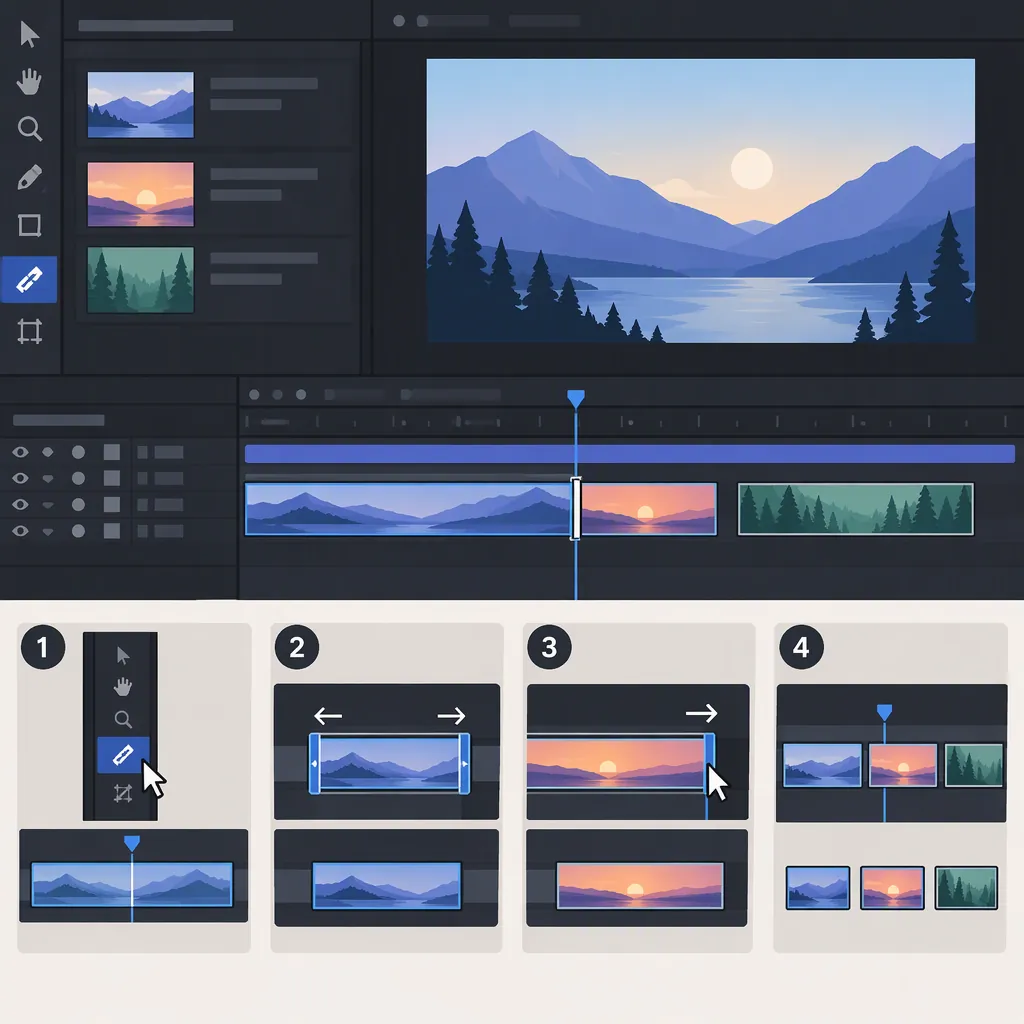
How to Cut and Trim Clips in After Effects
To cut a clip in After Effects, select its layer, place the current-time indicator at the cut point, and choose Edit > Split Layer. The shortcut is Ctrl+Shift+D on Windows or Command+Shift+D on macOS. To shorten the beginning or end instead, drag the layer’s edge in the timeline.
Choose Between Splitting and Trimming
For a basic clip cut, decide which result you need:
- Split: Divide a video layer at a particular time into separate layers.
- Trim: Shorten the portion shown by adjusting the beginning or end of the layer.
- Trim the composition: Adjust the composition’s time range to a selected work area rather than just shortening an individual layer. [citation-2]
Adobe’s supplied help page introduces organizing, viewing, managing, and trimming footage items, but its text does not provide the detailed cutting procedure. The steps below are supported by the supplied MotionIsland tutorial. [citation-1] [citation-2]
Cut a Clip with Split Layer
- Import your video into the project. You can double-click the Project panel, select the file, and choose Import.
- Drag the imported video onto the Create a New Composition icon. The tutorial describes this as a way to match the composition’s dimensions, frame rate, and duration to the video.
- In the composition timeline, move the current-time indicator to the point where you want the cut.
- Select the video layer you want to split.
- Choose Edit > Split Layer, or press Ctrl+Shift+D on Windows or Command+Shift+D on macOS. [citation-2]
The cut produces separate layers at the indicator’s position. It does not, by itself, remove an unwanted section. [citation-2]
As a check, inspect the resulting layer boundaries before making the next edit. If your aim is only to shorten the start or end, use trimming instead.
Trim the Beginning or End
Use layer-edge trimming when you want to keep one continuous portion of a clip rather than divide it into separate layers.
- Place your video in a composition.
- Move the pointer over the beginning or end of its layer bar in the timeline.
- Drag that edge to the desired time. Adjust the beginning to remove an unwanted opening, or adjust the end to shorten the ending. [citation-2]
For a practical review, preview around the new boundary and check that the first and last wanted moments remain. Keep this check separate from changing the composition’s duration: trimming a layer and trimming the composition are different operations. [citation-2]
Match the Composition to the Work Area
If you also want to shorten the composition’s time range, use the work area:
- Drag the work-area handles to mark the range you want to keep.
- Right-click between those handles in the work-area bar.
- Choose Trim Comp to Work Area. The tutorial describes this command as readjusting the composition timeline to the selected work area. [citation-2]
Before applying it, check that the marked range includes every layer you intend to keep—not just the video layer you most recently trimmed. Afterward, review both the opening and ending of the composition.
FAQ
What Is the Shortcut to Cut a Clip in After Effects?
Select the video layer and position the current-time indicator, then press Ctrl+Shift+D on Windows or Command+Shift+D on macOS. This runs Split Layer.
Is Splitting a Clip the Same as Trimming It?
No. Splitting divides the clip into separate layers at the current-time indicator. Trimming adjusts a layer’s beginning or end to shorten the portion used.
How Do I Shorten the Composition After Trimming a Clip?
Set the work-area handles around the range you want to keep, right-click inside the work-area bar, and choose Trim Comp to Work Area. This is separate from trimming the video layer’s edges.
Sources
-
[citation-1] How to cut clips in After Effects | After Effects
-
[citation-2] How to Edit Video in After Effects Like a Pro