How to Do a Duet on TikTok: Recording, Sound, and Settings
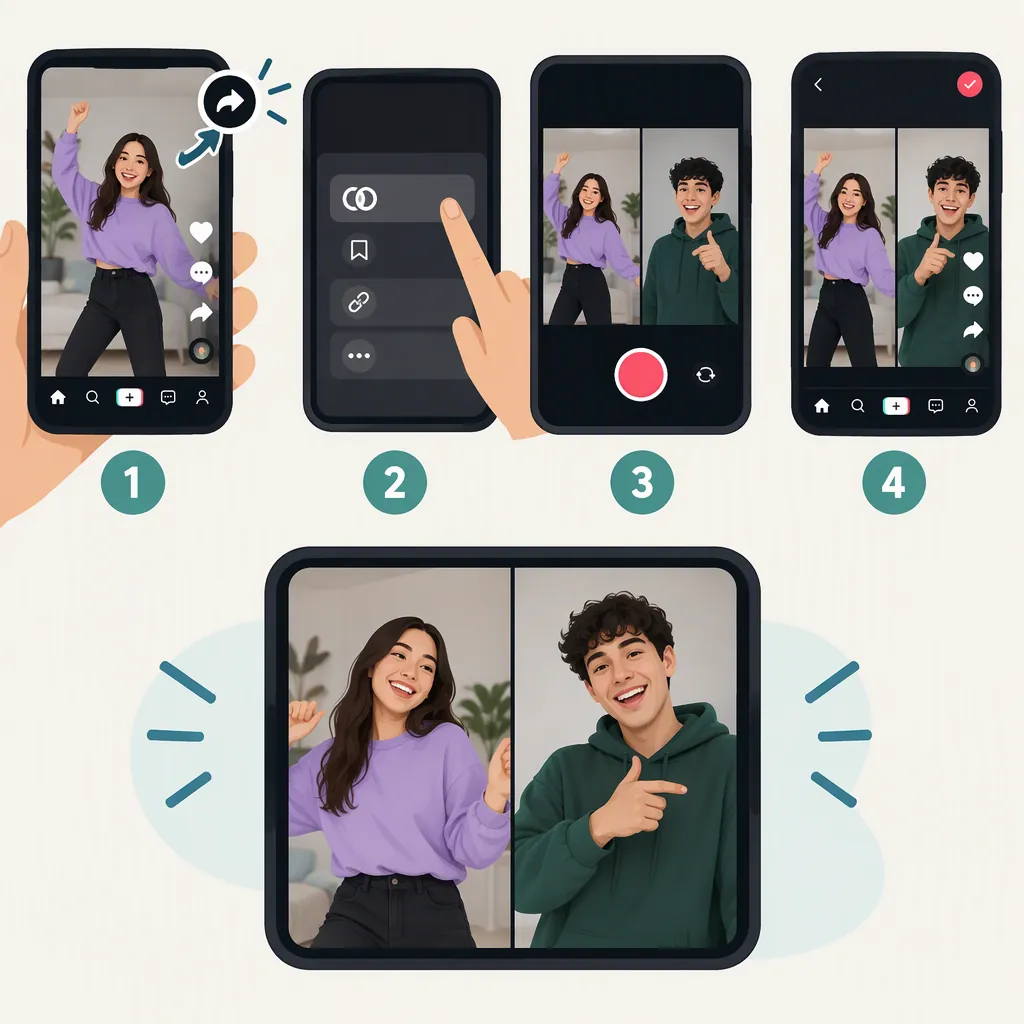
To do a Duet on TikTok, open the video you want to use, tap Share, and select Duet. Choose a layout, turn on Mic if you want to record your voice, and tap the red record button. Review and edit your recording, then continue to the caption screen and tap Post when ready. The original creator must allow Duets. These steps follow third-party tutorials; your app’s labels and controls may differ. [c1] [c2]
What a TikTok Duet Does
A Duet combines an existing TikTok video with a new recording so both play at the same time. The familiar format places the videos side by side, but the supplied tutorials also describe other layouts. It is a recorded response—not a live call with the original creator. [c1] [c2]
Before recording, decide what your contribution will be: a reaction, a spoken explanation, or a performance alongside the original. Keeping that purpose clear can help you choose the layout and audio setup.
How to Record and Post a Duet
The two supplied tutorials describe this basic workflow. Treat button names as a guide rather than a guarantee of the current interface. [c1] [c2]
- Open the original video in the TikTok app.
- Tap Share, shown as an arrow beside the video.
- Select Duet. If it is missing or unavailable, see the troubleshooting section below.
- Choose Layout. The tutorials list left-and-right, green screen, reaction, and top-and-bottom arrangements. Choose from the options your app displays.
- Set up your audio. Enable Mic before recording if you want your voice included.
- Tap the red record button and record your contribution alongside the original.
- Review and edit. The guides describe options such as text, stickers, effects, filters, voiceover, and volume adjustments.
- Continue to the caption screen. Add a caption, check the preview, and tap Post when you are satisfied. [c1] [c2]
For a first attempt, a simple side-by-side layout and a short response can make it easier to focus on timing.
How to Include Your Voice
For speech or singing during recording: turn on the Mic control before you record. Both tutorials identify this as the way to add your own recorded audio to a Duet. [c1] [c2]
For narration after recording: look for Voiceover in the editing controls. Socialander describes recording the Duet first, selecting Voiceover, recording narration, and saving it. NestScale also lists voiceover among the editing options. [c1] [c2]
Preview the result before posting. If the original sound overwhelms your voice, look for the volume controls and adjust the balance. Socialander describes an Added Sound volume control, but its audio guidance is not entirely consistent, so do not assume every sound can be replaced or that your app uses the same labels. [c1]
Why the Duet Option May Be Unavailable
The original creator’s permissions matter. Both tutorials identify disabled Duet permissions as a likely reason a video has no usable Duet option; NestScale also describes a gray Duet button as unavailable. That is a possible explanation, not a complete diagnosis of every missing-button case. [c1] [c2]
Try opening the Share menu on another video to see whether Duet is available there. Do not treat downloading and re-uploading someone’s video as a way to override their Duet choice.
To manage Duet permissions for your own videos, NestScale describes Profile → Menu → Settings and privacy → Privacy → Duet. Use the permission options shown in your app rather than assuming a fixed list. NestScale also states that your account must be public for other people to Duet your videos. These are third-party instructions, not a guarantee of the current settings screen. [c2]
Using Your Own or a Saved Video
Your own published TikTok: Socialander describes opening a video from your profile and using Share → Duet, then recording and editing as usual. Check whether the option is available on that post. [c1]
A prerecorded clip from your phone: both supplied tutorials say the native Duet workflow requires recording in the app rather than importing a prerecorded response. The references do not establish whether every current app version has the same restriction. [c1] [c2]
NestScale describes assembling two saved videos in an external editor, but that is a separate editing workflow—not the native TikTok Duet operation explained here. [c2]
FAQ
Is a TikTok Duet Recorded Live with Another Person?
No. You record alongside an existing video, and the two videos play together in the resulting Duet. It is not a live session with the other creator. [c1]
How Do I Add My Voice to a Duet?
Enable Mic before recording to capture your voice. For narration afterward, look for Voiceover in the editing controls, then preview the audio balance before posting. [c1] [c2]
Why Can’t I Duet a Particular TikTok Video?
The creator may have disabled Duets. The supplied tutorials identify this as a likely reason, but they do not cover every possible cause of an unavailable button. Check whether Duet appears on another video. [c1] [c2]
Can I Duet My Own TikTok?
Socialander describes doing this by opening your published video from your profile, tapping Share, and choosing Duet. Availability depends on whether the option appears for that video. [c1]