How to Make a Duet Video Without TikTok
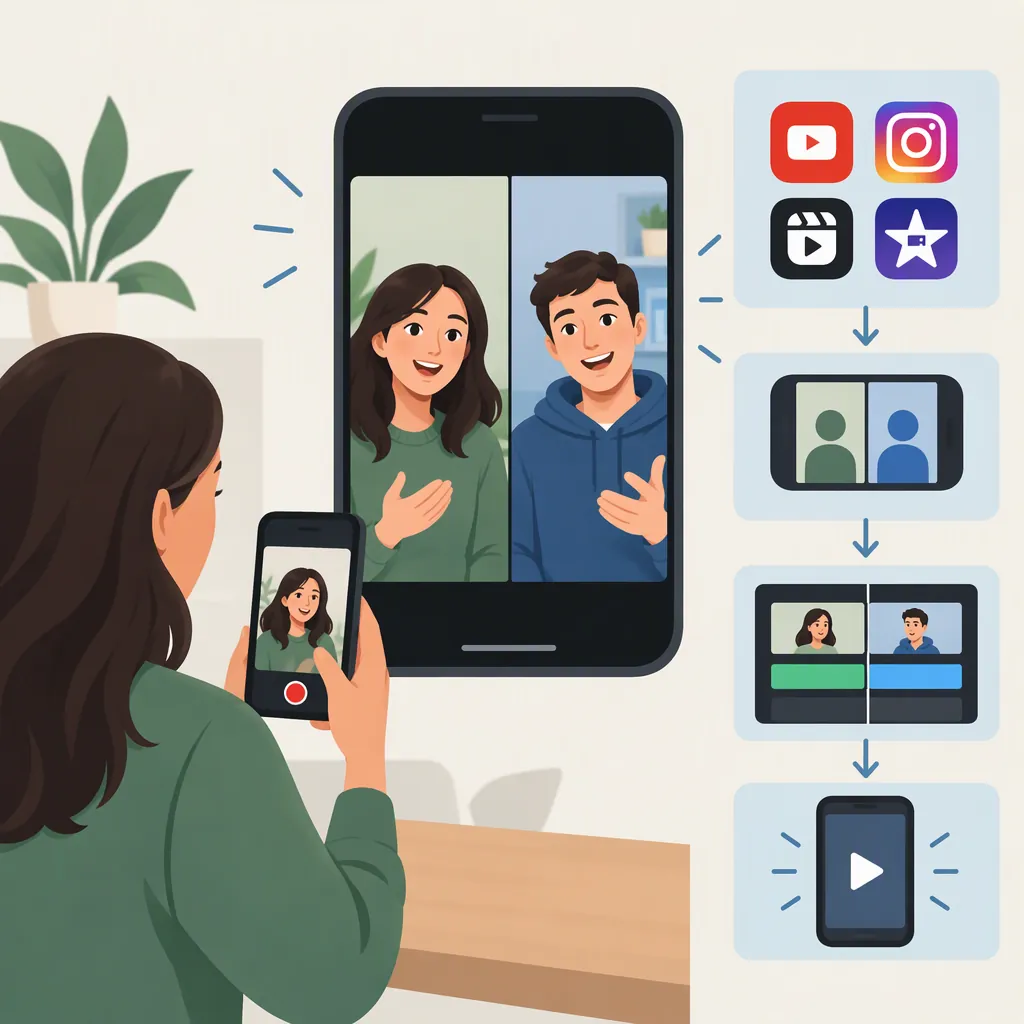
To make a duet video without TikTok, combine a source clip and your own recording in a split-screen video editor, align their timing, balance the audio, and export one finished file. This recreates the side-by-side format rather than using TikTok’s Duet feature. Adobe’s guide describes external editing software as a way to combine prerecorded footage with another video. [citation-1]
Use the Duet Format, Not the TikTok Feature
A duet-style video shows two clips beside each other while both play simultaneously. TikTok’s Duet feature creates that arrangement inside the app; an externally edited split-screen video recreates the visual format without using that feature. Adobe distinguishes this from Stitch, where the source excerpt plays before your response. [citation-1]
For this workflow, prepare two video files: the clip you want to respond to and your own footage. If you want to avoid TikTok entirely, use your own source footage or a file supplied by a collaborator.
Prepare the Source Clip and Your Recording
- Choose footage you can use. Prefer your own material or ask the creator for permission and a copy of the source file. Do not treat this workflow as a way to bypass someone’s disabled Duet setting.
- Choose the excerpt. Decide where the shared segment begins and ends before recording your response.
- Plan your framing. Leave enough room around your face, hands, or subject for a narrower split-screen panel.
- Record your response. For a reaction or performance, rehearse against the source clip. Consider headphones during recording to keep its playback out of your microphone.
Adobe notes that TikTok’s in-app Duet depends on the original creator’s enabled permissions. That setting should not be treated as permission for separate reuse outside the app. [citation-1]
Build the Split-Screen Video
Choose an editor that supports two clips visible at once, separate positioning or cropping, timing adjustments, and audio controls. Adobe’s guide names Adobe Express as an external-editing option for combining prerecorded footage with another video, but it does not provide an exact split-screen interface walkthrough. The steps below describe the editing decisions rather than specific buttons. [citation-1]
- Create a project. Choose the canvas shape for where you intend to share the finished video.
- Import both clips. Place them in a split-screen layout or on separate video layers, depending on your editor.
- Arrange the panels. Put the source on one side and your response on the other. Keep the placement consistent.
- Adjust each frame. Crop or scale deliberately so important faces, gestures, and text remain visible.
- Trim the shared duration. Decide whether both panels should end together. If one clip is shorter, either shorten the project or choose an intentional ending rather than leaving an unexplained blank panel.
Align Timing and Balance Audio
Use a recognizable moment—a spoken word, gesture, or musical beat—as your timing reference. Move your response clip earlier or later until the interaction feels intentional, then review the beginning, middle, and end.
For commentary, consider lowering the source audio while you speak. For a musical collaboration, check both synchronization and the balance between performers. If the source sound was accidentally captured in your recording, listen for distracting doubling before export.
Preview the result at a small viewing size. Check that both panels remain understandable and that captions, if added, do not obscure the action.
Export and Review the Finished File
Export the composition as one video file using settings appropriate for its destination. Open the exported file outside the editor and check:
- Both clips appear together as intended.
- The crop preserves important details.
- The response starts at the intended moment.
- Speech or music is audible without distracting overlap.
- The ending contains no accidental blank frames.
- Any agreed credit is included.
You can keep the file locally or share it somewhere other than TikTok. Describe it as a duet-style or split-screen video when you need to distinguish it from TikTok’s in-app Duet feature.
FAQ
Do I Need TikTok to Make a Duet-Style Video?
No. You can assemble two video files in an external editor to create the simultaneous split-screen format. This produces a standalone video rather than an in-app TikTok Duet. Adobe’s guide describes external editing as an option for this arrangement. [citation-1]
Can I Use a Prerecorded Response?
Yes, with the external-editing approach: use your prerecorded response as one of the two clips. Adobe specifically describes external software as a way to place prerecorded footage alongside another video. [citation-1]
What If the Creator Has Disabled Duet on TikTok?
Adobe says a disabled Duet setting prevents use of TikTok’s in-app feature. For a separate project, ask the creator whether you may reuse their footage; do not assume external editing overrides their preference. Alternatively, use footage you made yourself. [citation-1]
Sources
- [citation-1] How to duet on TikTok: step-by-step guide | Adobe