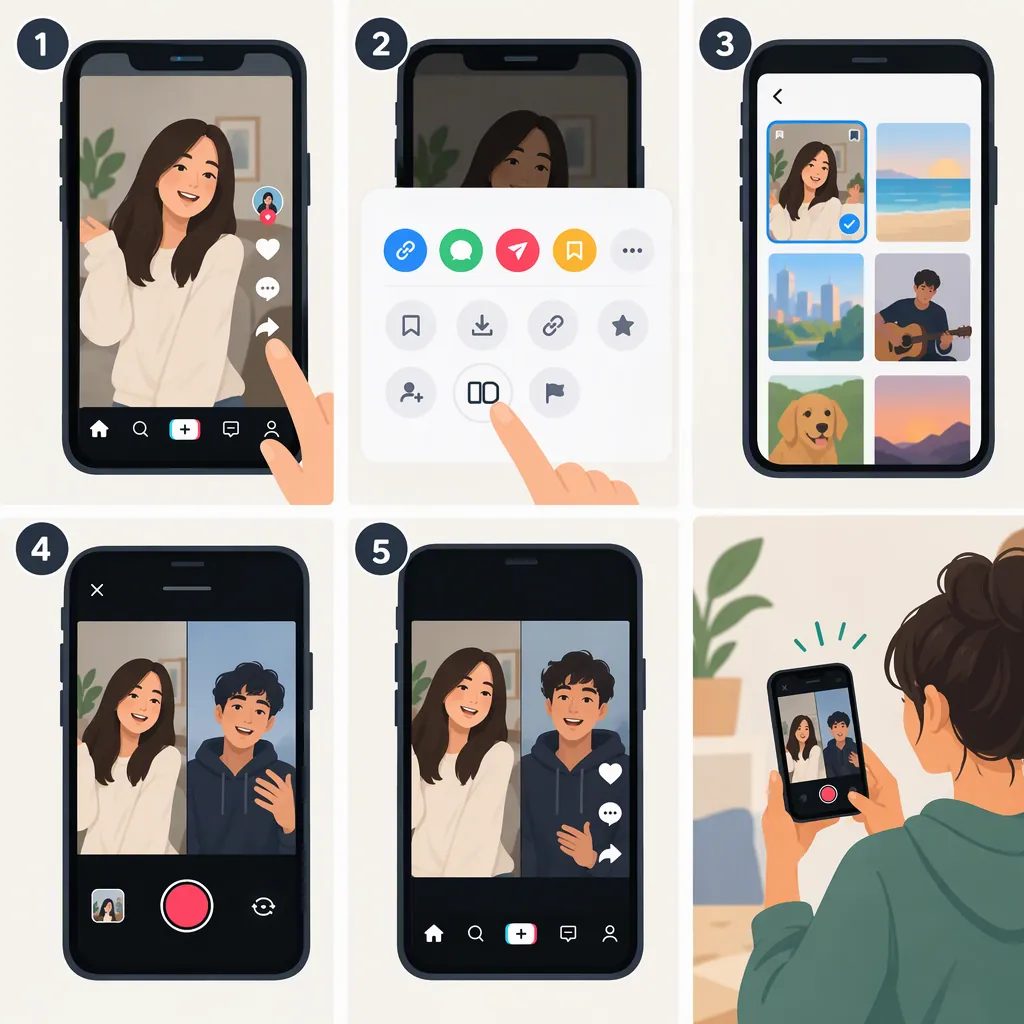
How to Duet on TikTok with a Saved Video
If you can open the original TikTok post, use Share → Duet, choose a layout, and record your response. The documented native workflow records new footage; it does not establish how to import a saved response from your camera roll. For two saved clips, Clideo documents a separate side-by-side editing workflow. That creates a Duet-style video, not a documented native TikTok Duet. [citation-1] [citation-2]
Choose the Route That Matches Your Saved Video
“Saved video” can mean the original video you want to respond to, or a response you have already recorded. The distinction matters because the documented TikTok workflow starts from an existing post and records a new response, while the Clideo workflow starts with two saved video files. [citation-1] [citation-2]
- You can open the original TikTok post and want to record now: follow the native Duet steps below. The creator must allow you to Duet that post. [citation-1]
- Your response is already saved on your phone: the supplied guide does not document importing it into TikTok’s native Duet recorder. The supported alternative here is to combine saved clips in a separate editor. [citation-1] [citation-2]
- You have only a downloaded copy of the original: the documented native route still starts from the TikTok post. A saved file can instead be an input to the separate editing workflow, provided you have permission to use it. [citation-1] [citation-2]
Do not treat a manually assembled split-screen video as interchangeable with TikTok’s native Duet feature. The two sources describe different creation routes. [citation-1] [citation-2]
Use TikTok Duet from the Original Post
If you want to record a fresh response, SocialCoach’s guide describes this sequence: [citation-1]
- Open the TikTok video you want to respond to.
- Tap Share, then select Duet if it is available.
- Choose a layout. The guide lists green screen, horizontal split, vertical split, and picture-in-picture.
- Tap Record to capture your response.
- Finish recording with the red check mark.
- Edit the result using TikTok’s tools, add a caption, review the posting settings, and tap Post when ready.
This is the documented recording route—not a verified camera-roll import method. The guide was published in May 2024, so its labels and layout options may not match every current app screen. [citation-1]
If Duet is missing: the guide identifies the original creator’s Duet permissions as a reason the option may be unavailable. Those permissions can disable Duets or limit who can create them. Having a downloaded copy is not evidence that the native Duet option is available. [citation-1]
Combine Two Saved Clips in a Separate Editor
If the response is already recorded, Clideo’s guide provides a file-based alternative. This workflow produces a side-by-side composition outside TikTok; it does not document importing either clip into TikTok’s native Duet recorder. [citation-2]
- Prepare both files. Have the original clip and your response available, and confirm that you have permission to reuse the material.
- Open Clideo’s Video Editor. Select Get started, then Upload, and choose both videos. The guide says uploaded files appear in My media.
- Set the canvas. In Settings, choose 9:16 for the TikTok-oriented composition described in the guide.
- Place both clips side by side. Drag them onto the canvas, resize them equally, and position them next to each other.
- Review the composition. Check that the moments you want to compare play together and that neither clip obscures important content. Add text if needed; the guide documents a Text section.
- Export the result. Choose Export, select an output quality, and select Continue. The guide notes that some quality options require Clideo Pro. [citation-2]
The result is a prepared video file. The supplied sources do not establish a subsequent process that turns that exported file into a native TikTok Duet. Clideo’s guide dates to October 2022, so treat its button names and export details as a documented workflow rather than a guarantee of the current interface. [citation-2]
FAQ
Can I Use a Prerecorded Response in TikTok Duet?
The supplied TikTok guide documents recording a new response, not importing a prerecorded one. It therefore does not verify a native camera-roll method. For saved footage, the documented alternative is to combine two clips in Clideo as a separate Duet-style composition. [citation-1] [citation-2]
Why Is There No Duet Option on the Original Video?
The original creator may have disabled Duets or restricted who can make them. SocialCoach identifies these permission settings as reasons Duet may be missing from the Share menu. [citation-1]
Is Stitch the Same as a Side-By-Side Duet?
No. SocialCoach describes Duet as simultaneous playback alongside your response, while Stitch places a clip from the original video before your response. Stitch is not the same layout as a side-by-side saved-video composition. [citation-1]
Sources
-
[citation-1] TikTok Guides: How to Duet on TikTok [with Examples]
-
[citation-2] How to Make TikTok Duet Video — Clideo