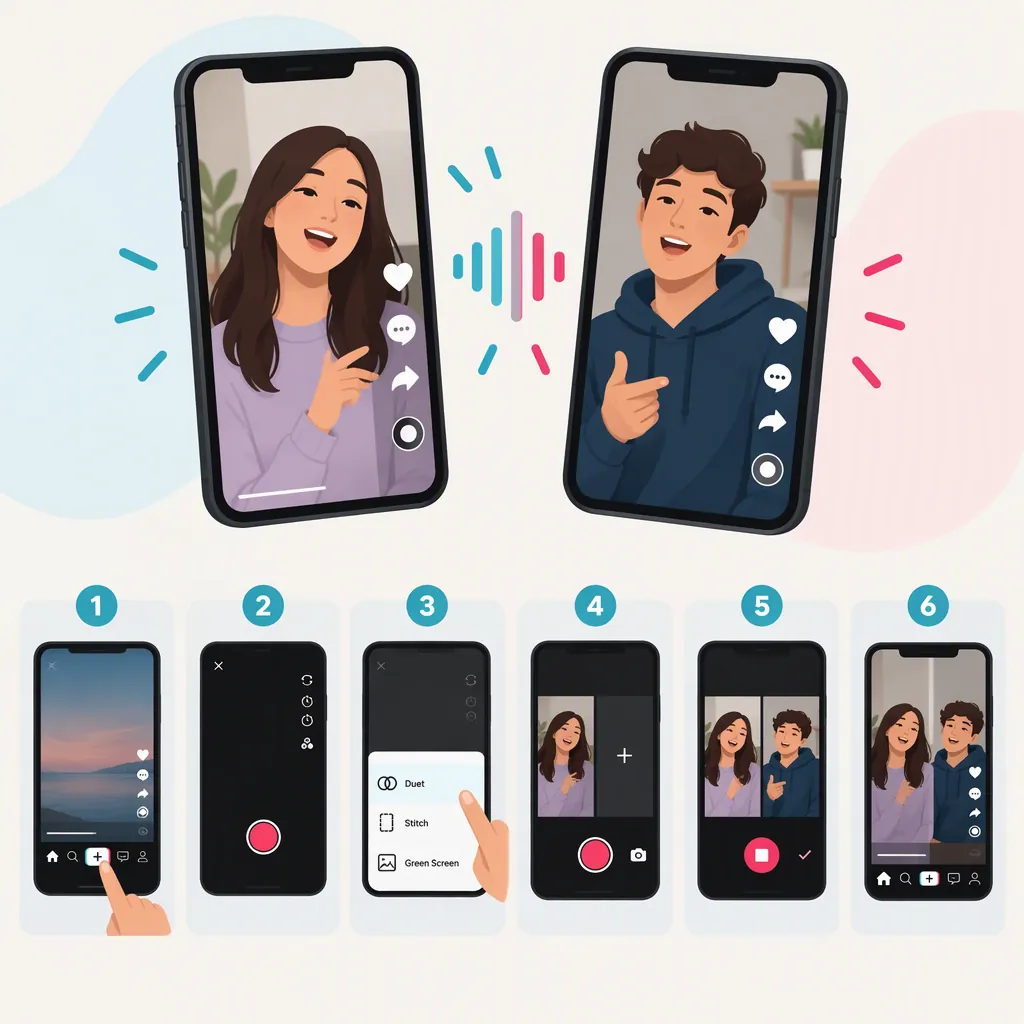
How to Do a Duet on TikTok with Sound
Open the TikTok video you want to use, tap Share, and select Duet. Choose a layout, record your part, and tap the checkmark to review it. During editing, adjust the audio volume levels for both videos before continuing to Next. The provided guide supports these steps but does not explain microphone controls for recording your own voice alongside the original sound. [citation-1]
Start and Record Your TikTok Duet
A TikTok Duet places your new footage alongside an existing video, with both playing at the same time. To create one: [citation-1]
- Open the video you want to Duet.
- Tap Share, then choose Duet.
- Use the layout tools to choose how the two videos appear together.
- Press and hold the red record button to film your part.
- Tap the checkmark when you finish to move into review and editing. [citation-1]
If Duet is grayed out, the source guide says the creator has disabled it for that video. Choose another video that permits Duets rather than treating this as an audio problem. [citation-1]
Adjust the Sound Before Posting
After recording, use the editing stage to adjust the audio volume levels for both videos. This is the sound-adjustment step documented in the provided guide; it does not specify exact slider names or microphone-button placement. [citation-1]
As a practical review checklist:
- Listen to the preview rather than judging the result from the picture alone.
- Check whether the original video's music or speech is audible at the level you want.
- If your recording contains voice or other audio, check whether you can hear it clearly alongside the original.
- Adjust the available audio levels and listen again before proceeding.
If you want to sing or speak over the original sound: the provided reference does not document how to enable microphone recording during a Duet. Volume adjustment alone should not be treated as a verified microphone-enabling step. An exact tap-by-tap microphone procedure cannot be confirmed from this source.
Review Settings and Finish Your Duet
Once you are satisfied with the preview, tap Next to reach the posting screen. Add a caption and review your privacy settings. The guide also describes choosing whether others can Duet your new video, then tapping Post to publish it. [citation-1]
Make the sound check part of your final review: confirm that the audio you intended to include is actually audible before posting. If your voice is missing, the supplied reference does not establish the cause or a microphone-specific fix.
FAQ
How Do I Adjust the Original Sound in a TikTok Duet?
After recording and tapping the checkmark, adjust the audio volume levels during editing. The provided guide says levels can be adjusted for both videos, but it does not name the exact audio controls. Listen to the preview to check the result. [citation-1]
How Do I Add My Own Voice While Keeping the Original Sound?
The provided guide documents Duet recording and audio-level adjustment, but not the microphone controls needed to capture your voice alongside the original sound. It therefore does not support an exact microphone-enabling sequence. Check that your voice is audible in the preview; do not assume adjusting volume enables recording. [citation-1]
Why Can't I Duet a Particular TikTok Video?
The creator may have disabled Duets for that post or their account. The provided guide also says videos from private accounts cannot be Dueted. These restrictions are separate from audio settings. [citation-1]
Sources
- [citation-1] How to duet on TikTok: step-by-step guide | Adobe