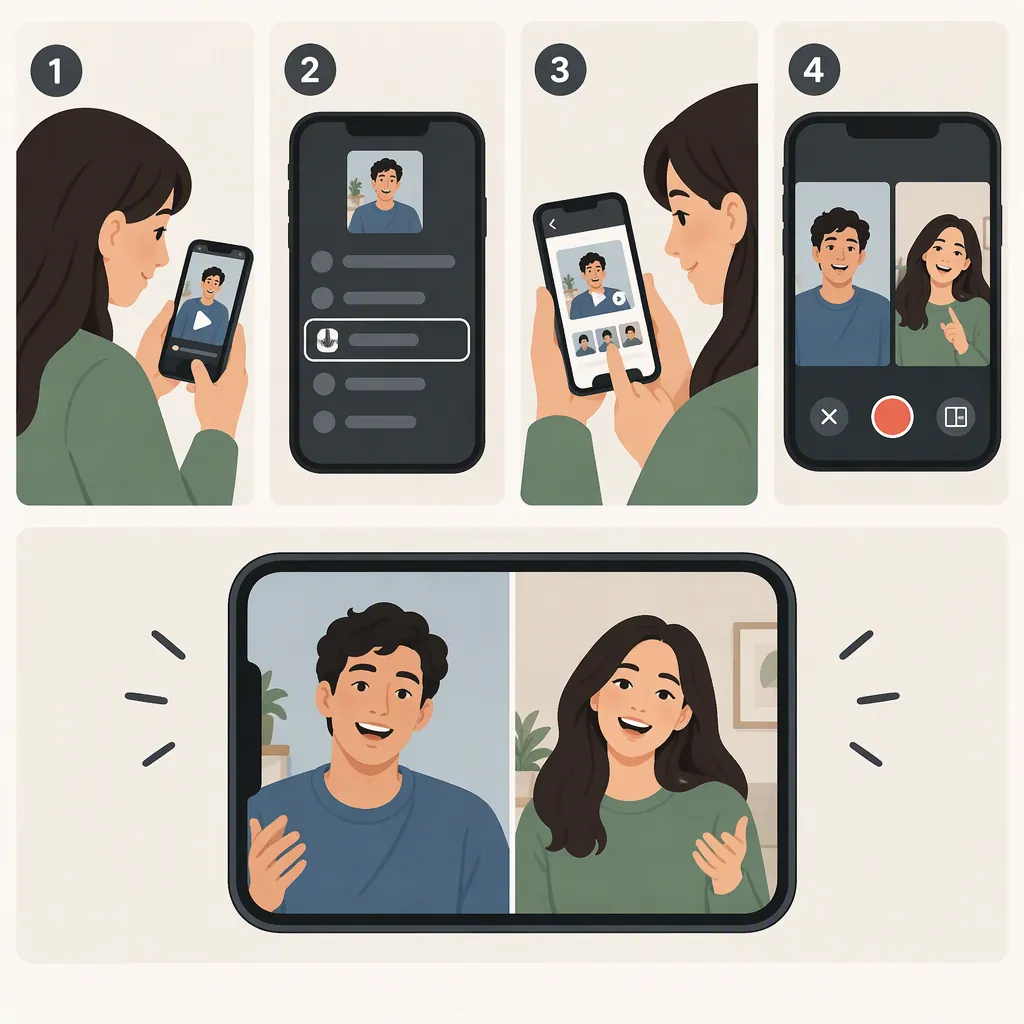
How to Make a Duet with a Saved Video on TikTok
For a video saved on your phone, use an editor to combine the source and your response into one split-screen video. If you can still open the original TikTok post, you may instead use Share → Duet and record your response there. Metricool’s February 2, 2024 guide says saved files cannot be used directly in TikTok’s built-in Duet workflow and recommends an external editor. That guidance does not confirm the current app interface or import capabilities. [citation-1]
The two approaches produce different results: a native Duet starts from a TikTok post, while an externally edited file is a duet-style split-screen video.
Choose the Right Route for Your Saved Video
- The video is downloaded to your phone: Follow the split-screen editing workflow below.
- You saved the post and can still open it in TikTok: Check the original post’s Share menu for Duet.
- Your response is already recorded: Use the external editing workflow to combine both clips. The referenced guide describes recording inside native Duet, not importing a prerecorded response. [citation-1]
Use footage you own or have permission to reuse. A downloaded copy should not be treated as permission to reuse someone else’s work.
Make a Duet-Style Video from a Saved File
Metricool names InShot as an example of an external editor, but does not provide instructions for its controls. [citation-1] The following is a general editing workflow, not a verified InShot tutorial. Button names and available features will depend on your editor.
1. Prepare Your Clips and Editor
Have these ready:
- The saved source video.
- A recorded response, reaction, or performance.
- An editor that supports two videos visible at once through video layers, overlay, picture-in-picture, or a split-screen layout.
- Controls for resizing, positioning, cropping, trimming, and adjusting each clip’s audio.
- An option to export the composition as one video file.
Check for simultaneous video playback before starting. Placing two clips one after another on a timeline will not create a split-screen composition.
2. Import Both Videos into One Project
Create a new project and add the saved source video. Then add your response as a second video layer or through a split-screen tool, depending on the editor.
Place the clips over the same time range so they play together rather than sequentially. Preview the project to check that both are visible at once.
If you have not recorded your response yet, watch the source first and note the moment you want to react to. Record your response with a little extra footage at the start and end so you have room to trim.
3. Build the Side-By-Side Layout
Choose a canvas shape suitable for your intended post; for a portrait composition, make the canvas taller than it is wide.
Then:
- Put the source video on one side and your response on the other.
- Resize each clip to occupy its intended portion of the canvas.
- Reposition or crop each clip so faces, hands, or other important action remain visible.
- Check the dividing edge for unintended overlap or gaps.
If cropping removes important content, reduce the clip’s size and leave some background space instead. Do not stretch the footage just to fill its half of the screen.
4. Synchronize the Clips
Find a clear cue in the source, such as a spoken word, gesture, or musical beat. Move your response along the timeline until the matching action occurs at the intended moment.
Trim unnecessary lead-in footage, then preview a few seconds before and after the cue. For longer clips, also check the ending rather than assuming that matching the start is enough.
Decide how the composition should end. Trim both clips to a shared endpoint, or intentionally keep the longer clip playing if your editor supports the result you want.
5. Balance the Audio
Choose which sound viewers need:
- Source audio: Keep it audible and lower or mute unnecessary response audio.
- Your commentary: Make your speech clear and reduce source audio where it competes.
- Both: Adjust the clips separately so neither obscures the other.
Listen through the full edit. If your response recording picked up the source playing nearby, listen for doubled sound or an echo and adjust the audio accordingly.
6. Export and Check the Finished File
Use the editor’s export or save-video function to create one video file containing both sides.
Open that exported file outside the editor and check:
- Both videos remain visible.
- The timing is correct.
- Important content is not cropped out.
- Speech and other necessary audio are understandable.
- The ending does not contain unintended blank space or silence.
If you spot a problem, return to the project, correct it, and export again.
7. Upload the File as a Regular Video
In TikTok’s regular video-creation flow, choose the exported file from your device, review it, and complete the posting options available in your app version. This is general upload guidance, not a verified current button sequence.
Describe the result as a duet-style split-screen edit. The available reference does not establish that uploading an externally edited file creates native Duet attribution or a link to the original post.
Use Native Duet When You Can Open the Original Post
If the original TikTok post is accessible, the referenced guide documents this route:
- Open the original public video.
- Tap the Share arrow.
- Select Duet, if available.
- Record your response in the split-screen recording view.
- Review and edit the recording before publishing. [citation-1]
This workflow starts from the original post, not the downloaded file. The guide identifies public content as a requirement and says an unavailable Duet option prevents recording that post through the native Duet workflow. [citation-1]
If Duet Is Missing or the Edit Is Not Working
You Cannot Find Duet
First, check whether you are viewing the original TikTok post or a file in your phone’s gallery. The documented native workflow begins in the original post’s Share menu. If Duet is unavailable there, the guide says that post cannot be recorded in that format. [citation-1]
Do not assume why the option is missing or treat downloading as permission to bypass a creator’s choice. The reference does not establish all current eligibility rules or troubleshooting causes.
Your Clips Play One After the Other
Return to the editing project and check their timeline positions. For a split-screen result, both clips need to occupy overlapping time and be arranged as simultaneous video layers or within a split-screen layout.
One Clip Hides the Other
Check each clip’s size and position. Move them into separate portions of the canvas, or use the editor’s split-screen layout if one is available.
The Timing or Sound Feels Wrong
Recheck the synchronization cue, then preview the full composition. Adjust the response’s start position for timing problems and each clip’s volume for competing or doubled audio.
FAQ
Can I Make a TikTok Duet with a Video from My Camera Roll?
Metricool’s February 2024 guide says a saved video cannot be used directly in TikTok’s built-in Duet workflow and recommends an external editor instead. It does not confirm whether that limitation remains unchanged today. [citation-1]
For a saved file, the general alternative is to combine it with your response in an editor and export a split-screen video.
What If I Can Still Open the Original TikTok Video?
Open the original post, tap Share, and look for Duet. The referenced guide describes recording your response there when the public video has Duet available. You do not need to start from the downloaded copy. [citation-1]
Can I Use a Prerecorded Response?
For the external editing workflow, use your prerecorded response as the second clip. The referenced native Duet instructions describe recording a response inside TikTok; they do not establish a way to import one. [citation-1]
Does an Exported Split-Screen Video Count as a Native TikTok Duet?
Treat it as a duet-style edit, not as a confirmed native Duet. The reference documents native Duet as starting from the original post’s Share → Duet route and gives no assurance that an externally edited upload receives the same attribution or linking. [citation-1]
Sources
- [citation-1] How to Duet on TikTok