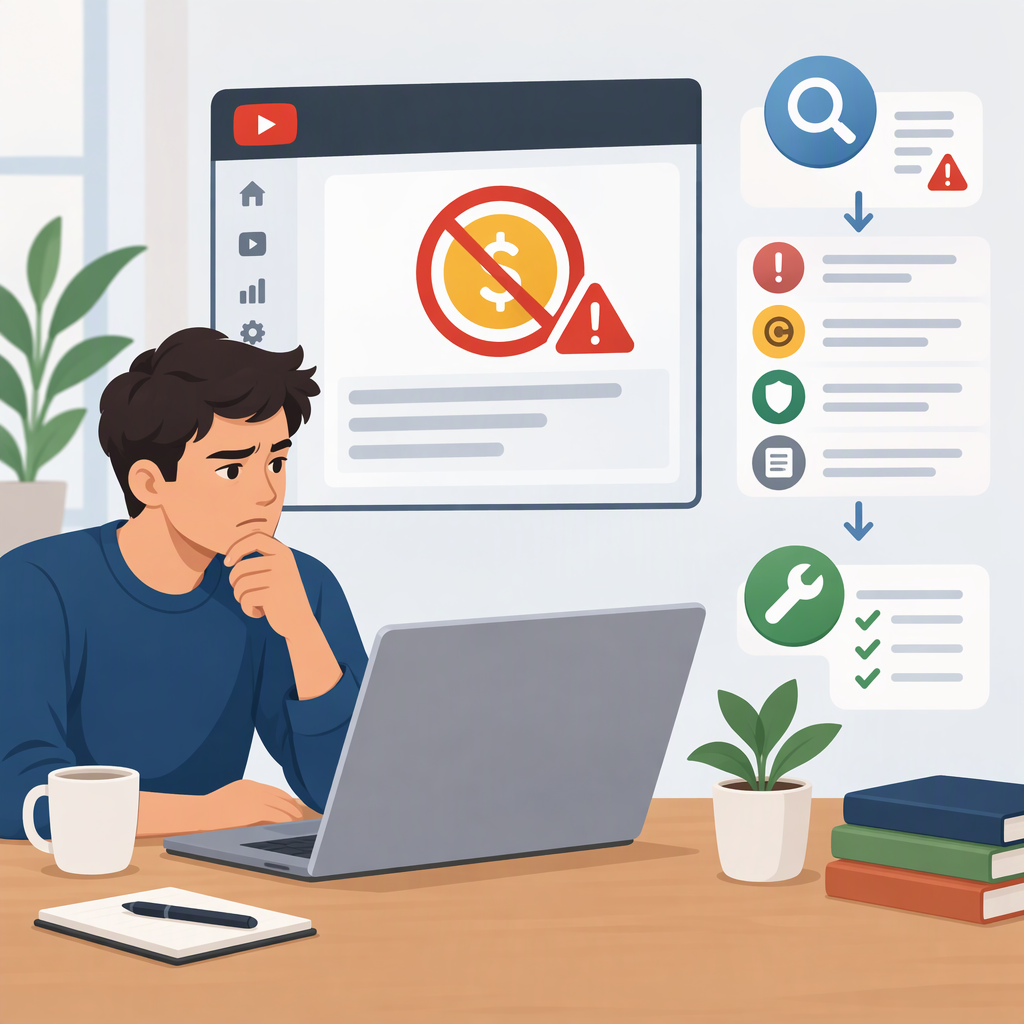
My YouTube Monetization Is Disabled: How to Find the Reason and Fix It
If your YouTube monetization is disabled, first check the status and exact reason in YouTube Studio → Earn. Don’t assume that one video’s ad restriction means your whole channel has been removed from the YouTube Partner Program (YPP). The right next step depends on what the notice says: a channel suspension, a video-level ad decision, paused monetization, or a payment hold each calls for a different response. (support.google.com)
1. Find the Notice and Identify What It Affects
- Sign in to the YouTube account that manages the channel.
- In YouTube Studio, open Earn and read the channel’s monetization status and any notice shown there. YouTube also identifies Status and features as a place to check channel monetization status. (support.google.com)
- If the issue seems limited to a particular upload, open Content and check the Monetisation column. Hover over the icon or open the notice to see its meaning. (support.google.com)
- Write down the exact notice, the affected channel or video, and any appeal button or deadline displayed. Treat the notice as the starting point; don’t infer a cause from the fact that earnings changed.
What the Different Statuses Usually Mean
| What you see | What it affects | Where to start |
|---|---|---|
| A notice in Earn that the channel is suspended or no longer eligible for YPP | Channel-level access to YouTube monetization features | Read the notice and the relevant YPP policy; check whether Studio offers an appeal or reapplication option. A YPP suspension can affect several earning features, not just ads. (support.google.com) |
| Limited ad earnings or No ad earnings for one video | That video’s ad suitability or ad earnings—not necessarily the channel’s YPP status | Check the video notice in Content and request a review only if the notice offers that option and you believe the decision is incorrect. (support.google.com) |
| Monetization is paused | YouTube says this can mean there is no active, approved AdSense for YouTube account linked to the channel | Follow the linking or account instructions in Studio. A pause is different from disabled monetization. (support.google.com) |
| A payment hold or alert in AdSense for YouTube | Payment processing; it does not, by itself, establish that channel monetization has been disabled | Open the alert on the Payments page and follow its instructions. Possible holds relate to tax information, identity or address verification, payment setup, or other listed account issues. (support.google.com) |
2. Follow the Route That Matches the Notice
If YouTube Suspended Your Channel from Ypp
Read the notice and any linked policy information before changing the channel. If you think YouTube made an incorrect decision, look in Studio for Start Appeal or another appeal instruction. YouTube says an appeal may be submitted as a video or through Creator Support in YouTube Studio, depending on the option available to you. (support.google.com)
Deadlines depend on the notice:
- If YouTube says your channel is scheduled for suspension and invites an appeal before it happens, the appeal deadline is 7 days before the scheduled suspension date.
- If your channel has already been suspended, YouTube says you can appeal within 21 days of suspension.
- YouTube says it responds to YPP appeals within 14 days. If an appeal succeeds, it says the channel will be approved or re-approved within 30 days. These are stated timeframes, not a guarantee of a favorable decision or restored monetization. (support.google.com)
Use the deadline shown beside the appeal option in Studio, and follow the instructions for your specific notice. YouTube says it reviews an appealed channel in its current state, so don’t delete videos before submitting a YPP suspension appeal. (support.google.com)
If the appeal is rejected, the available next step depends on the decision: YouTube says a suspended channel can reapply to YPP 90 days after suspension. For an application rejection, check the rejection notice and current eligibility instructions; YouTube’s general guidance says the reapplication wait can be 30 days after a first unsuccessful application and 90 days after a later rejection or reapplication. Don’t substitute one timeline for another—use the date and instructions shown for your case. (support.google.com)
If One Video Has Limited or No Ad Earnings
Check the video’s notice in Content. A video-level ad suitability decision is different from a channel-level YPP suspension. If you believe the video meets YouTube’s advertiser-friendly content guidelines, use the review or appeal option provided for that video, if available. YouTube describes human review for videos with “Limited ad earnings” or “No ad earnings”; a review is not a promise that the decision will change. (support.google.com)
If the video is still marked as Checking, it may not be a final restriction. YouTube says ad suitability checks usually take less than 20 minutes and at most one hour, and its guidance notes some additional reviews can take up to 24 hours. Check the current notice before acting on an apparent delay. (support.google.com)
If Monetization Is Paused or an Account/Payment Alert Appears
If Studio calls monetization paused, check whether an active, approved AdSense for YouTube account is linked to the channel and follow Studio’s account-linking instructions. YouTube distinguishes this situation from a channel monetization disablement. (support.google.com)
If the issue is a payment hold, open the alert in AdSense for YouTube’s Payments area and complete the requested step—such as submitting tax information, verifying identity or address, or setting up a payment method. If Google’s Payments team requests information by email, YouTube’s help guidance says to respond within 5 business days. A payment hold concerns receiving money; it is not the same notice as a channel-level YPP suspension. (support.google.com)
3. Prepare Before You Appeal or Reapply
- Copy the exact wording of the notice and note whether it names the channel, a video, YPP, AdSense, or payments.
- Save the relevant policy or reason linked in the notice so you can address that issue rather than guessing at a cause.
- Check the deadline shown in Studio. For YPP suspension appeals, YouTube says the appeal date appears in the channel’s monetization overview beside Start Appeal. (support.google.com)
- Use only the appeal or review route offered for that decision. Not every monetization issue has the same appeal process.
- If reapplying, address the reason in the rejection or suspension notice and review the current YPP requirements. Meeting an eligibility threshold alone does not guarantee acceptance; YouTube reviews channels for policy compliance. (support.google.com)
Bottom line: check Earn for a channel-level status, Content for a video restriction, and AdSense for YouTube’s Payments area for payment alerts. Then follow the instructions and deadline attached to that specific notice. An appeal, account correction, or reapplication may be the right next step—but none guarantees that monetization will be restored.