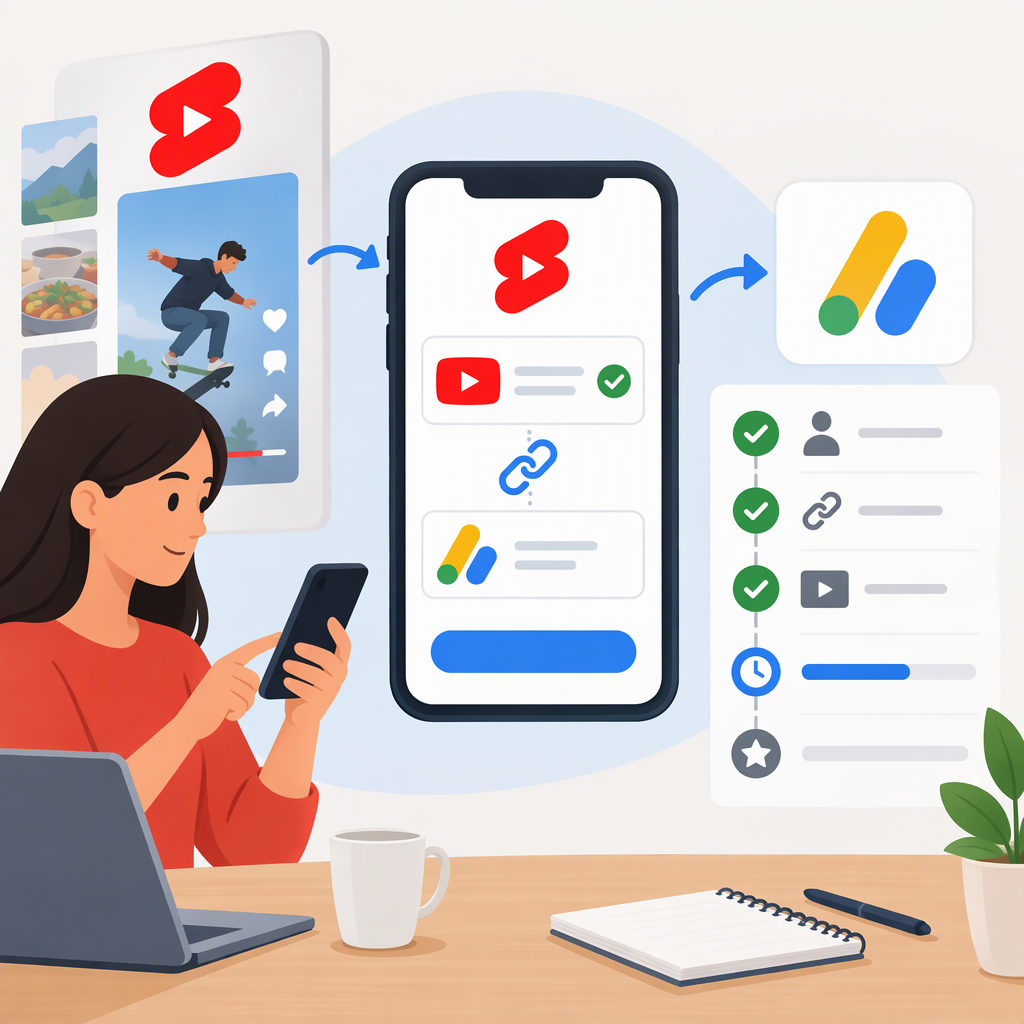
YouTube Shorts and Adsense: How to Link an Account and Qualify
Short answer: AdSense for YouTube is the account through which YouTube pays a creator’s YouTube earnings. Linking an approved account is a payment setup step—not approval to monetize Shorts. To earn from Shorts Feed ads, a channel must qualify for the relevant YouTube Partner Program (YPP) level and accept the Shorts Monetization Module. (support.google.com)
What the Adsense for YouTube Association Does
YouTube pays channel earnings through the AdSense for YouTube account associated with that channel. Association does not, by itself, put a channel in YPP, approve it for monetization, or enable Shorts ad revenue. YouTube reviews a channel against YPP requirements, and eligible partners separately accept monetization modules for the features they want to use. (support.google.com)
A useful way to separate the steps is:
- Associate an AdSense for YouTube account so YouTube has the account used for payments.
- Qualify for and join YPP for the relevant monetization level.
- Accept the Shorts Monetization Module to share revenue from ads shown between videos in the Shorts Feed.
Completing one step does not confirm that the others are complete. (support.google.com)
How to Associate an Account in YouTube Studio
Start in YouTube Studio, not on the AdSense homepage. YouTube says new AdSense for YouTube accounts must be created through Studio; creating one elsewhere will not complete the YouTube setup flow. (support.google.com)
If You Already Have an Adsense Account
- Sign in to the Google account that manages your YouTube channel and open YouTube Studio.
- In the left menu, select Earn and start the AdSense for YouTube setup card or step.
- When asked which Google account to use, choose the Google account associated with your existing AdSense account. YouTube specifically advises creators who already use AdSense for another purpose to use that account’s Google login.
- Check the email shown in the AdSense flow before continuing, then follow the prompts to associate the account and return to Studio. (support.google.com)
If You Need a New Account
- In YouTube Studio, select Earn.
- On the Sign-up for AdSense for YouTube card, select Start.
- Re-authenticate if prompted, choose the Google account for AdSense for YouTube, confirm the email shown, provide the requested contact information, and submit the application.
- Return to Studio and check the card for the application and account status. (support.google.com)
Avoid creating a duplicate account. YouTube says only one AdSense or AdSense for YouTube account is allowed under the same payee name; duplicate accounts will not be approved and can turn off monetization for the associated channel. One AdSense for YouTube account can be used for more than one YouTube channel. If you are already in YPP and are changing the linked account, YouTube says the linked account can only be changed once every 32 days. (support.google.com)
What Else Is Required to Earn from Shorts?
As of November 13, 2026, YouTube’s YPP eligibility overview lists the ad-revenue entry route as 1,000 subscribers plus either 10 million qualified public Shorts views in the last 90 days or 4,000 qualified public watch hours on long-form videos in the last 12 months. Shorts Feed watch time does not count toward the 4,000-hour route. YouTube also requires, among other things, compliance with monetization policies, residence in a YPP-available region, no active Community Guidelines strikes, 2-Step Verification, advanced features access, and an active linked AdSense for YouTube account or readiness to set one up. Reaching a threshold leads to a channel review; it is not automatic approval. (support.google.com)
The lower YPP entry level can be confusing: YouTube also describes a route at 500 subscribers, three public uploads in the last 90 days, and either 3,000 long-form watch hours or 3 million Shorts views. That level unlocks certain features such as fan funding and Shopping; the listed Shorts Feed Ads route is at the higher 1,000-subscriber threshold. Feature availability and eligibility can depend on region. (support.google.com)
After joining YPP, go to Studio → Earn and review the available modules. Accepting the Shorts Monetization Module enables revenue sharing from ads shown between Shorts in the feed; YouTube says Shorts ad revenue sharing begins accruing from the date the module is accepted. Individual Shorts still need to comply with applicable monetization policies: YouTube identifies non-original Shorts and artificial or fake views as ineligible for Shorts revenue sharing. (support.google.com)
Upcoming threshold change: YouTube says new YPP applicants’ ad-revenue entry thresholds are scheduled to change on February 1, 2027. If you are applying on or after that date, check the current requirements in Studio and YouTube’s eligibility guidance rather than relying on the thresholds above. (support.google.com)
How to Tell What Is Complete
For a new account application, YouTube says Studio first displays a message confirming receipt. It says approval may take up to several days; after approval, the Studio sign-up card should show that the AdSense for YouTube account is approved and active. That status concerns the account—not YPP approval or Shorts monetization. (support.google.com)
Then check Studio → Earn for your YPP application and available or accepted monetization modules. For an individual Short, open Studio → Content and check the Monetization column; YouTube says you can hover over an icon for its explanation. A gray monetization icon next to a Short can indicate that the Shorts module has not been accepted. (support.google.com)
| What you see | What it tells you | What to check next |
|---|---|---|
| Studio confirms receipt of an AdSense for YouTube application | The application was received; this is not yet confirmation of approval. | Check the Studio sign-up card and the email account used in the setup flow. |
| The card says approved and active | The AdSense for YouTube account is approved and active. | Check YPP eligibility or review status, then whether the Shorts module is accepted. |
| A Short has a gray monetization icon | YouTube’s icon guidance says this can mean the Shorts module has not been accepted. | Review Earn for the Shorts Monetization Module. |
| The account is active but Shorts are not earning | Account association alone does not establish Shorts monetization. | Check YPP status, module acceptance, and the Short’s monetization status. |
If Studio still shows an application as received or pending, use the status and prompts shown in Studio and the official AdSense for YouTube setup guidance. If the account is active but Shorts monetization is missing, check the separate YPP and module steps instead of creating another AdSense account. The cited guidance does not establish a universal resolution time for every pending association, so avoid assuming a cause or promised timeline. (support.google.com)
What to Check Next
- Need to link or create the payment account? Start from YouTube Studio → Earn; use your existing AdSense Google account or create a new AdSense for YouTube account through Studio.
- Account says approved and active, but no Shorts earnings? Check YPP approval and acceptance of the Shorts Monetization Module.
- Not yet at the ad-revenue threshold? Association can be completed as setup, but it does not substitute for eligibility and review.
This guidance reflects YouTube Help information available on November 13, 2026. YouTube interface labels and eligibility rules may change; the Earn area in Studio is the relevant place to check your channel’s current status.