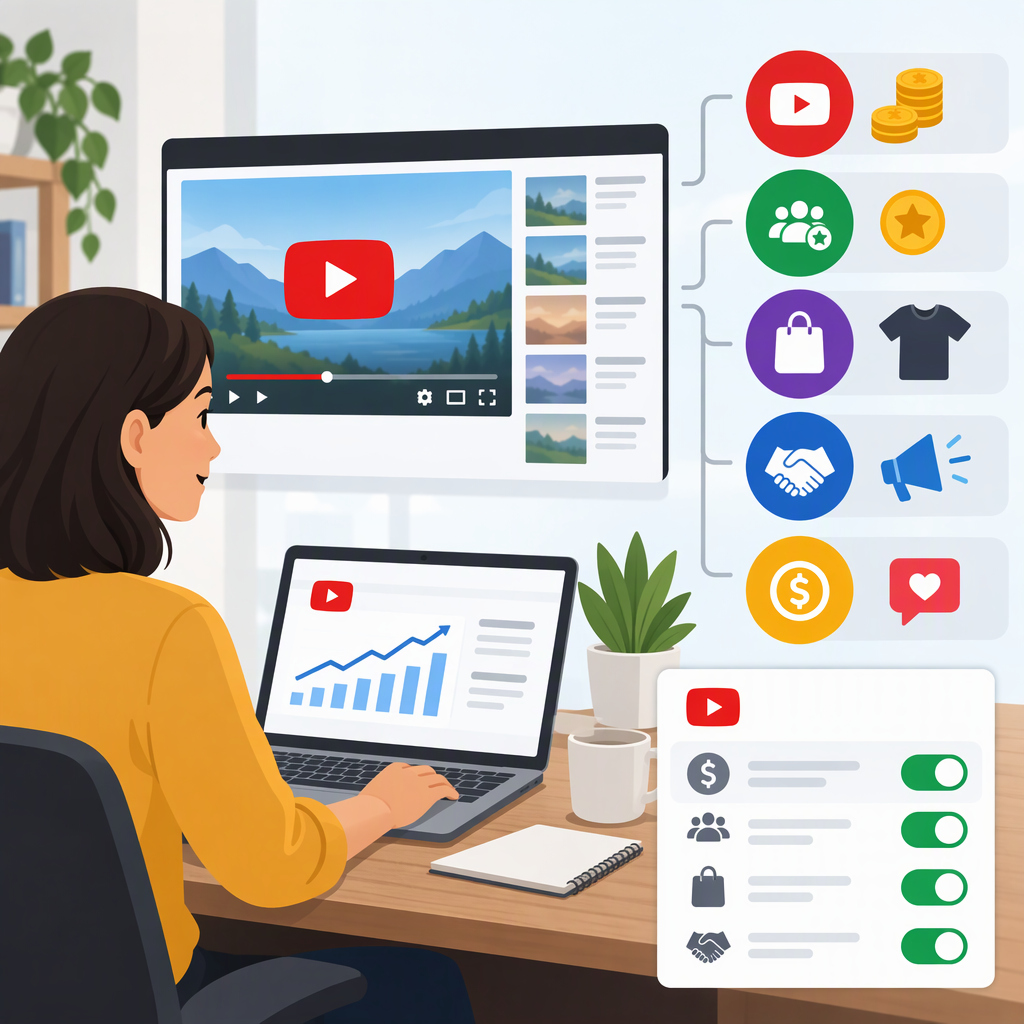
How to Make Money on YouTube: Monetization Options and How to Turn Them On
You can earn through YouTube’s own monetization features—such as ads, fan payments, Shopping, and YouTube Premium—or arrange income separately through sponsorships, affiliate links, or your own products. For YouTube-native earning, check YouTube Studio → Earn: it shows which features your channel can apply for and which steps remain. Meeting a subscriber or view threshold does not guarantee acceptance or earnings; YouTube reviews channels for policy compliance, and each feature has its own eligibility rules. (support.google.com)
Eligibility and thresholds below reflect YouTube’s published requirements as of November 15, 2026.
Main Ways to Make Money on YouTube
| Route | How it works | What to consider |
|---|---|---|
| Watch Page ads and YouTube Premium | Eligible YPP creators can share revenue from ads shown on long-form videos and live streams, and from YouTube Premium members watching their content. | This route requires the higher YPP eligibility tier and acceptance of the relevant Watch Page module. Ads are not guaranteed to appear on every view, and YouTube does not guarantee a particular amount of revenue. (support.google.com) |
| Shorts Feed ads | Eligible YPP creators can share revenue from ads shown between Shorts in the Shorts Feed. | This also requires the higher YPP tier and acceptance of the relevant Shorts monetization terms. Eligibility views are qualified Shorts views, not simply any view count. (support.google.com) |
| Channel memberships | Viewers make recurring payments for channel-specific perks. | A better fit to consider if you can offer ongoing benefits; fan-funding features have their own requirements, including age and regional availability. (support.google.com) |
| Super Chat, Super Stickers, and Super Thanks | Viewers can pay to highlight messages during eligible live chats or comments on videos and Shorts. | These are fan-funding features, not guaranteed donations or a fixed income stream. Individual feature availability and eligibility can vary. (support.google.com) |
| YouTube Shopping | Eligible creators can feature products from their own store or, where available, tag other brands’ products. The affiliate program can pay a commission when viewers purchase tagged products from a retailer. | Store connections and affiliate tagging are different arrangements; eligibility and participating retailers depend on the program and region. (support.google.com) |
| Sponsorships, affiliate links, or your own products outside YouTube’s monetization program | You arrange payment, commissions, or sales with a brand, retailer, or customer rather than earning through a YouTube monetization feature. | These can be pursued independently of YPP, but they are not the same as YouTube program earnings. Follow YouTube’s applicable disclosure rules and any laws that apply to your arrangement. |
How to choose: If your channel has a strong Shorts audience, check the Shorts-view route; if viewers spend more time with your long videos or streams, check qualified watch hours. At the earlier YPP tier, eligible creators may gain access to certain fan-funding and Shopping features, but that tier does not itself unlock Watch Page or Shorts Feed ad revenue. Sponsorships and other external arrangements are separate from YouTube’s program. None of these routes guarantees income. (support.google.com)
Check Eligibility and Apply
1. Review the Requirements That Apply to Your Channel
YouTube’s general YPP requirements include following channel monetization policies, living in a country or region where YPP is available, having no active Community Guidelines strikes, turning on Google Account 2-Step Verification, having access to YouTube advanced features, and linking one active AdSense for YouTube account—or being ready to set one up in Studio. (support.google.com)
As of November 15, 2026, YouTube lists two main routes to the higher tier associated with ad and Premium revenue:
- Long-form route: 1,000 subscribers and 4,000 qualified public watch hours in the past 12 months.
- Shorts route: 1,000 subscribers and 10 million qualified public Shorts views in the past 90 days.
Watch time from views in the Shorts Feed does not count toward the 4,000-hour threshold. Views and watch time from paid ad campaigns generally do not count toward YPP thresholds; YouTube says qualifying organic follow-on views after promoted content can count. (support.google.com)
In countries and regions where the expanded YPP is available, an earlier tier can provide access to certain fan-funding and Shopping features. The listed thresholds are 500 subscribers, three valid public uploads in the past 90 days, and either 3,000 qualified public watch hours in the past 12 months or 3 million qualified public Shorts views in the past 90 days. This earlier tier is not the same as qualifying for ad revenue sharing. Check YouTube’s regional availability list and your Earn tab; availability should not be assumed from your audience’s location. (support.google.com)
2. Apply in YouTube Studio
- Sign in to YouTube Studio and open Earn.
- If you are not eligible yet, use Get notified if it is offered, then return to Earn to monitor your status.
- When the option appears, start the YPP application, review and accept the applicable terms, and link an AdSense for YouTube account. If you need a new account, create it from YouTube Studio, not from the AdSense homepage. YouTube says duplicate accounts under the same payee name will not be approved. (support.google.com)
- Submit the application for review. Reaching a threshold is not automatic approval: YouTube reviews the channel against its monetization policies and continues checking channels after they join. You can check application status in Earn. (support.google.com)
If you are rejected, read the notice in Studio and review the policies YouTube identifies before deciding whether to appeal or reapply. YouTube says an appeal is available within 21 days; after a first rejection, reapplication is generally available after 30 days, and after a later rejection after 90 days. Check the rejection notice for the route and timing that apply to your case. (support.google.com)
Turn on Monetization After Acceptance
Joining YPP does not necessarily turn on every earning feature. In YouTube Studio, open Earn and review the options available to your channel. YouTube says partners can choose eligible modules and accept their terms to unlock opportunities; for example, Watch Page ads require accepting the Watch Page Monetization Module. The YouTube Studio app also has an Earn section for these steps. (support.google.com)
For eligible long-form uploads, check the video’s monetization setting in Studio. You can manage monetization for an individual video or select multiple videos under Content and use the Edit → Monetization controls. Turning ads on does not mean an ad will appear on every view: ad availability and content suitability affect whether ads serve. For monetized videos that are at least eight minutes long, mid-roll ad breaks may also be available. (support.google.com)
For fan funding or Shopping, check the relevant feature in Earn, confirm that your channel meets its separate requirements, and accept its terms where prompted. For example, YouTube’s fan-funding rules include being at least 18 and living in a region where the specific feature is available. (support.google.com)
Set up Payments and Understand When Money Arrives
YouTube earnings are paid through the AdSense for YouTube account linked to your channel. Complete the setup in Studio, then follow any prompts in AdSense for YouTube to verify your details, submit tax information, choose a payment method when eligible, and clear payment holds. Which payment methods are offered depends on your payment address. (support.google.com)
Payments are not necessarily sent as soon as estimated earnings appear. Earnings are finalized after the month ends; your balance must reach the payment threshold for your currency and account, and required payment details must be complete. YouTube’s published payment guidance describes a monthly cycle, with payments generally issued between the 21st and 26th when the requirements are met. Payment thresholds vary by currency, and separate AdSense and YouTube payment accounts have separate balances and thresholds. (support.google.com)
Quick Checklist
- Decide whether you are pursuing ads, fan support, Shopping, or an external income arrangement.
- Check the Earn tab for your channel’s current eligibility and available features.
- Confirm regional availability, policy standing, 2-Step Verification, advanced-feature access, and AdSense for YouTube setup.
- Apply when Studio offers the option; wait for channel review.
- After acceptance, choose relevant modules, enable eligible video settings, and complete payment and tax prompts.
- Treat eligibility as access to an opportunity—not a promise of approval, ads on every view, or a particular income.
Check Current Account Terms
Use YouTube Studio’s Earn tab and current official help pages for the requirements offered to your account and region. This article does not verify future threshold changes; eligibility and feature availability should be checked before applying.