How to Make TikTok Videos: A Beginner’s Step-By-Step Guide
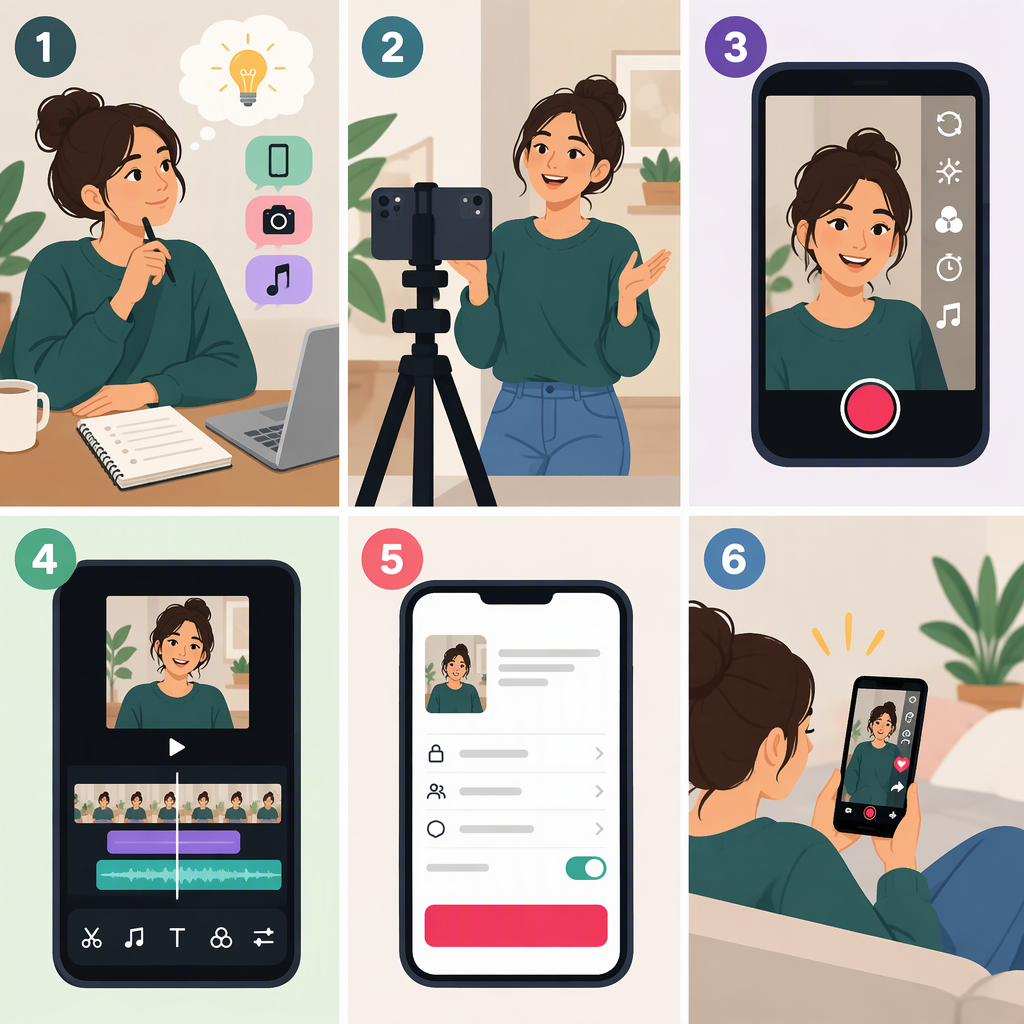
To make a TikTok video, choose one clear idea, plan a few shots, then tap Add post (+) in the app to record or upload footage. Edit the video, check its captions and sound, choose a description and audience, and tap Post. You can also save it as a draft to review later. TikTok’s button names and available settings can vary, so treat the steps below as a general in-app workflow and follow the labels shown on your screen. (support.tiktok.com)
1. Plan One Simple Idea
Before opening the camera, write down the single thing you want a viewer to understand, see, or learn. Then sketch a small sequence:
- Opening: Show the subject or state the question.
- Middle: Demonstrate, explain, or show the key steps.
- Ending: Give the result, takeaway, or next step.
For example, a video about repotting a houseplant could show the plant’s roots, the move into a new pot, and the finished plant. This is an illustrative shot plan—not a tested formula or a promise of results.
Keep the plan short enough to film comfortably. A simple outline helps you avoid recording extra footage you do not need; improvising can feel more natural, but may take more editing afterward.
2. Record a Video or Upload Clips
In TikTok, tap Add post (+) at the bottom. To film in the app, choose a video length, tap the record button to start and stop, then tap Continue to edit. To use footage already on your device, choose the upload option instead. TikTok’s Help Center says in-app recordings can be up to 10 minutes, while uploaded videos can be up to 60 minutes; a sound selected before recording or uploading may affect the available video length. These limits are platform specifications, not recommended targets for a beginner video. (support.tiktok.com)
For a first recording, focus on clarity rather than special effects:
- Put the main subject where it is easy to see, and check the background for distractions.
- Hold the phone steady or set it on a stable surface.
- Record a few seconds of speech and listen back to check that your voice is understandable.
- If you are demonstrating steps, capture each action in a separate clip so you can trim or rearrange the sequence.
These are general filming suggestions, not TikTok requirements. TikTok’s camera tools include options such as a timer, camera flip, speed, flash, and zoom; use them only when they help the video communicate more clearly. (support.tiktok.com)
3. Edit for Understanding
After recording or uploading, review the footage from beginning to end. Remove pauses or repeated takes that do not help explain the idea. Add on-screen text if viewers need a name, step, or key point to follow along. TikTok’s editing tools include text, stickers, effects, and video-cover selection; the Help Center describes choosing a cover from a frame in the video before posting. (support.tiktok.com)
If the video includes spoken words, check its captions. TikTok says uploaded videos can have auto-generated captions, and creators can also use caption tools while making a video. Caption availability may depend on eligibility or feature access. Review the text for mistakes—especially names and important instructions—before publishing. Captions can make spoken content more accessible to viewers who are deaf or hard of hearing. (support.tiktok.com)
Quick edit check: Can someone understand the main point without needing you to explain what happens between clips? If not, add a missing step, trim a confusing moment, or clarify it with a short caption.
4. Choose Sound Thoughtfully
You can add a sound from TikTok while recording or on the editing screen. If you do, listen to the final mix: speech and important demonstration sounds should still be easy to hear. (support.tiktok.com)
Do not assume that music you found elsewhere is automatically cleared for use in a TikTok post. TikTok says content that infringes someone else’s intellectual-property rights is not allowed and notes that applicable laws can vary by jurisdiction. If a post promotes a brand, product, or service, TikTok recommends using music from its Commercial Music Library; its licenses for music outside that library do not cover commercial use in content. (support.tiktok.com)
5. Review the Post and Publish
When the edit is ready, continue to the post screen. Add a description that tells viewers what the video shows, then check the post settings before tapping Post. TikTok’s available visibility choices depend on account type: public accounts can choose Everyone, Friends, or Only you; private accounts can choose Followers, Friends, or Only you. Age and location can also affect privacy defaults or which choices are available. (support.tiktok.com)
Decide whether to allow comments. TikTok says this can be set for an individual video on the post screen; the account’s comment options also depend on whether it is public or private. (support.tiktok.com)
Pre-Publish Checklist
- The video makes sense: The opening, main point, and ending are clear.
- The edit is clean: No accidental pauses, unwanted clips, or distracting text.
- Captions are checked: If captions are available, review them for errors.
- The sound is appropriate: Speech is understandable, and you have the necessary rights for any music or other material you use.
- The audience is right: Confirm who can view the post and whether comments are on.
- The description is accurate: It explains the video without promising results it cannot guarantee.
If you are not ready to publish, TikTok lets you save a draft from the post page. Drafts are not visible to others until posted, but TikTok warns they may be removed if the app is uninstalled and reinstalled or the account is moved to another device. (support.tiktok.com)
In Short
Plan one clear idea, record or upload the footage, edit out anything that gets in the way, check captions and sound, then review the description, audience, and comments setting before posting. Use the options available in your app, since some labels and settings may differ by account, age, location, or feature availability.