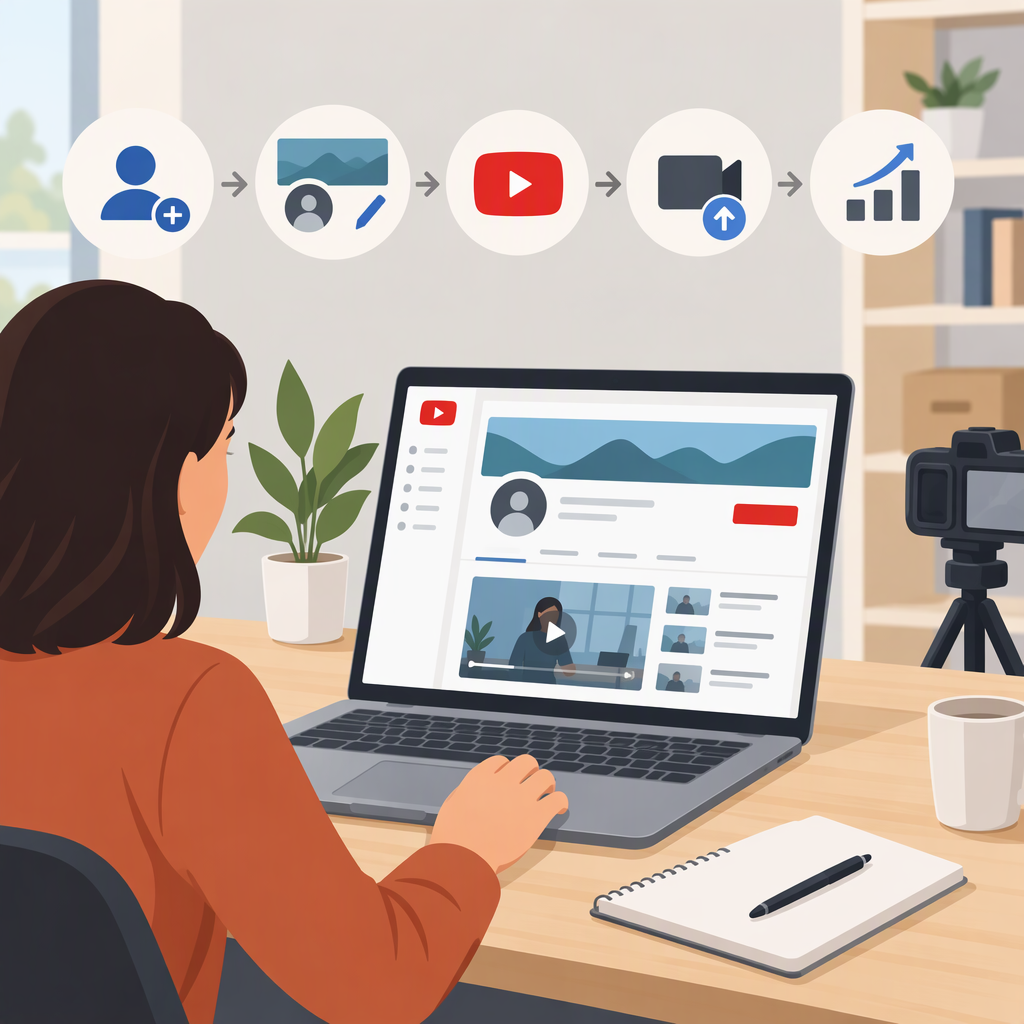
How to Create a YouTube Channel for Your Business
You can create a business YouTube channel by signing in to YouTube, opening your channel list, choosing Create a new channel, and entering a profile picture, channel name, and handle. That route creates a channel with a business or other name, connected to a Brand Account. Before you start, decide who should control the channel: a personal Google Account is simpler for one person, while the business-name setup can support a different channel identity and multiple managers or owners. (support.google.com)
Choose Who Controls and Manages the Channel
YouTube’s two relevant setups differ mainly in identity and access:
| Setup | What it means | Consider it when |
|---|---|---|
| Channel connected to your personal Google Account | The channel uses your Google Account’s name and photo, and only you can access it through that account. | One person will manage the channel and you want it tied to that individual account identity. |
| Channel with a business or other name (Brand Account) | The channel can use a name and photo different from the Google Account. Multiple Google Accounts can manage and own a Brand Account. | You want a business-facing channel identity or more than one person may need access. |
These are YouTube’s documented distinctions—not a guarantee that either setup is right for every organization. YouTube notes that a Brand Account owner can take powerful actions, including deleting the channel or removing other owners, so grant ownership only to people the business trusts. (support.google.com)
Practical choice: If the channel represents a company rather than an individual, the business-name route is often the more fitting starting point because it separates the channel’s displayed name and photo from an employee’s Google Account. If more than one person needs to work in the channel, use YouTube Studio channel permissions to invite them at an appropriate access level rather than sharing a sign-in. YouTube says those permissions offer five access levels without giving invitees access to your Google Account. (support.google.com)
Before creating the channel, agree internally on:
- Which person or organization account will retain primary control.
- Who needs access, and what each person actually needs to do.
- Who will maintain the controlling Google Account’s recovery information. Google says recovery information can help you regain access if you forget a password or are locked out. (support.google.com)
Create the Business Channel
YouTube’s public instructions give this creation route for a channel with a business or other name. The steps are for a computer or YouTube’s mobile website; YouTube warns that some older app versions may not allow channel creation. (support.google.com)
- Sign in to YouTube with the Google Account that should create or manage the channel.
- Open your channel list. YouTube’s creation instructions direct you to this list for the business-name route.
- Choose the next step: click Create a new channel to make a new business-name channel, or select an existing Brand Account you already manage if you intend to use that channel. If the selected Brand Account already has a channel, YouTube says you’ll switch to it rather than create another one.
- Enter the channel identity. Choose a profile picture, type the channel name, and choose a handle.
- Click Create channel. YouTube’s instructions say that creating a channel through the business-name route also creates a new Brand Account. (support.google.com)
Check that it worked: return to your channel list or account switcher, select the new channel, and confirm its name and profile picture. Open YouTube Studio while using that channel to confirm you can access its management interface. If channel creation is blocked in an older mobile app, YouTube suggests updating the app or creating the channel in a computer browser. A supervised YouTube experience may also prevent channel creation. (support.google.com)
Give Collaborators the Right Access
If colleagues need to manage the channel, use YouTube Studio’s Settings → Permissions to invite them and select a role. The exact role should match their tasks: for example, someone who only needs to edit subtitles does not need broad channel control. YouTube lists roles including Owner, Manager, Editor, Editor (limited), and Subtitle Editor; permissions vary by role. Owners can perform all actions, including deleting the channel, while some other roles have more limited abilities. (support.google.com)
Avoid sharing the controlling Google Account’s password. YouTube describes channel permissions as a safer way to grant access and lets you specify what invitees can do. After inviting someone, check the permissions list and confirm they have accepted the invitation before relying on their access. (support.google.com)
Complete and Check the Business-Facing Profile
Creating the channel is the required step; branding and profile details are useful launch preparation. In YouTube Studio, open Customization → Profile to review the channel name, handle, description, and links. YouTube says the description appears in the channel header. Profile links can be displayed on the channel page; YouTube currently allows up to 14 such links. (support.google.com)
Use a concise description that tells a visitor what the business or channel is, and add only links that are accurate and intended for viewers. Add a profile image and, if useful, a banner that match the organization’s identity. YouTube recommends a banner of at least 2560 × 1440 pixels for display across devices; treat that as a recommendation, not a condition for creating the channel. (support.google.com)
Before considering the setup ready, check:
- Identity: The channel name, handle, profile image, and banner represent the intended business or brand.
- Description and links: The description is accurate, and every displayed link leads where you expect.
- Access: The intended owner can sign in, collaborators have only the access they need, and no one is relying on a shared password.
- Viewer experience: Open the channel page as a viewer—such as in a private browser window—and review what is publicly visible. Confirm there are no unintended profile details or links.
A channel is ready to represent the business when the right people can manage it and its public-facing identity and details are accurate. Upload schedules, first-video planning, and audience growth are separate decisions; they are not prerequisites for creating the channel.