How to Build a YouTube Community: A Practical Guide
To build a YouTube community, give viewers a clear reason to gather, invite them to contribute, respond in a way that acknowledges their contributions, and create a manageable routine for doing it again. Start with the interaction options available on your channel—such as video comments, Posts, a Community space, or live chat—and make participation about the shared interest, not just promotion.
There is no single community model or schedule that fits every channel. Choose one that suits your subject, your viewers, and the time you can realistically give it. YouTube describes Communities as a dedicated space where creators and subscribers can connect beyond video comments or live chat; viewers can also start discussions about a creator’s videos. (support.google.com)
1. Define Who the Community Is For
Before choosing a feature or posting schedule, write one sentence that names the people you hope will take part and what they have in common. A useful starting template is:
This is a place for [who] who care about [shared interest or purpose] to [kind of participation].
For example, a home-cooking channel might aim to bring together people who want to learn practical weeknight cooking and share questions or variations. That is an illustrative example, not a proven formula. A channel about another subject might instead center on discussing new work, comparing approaches, or helping beginners learn.
Use your statement to make two decisions:
- What belongs here? Choose video topics, follow-up questions, and discussion prompts that connect to the shared interest.
- What kind of contribution are you inviting? Decide whether viewers should ask questions, share their own examples, suggest a topic, or talk with one another.
If you cannot easily connect a proposed prompt to the shared purpose, revise it or leave it out. A clear focus gives viewers context for joining in without requiring every conversation to be about the creator.
2. Start with a Repeatable Participation Routine
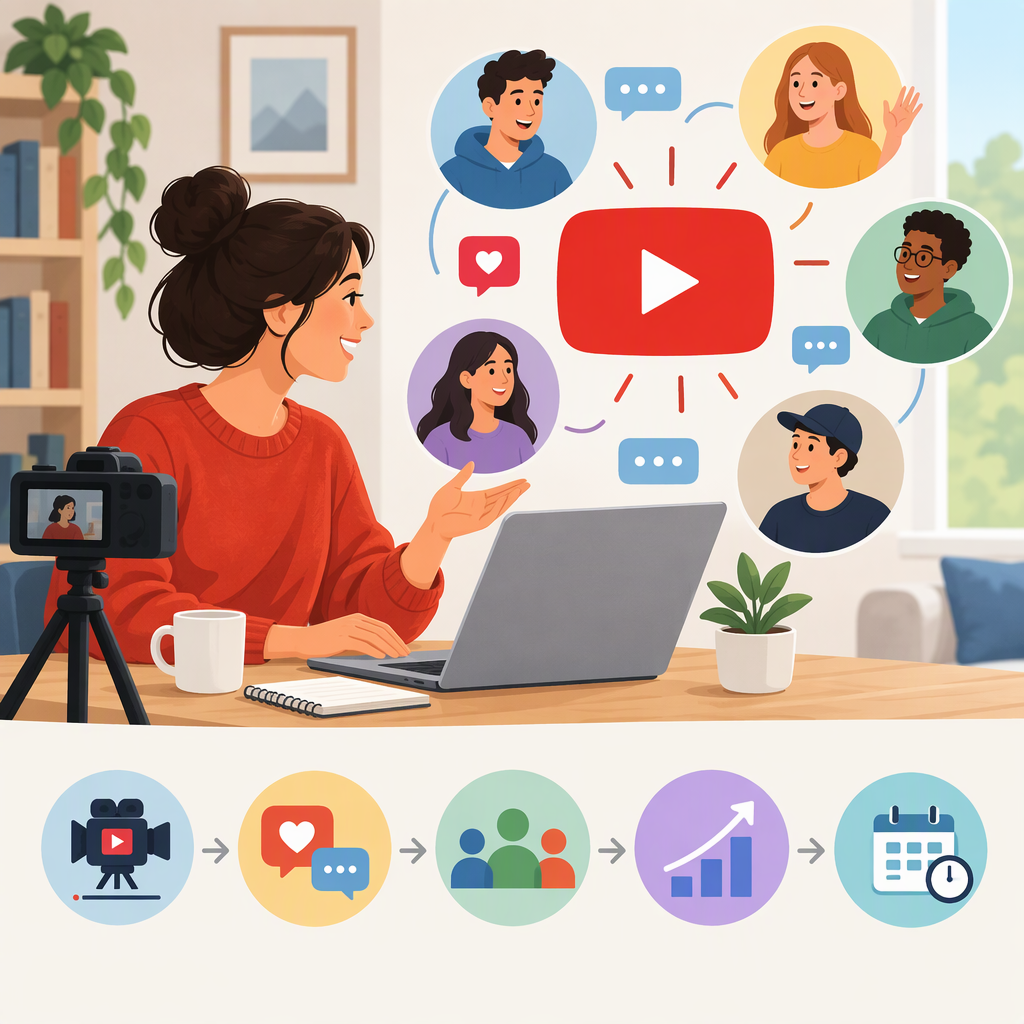
A simple routine links your videos to a conversation and then gives that conversation a follow-up. Try these steps:
- Choose one relevant invitation. Ask a specific, easy-to-answer question connected to the video. For example: “Which step would you like me to explain in more detail?”
- Pick an available place for replies. Depending on your channel and the kind of exchange you want, that might be the video’s comments, a Post, your Community, or live chat.
- Acknowledge useful contributions. Reply when you can, thank viewers for helpful details, or use a recurring question to shape a later discussion or video. Do not imply that every comment will receive a reply.
- Close the loop. If you use a viewer’s question in a follow-up, explain how it connects to the earlier conversation. Then invite a related next contribution.
- Repeat at a pace you can maintain. A modest, reliable routine is easier to sustain than a demanding schedule that leaves no time to respond.
For instance, a creator might end a tutorial by asking viewers which step they found unclear, review replies during a planned moderation session, and make the next discussion about the most relevant recurring question. This is a planning example, not a claim that the sequence will increase growth or engagement.
Keep invitations genuine and connected to the subject. YouTube prohibits artificially increasing views, likes, comments, or other metrics, including through automatic systems or deceptive practices; its policy also prohibits content that exists solely to incentivize engagement. (support.google.com)
3. Choose an Interaction Option That Fits the Conversation
Different features support different kinds of participation. Availability and settings can vary, so check what appears in your account and YouTube Studio rather than assuming every channel has identical options.
| Option | Useful when you want to… | Considerations |
|---|---|---|
| Video comments | Continue a discussion tied to a specific video | Comments can be turned on, paused, or turned off for an individual video; settings can also hold some comments for review. (support.google.com) |
| Posts | Ask a question or share text, polls, quizzes, images, GIFs, music, or video outside a new video upload | YouTube describes Posts as a way to connect and interact with viewers. Some post features may differ by device. (support.google.com) |
| Community | Give subscribers a dedicated space to start discussions and share content inspired by your videos | You can choose whether to make a Community available on your channel. YouTube says viewers must have been subscribed for a minimum period before posting; the period can be adjusted in Content controls. (support.google.com) |
| Live chat | Talk with viewers in real time during a livestream | This works best when you can pay attention to the conversation and have a plan for moderation. YouTube provides live-chat moderation tools. (support.google.com) |
If you want a simple starting point, use the interaction surface where viewers are already responding and you can keep up. If you want subscriber discussions beyond a video’s comment thread, see whether Community is available for your channel. If an option is not present, use another available route—such as comments or a Post—rather than holding up community-building until a particular feature appears.
To see which features your channel can use, YouTube directs creators to YouTube Studio → Settings → Channel → Feature eligibility. It also notes that not all features are managed there and that some have separate eligibility requirements. (support.google.com)
4. Set Expectations and Make Participation Manageable
A welcoming space needs both invitations and boundaries. Decide in advance how you will handle ordinary disagreement, off-topic posts, spam, and behavior that crosses your standards. Keep expectations short, specific, and easy to apply consistently.
YouTube offers optional channel guidelines for communicating the kinds of conversations you want. Its Help instructions say creators can add a welcome message and up to three guidelines in YouTube Studio; viewers can refer to guidelines before commenting on a video, posting in a Community, or joining live chat. (support.google.com)
You can also review moderation controls available in YouTube Studio. YouTube says its Content controls include preferences for comments, live chat, Community posts, blocked words, and link text. For comments, options include holding potentially inappropriate comments or holding all comments for review. Choose settings with the trade-off in mind: more review can help you screen discussion, but it also means more material to check before it appears. (support.google.com)
A practical routine might be to check new contributions at times you can reliably manage, reply to constructive comments, and review anything held for moderation. If discussion volume becomes difficult to handle, narrow the scope of prompts, adjust moderation settings, or consider whether a trusted moderator is appropriate. Avoid promising constant availability.
5. Review Participation and Adjust
Review your approach periodically using observations that connect to your purpose. For example, ask:
- Are viewers responding to the kinds of questions I ask?
- Are contributions relevant to the community’s shared interest?
- Are viewers replying to or building on one another’s ideas?
- Can I keep up with the amount of discussion and moderation this routine creates?
- What one change—such as a clearer prompt, a different format, or a slower pace—would make the next cycle more useful or manageable?
YouTube Analytics can help you understand channel and video performance, and YouTube Studio offers reports and comparison options. But views, watch time, or subscriber counts do not by themselves establish whether a community feels welcoming or whether viewers are having the kind of exchange you intended. Pair performance information with direct observation of the conversations. (support.google.com)
Keep the review simple: observe, choose one adjustment, try it, and review again. Treat the result as information about your channel and audience—not proof that one tactic works for everyone.
A Practical First-Week Plan
This is an illustrative plan, not a required schedule or a tested growth method:
- Day 1: Write your audience-and-purpose sentence and choose one kind of contribution to invite.
- Day 2: Choose an interaction option available to your channel and check its settings.
- Day 3: Publish a relevant prompt alongside a video or as a Post, if that option is available.
- Day 4: Review replies, acknowledge useful contributions, and apply your moderation standards.
- Day 5: Share a follow-up that responds to a useful question or recurring theme.
- Day 6–7: Note what felt relevant and manageable. Adjust one part of the routine before repeating it.
The Core Idea
Build a YouTube community by being clear about who it is for, connecting participation to your channel’s subject, responding consistently within your limits, and making room for viewers to contribute again. Use the interaction options and moderation controls available to your channel, set expectations early, and review conversations as well as channel metrics. The goal is a sustainable way for people to take part—not a guaranteed increase in audience size.