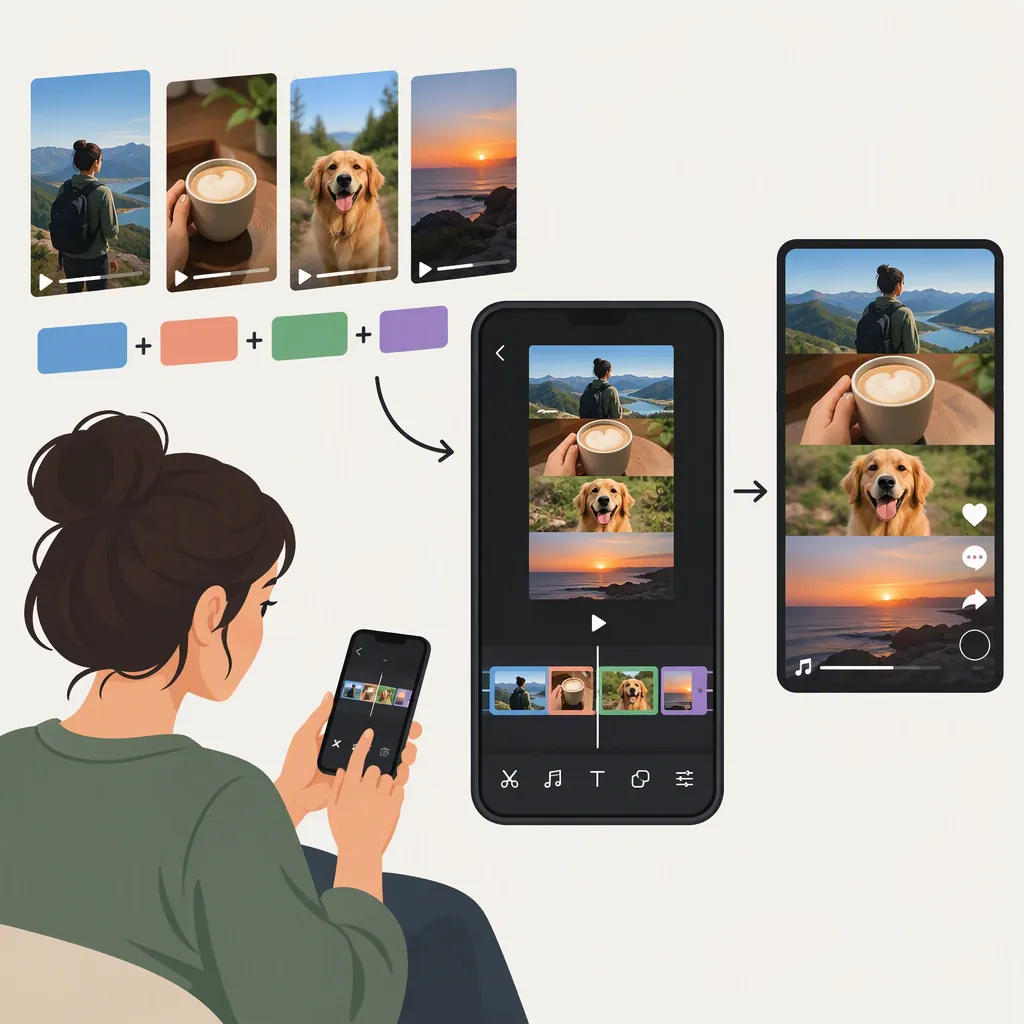
How to Make Tiktoks with Multiple Videos
To make a TikTok with multiple videos, open the creation screen with the + button, choose Upload, select your clips, and tap Next. Then trim and rearrange the clips before previewing the combined video. You can also record separate takes by stopping and restarting recording. These workflows come from a tutorial updated March 31, 2023; current TikTok controls may differ. [citation-1]
Combine Videos from Your Camera Roll
Use this route when you have already recorded the videos you want to join.
- Open TikTok and tap the + button to start creating a video.
- Choose Upload beside the record button.
- Select the videos you want to include. The referenced tutorial shows a selection circle on each video.
- Tap Next to bring the selected clips into the editing workflow.
- Check the sequence. The tutorial says TikTok initially joins the clips in the order you selected them. [citation-1]
These are the controls described in FlexClip’s tutorial, updated March 31, 2023—not a verified description of every current TikTok interface. If your labels differ, look for the equivalent media-selection and clip-editing controls.
Record Multiple Clips in TikTok
Use this route when you want to capture each scene directly in TikTok rather than upload existing videos.
- Open the creation screen using +.
- Press and hold the record button to capture your first take.
- Release it to stop that take.
- Set up the next scene, then press the record button again.
- Repeat until you have captured the scenes you need.
- Open the clip editor to review the sequence. The source calls this control Adjust Clips and describes using it to cut and reorder recorded clips. [citation-1]
For a simple sequence, plan an opening shot, a few action shots, and a closing shot before recording. That is an editing suggestion, not a requirement of the app.
Three-Part Clip Plan
Opening: Show what the video is about.
Middle: Show the action or steps in order.
Ending: Show the result or final moment.
Trim and Reorder Your Clips
Once the videos are together, focus on the sequence before adding decorative effects.
For uploaded videos, the tutorial describes choosing Default beside Sound Sync to edit the clips, dragging a clip’s start or end to change its length, and long-pressing to rearrange clips. Treat those labels as source-era guidance rather than guaranteed current controls. [citation-1]
As you review each cut:
- Remove unnecessary waiting at the beginning or end of a shot.
- Put clips in an order that makes the action easy to follow.
- Keep enough of each shot for viewers to understand what happened.
- Watch the join between clips, not just each clip individually.
This workflow creates a sequence: one video plays after another. If by “multiple videos” you mean several videos visible at the same time, that is a collage or overlay layout, not the sequential workflow explained here.
Preview the Combined Video
After arranging the clips, continue to the preview and finishing stage. The tutorial describes adding sounds, text, stickers, and effects after assembling the sequence, and posting or saving a recorded sequence to drafts. [citation-1]
Before you finish, watch the whole video once without stopping. Check that the opening makes sense, the clips appear in the intended order, and no cut removes an important action. Listen for abrupt audio changes and check that any text remains readable.
The provided reference does not establish current clip-count limits, duration limits, or feature availability across devices. This guide therefore does not promise a particular maximum or an identical interface for every account.
FAQ
Can I Make One TikTok from Videos I Already Recorded?
Yes. The referenced tutorial describes selecting multiple videos through Upload, tapping Next, and editing the resulting sequence. Its instructions were updated March 31, 2023, so the current interface may differ. [citation-1]
How Do I Change the Order of the Videos?
The tutorial describes long-pressing uploaded clips to rearrange them. For clips recorded inside TikTok, it points to Adjust Clips for cutting and reordering. Look for the equivalent clip-editing controls if those labels are absent. [citation-1]
Do I Need a Separate Editor to Join Clips?
Not for the basic workflow described in the reference: it explains both uploading multiple saved videos and recording separate takes within TikTok. That supports an in-app approach, but does not verify current availability for every device or account. [citation-1]
Sources
- [citation-1] How to Make a TikTok with Multiple Videos