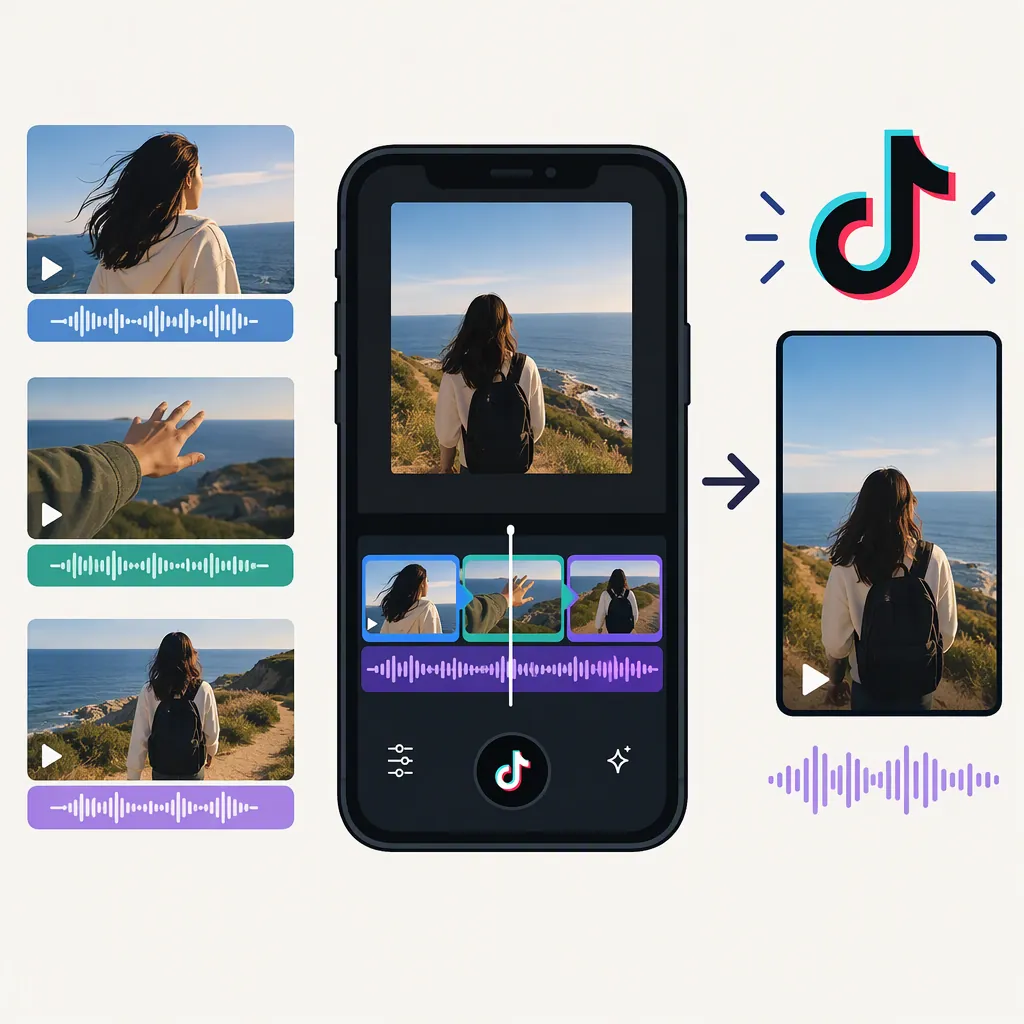
How to Make TikTok Sync Multiple Video Clips to Music
To make TikTok sync your videos to music, tap +, upload multiple clips, choose a sound, and look for Sound Sync or an automatic sync option in the editing screen. Preview the combined video, then trim or adjust individual clips if the timing needs work. The supplied tutorials describe slightly different menu paths, so treat these labels as guidance rather than a guaranteed match for your current interface. [c1] [c2]
Upload the Clips You Want to Combine
Start with the video clips you want to play in sequence. This workflow is for combining clips into a music-synced montage, not arranging several videos side by side.
- Open TikTok and tap the + button.
- Select Upload to access your phone’s media.
- Select the video clips you want to include, in your intended order.
- Tap Next to continue to editing.
Howfinity describes the Upload and Next steps; Ramdam recommends selecting clips in the correct order. [c1] [c2]
Choose Music and Use Sound Sync
Choose the music before judging whether the cuts are timed well.
- Select the sound you want to use. Ramdam describes tapping the sound icon to replace a default track; Howfinity describes choosing a song from TikTok’s music library.
- Look for the sync controls. Ramdam’s route is Edit → Sound Sync. Howfinity describes an automatic sync option after uploading and a Sync Sound menu for changing the track.
- Use the available sync option to align the clips with the music, then preview the result. [c1] [c2]
Interface limitation: Howfinity’s tutorial is dated July 16, 2022, and Ramdam’s is dated April 4, 2025. They describe different routes to syncing. Neither source establishes the exact controls available in every current TikTok interface. [c1] [c2]
Fine-Tune the Combined Video
Treat automatic syncing as a starting point, not a promise that every cut will land exactly where you want it.
Both tutorials describe manually adjusting clips after syncing. Tap a clip to trim or adjust its timing, and preview the sequence again. Howfinity also describes rearranging clips in the timeline and using Re-Sync after changes, if that control is available. [c1] [c2]
Ramdam recommends clips of roughly similar lengths and music with clear beats. These are editing suggestions, not documented requirements for accessing Sound Sync. [c2]
Use this review checklist to decide whether the montage is ready:
Music-Synced Montage Review Checklist
- Watch the full sequence with the music playing.
- Check that the clips tell the story in the intended order.
- Note any cut that feels early or late.
- Adjust that clip’s timing and preview again.
- Check whether important action has been cut off.
- Listen for any original audio that competes with the music.
Review Audio and Posting Settings
Before posting, listen to the combined video rather than checking only the visual cuts. Howfinity describes adjusting the volume balance between background music and original clip audio, along with optional text, effects, and voiceover. [c1]
Once the edit is ready, Howfinity’s workflow continues with Next, a caption, privacy settings, and Post. Review the audience setting before sharing. Syncing the clips and choosing who can see the finished video are separate decisions. [c1]
FAQ
Is Combining Clips the Same as Syncing Them?
No. In this workflow, selecting multiple clips builds the sequence; Sound Sync adjusts their timing to the music. The supplied tutorials describe uploading clips first and syncing afterward. [c1] [c2]
What If I Cannot Find Sound Sync?
Check the editing screen after uploading your clips and selecting a sound. Ramdam describes Edit → Sound Sync, while Howfinity describes an automatic sync option and a Sync Sound menu. If neither appears, the supplied sources do not establish why it is missing or a guaranteed way to enable it. They do describe manual trimming and timing adjustments as editing options. [c1] [c2]
Can I Change the Song After Selecting My Clips?
Yes, according to the supplied tutorials. Ramdam describes choosing another track through the sound icon, and Howfinity describes changing it in Sync Sound. Preview the sequence again after changing music to check the timing. [c1] [c2]