How to Make a TikTok Picture Video Longer
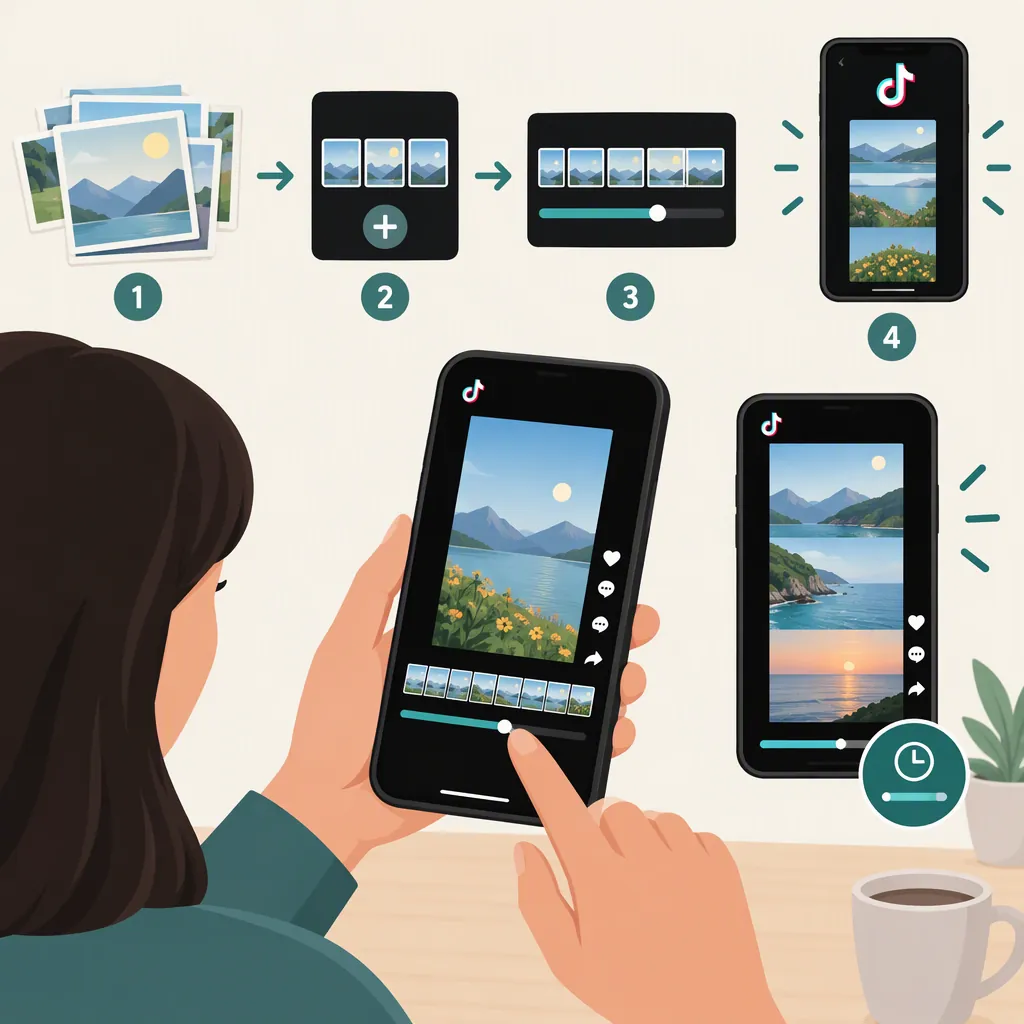
To make a TikTok picture video longer, increase how long each picture stays on screen, add more relevant pictures, or do both. Assemble the pictures in an editor that supports still-image duration controls, export the sequence as a video, and upload it to TikTok.
This guide covers a timed video made from pictures, not individual photo timing in a native TikTok photo post. The cited guide supports uploading an edited video, but it does not document TikTok’s native photo-duration controls. [citation-1]
1. Choose Your Target Video Length
Before editing, decide how long the finished video should be and how many pictures you want to include.
For a sequence without overlapping transitions:
Total runtime = the sum of all picture durations
For example:
- Five pictures at three seconds each produce a 15-second video.
- Five pictures at six seconds each produce a 30-second video.
- One picture displayed for 30 seconds produces a 30-second video.
If you already have a 15-second picture sequence and want it to last 30 seconds, you could double each picture’s duration. Alternatively, give text-heavy pictures more time and keep simpler pictures shorter.
Check the upload length available on your TikTok account before planning a long sequence. The cited guide says available durations can vary by account, region, and app version. [citation-1]
2. Increase Each Picture’s Duration in an Editor
Use an editor that explicitly supports setting how long a still image appears. Confirm that capability before building the whole sequence: video-clip trimming controls alone do not establish that an editor can extend a picture.
The following is a tool-independent workflow. Control names and locations depend on your editor.
- Create a project and import your pictures. Arrange them in the order you want viewers to see them.
- Select the first picture in the timeline. Look for a still-image duration setting. If the editor provides a numeric duration field, enter the desired number of seconds.
- Use an adjustable endpoint only if the editor supports it for still images. In that case, move the picture’s end to the intended timeline position. Do not assume a video-trimming handle works the same way.
- Repeat for the remaining pictures. For a simple 30-second sequence with five pictures, set each to six seconds.
- Check the total runtime. Use the editor’s duration display or the ending timeline position to confirm the sequence reaches your target.
- Preview and adjust. Give viewers enough time to read text and understand details. Recheck the runtime after adding transitions.
- Export as a video, then check the saved file’s duration. Verify the exported file—not just the project—before uploading.
If you cannot find a still-image duration control, use an editor that documents this capability rather than trying to extend pictures through TikTok’s recording timer.
Example: Extend Five Pictures to 30 Seconds
You do not need to give every picture equal time. This hypothetical plan totals 30 seconds without overlapping transitions:
| Picture | Purpose | Duration |
|---|---|---|
| 1 | Introduction | 4 seconds |
| 2 | First detail | 6 seconds |
| 3 | Main explanation | 8 seconds |
| 4 | Supporting example | 7 seconds |
| 5 | Closing summary | 5 seconds |
| Total | 30 seconds |
Use the plan as a starting point. Add pictures only when they contribute something useful, rather than repeating images solely to fill time.
3. Upload the Finished Video to TikTok
Once your picture sequence is saved as a video, the cited guide describes this upload route:
- Open TikTok and tap +.
- Tap Upload.
- Select your exported video.
- Check the maximum duration shown for your account.
- Tap Next and review any trimming before continuing. [citation-1]
Compare the exported file’s runtime with the available upload length. Also check the duration after selecting a sound: the guide notes that sound selection can affect the available video length. This is third-party guidance, not a guarantee of the controls or limits on your account. [citation-1]
Preview the full result before publishing. Confirm that the last picture is included and that each image stays visible for the intended time.
If the Picture Video Is Still Too Short
First identify where the duration changed:
| What you find | What to check next |
|---|---|
| The saved video file is already too short | Return to the editor, increase the picture durations, and export again. |
| The project reaches your target, but the saved file does not | Review whether the export included the full sequence. |
| The saved file is correct, but TikTok shows a shorter sequence | Check the trimming screen, displayed upload limit, and selected sound. [citation-1] |
| The file exceeds TikTok’s available upload limit | Shorten the sequence or divide it into separate videos. [citation-1] |
Changing a recording timer is not a substitute for extending the pictures in your exported video.
FAQ
How Can I Make One Picture Last Longer in a TikTok Video?
Create a video project containing that picture and set its still-image duration to your target—for example, 20 seconds—in an editor that supports the setting. Confirm the project runtime, export it as a video, and check that the saved file is 20 seconds long before uploading.
Can I Extend Pictures by Choosing a Longer TikTok Recording Timer?
Do not assume so. The cited guide describes the duration selector for recording video, but does not establish that it changes photo-post timing. For this workflow, set the picture durations in your editor before uploading the finished video. [citation-1]
Why Does My Picture Video Become Shorter After Uploading?
Check the saved video first. If its runtime is correct, review TikTok’s trimming screen, the upload limit shown for your account, and your selected sound. The cited guide notes that sound selection can affect available video length. [citation-1]
How Long Can My TikTok Picture Video Be?
For a picture sequence exported as a video, check the maximum upload duration shown when you select the file in TikTok. Do not rely on one universal limit: the cited guide says availability varies by account, region, and app version. [citation-1]
Sources
- [citation-1] How to Make a TikTok Longer: Complete Guide