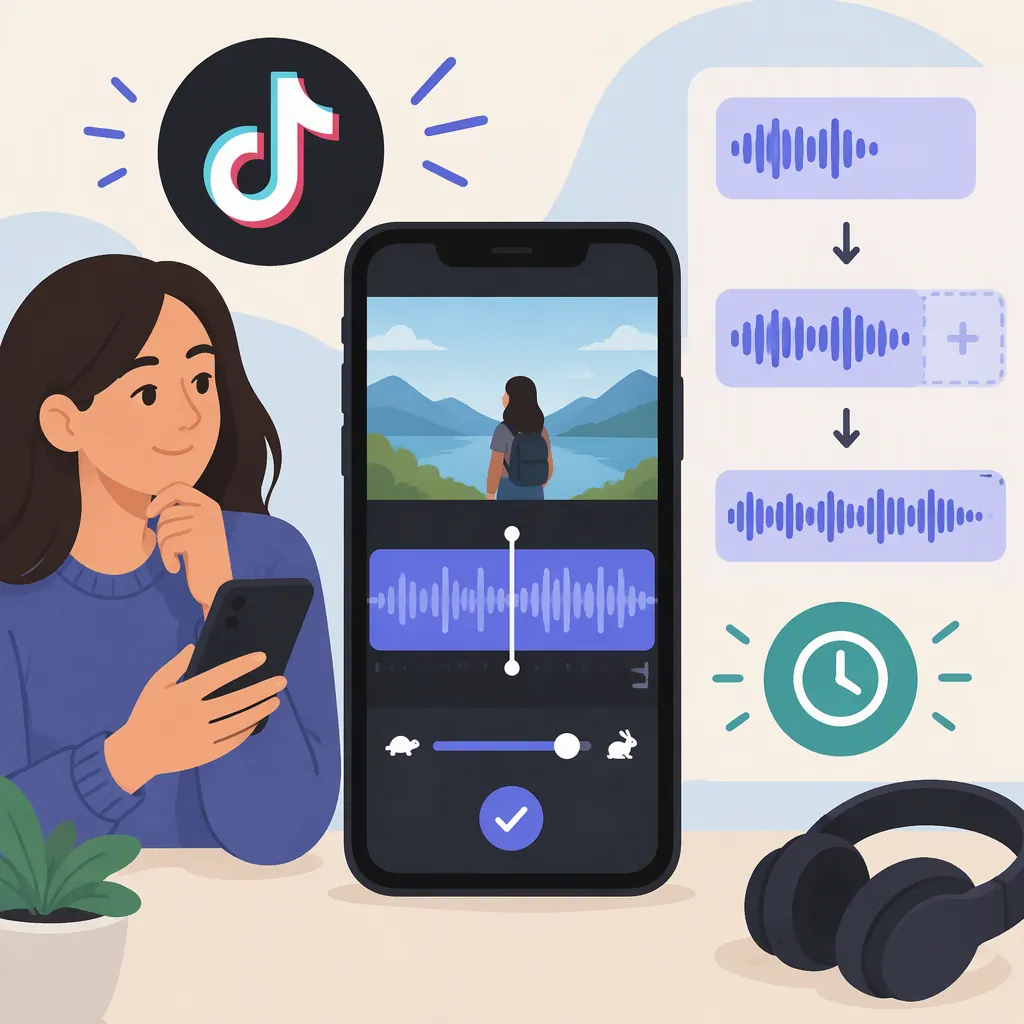
How to Make TikTok Sound Longer to Match Your Video
To make audio last longer in a TikTok video, you have two different options: look for a longer available sound, or adjust an audio file you own or have permission to edit in an external editor. Shortening your video can also solve a duration mismatch, but it does not extend the sound.
Wondershare’s third-party guide reports that TikTok does not offer a direct feature for stretching a selected sound beyond its available length. The guide describes external audio stretching as a separate workflow—not a way to extend the original TikTok library sound. Its account of TikTok’s features and editing interfaces has not been independently verified here. [citation-1]
Check What Needs to Be Longer
Before changing anything, compare the end of your selected sound with the end of your video. Note how much footage remains after the audio ends. Then decide what you need to preserve:
| What you want to keep | Which approach to consider |
|---|---|
| The full video, with flexibility about the music | Look for a sound with a longer available selection |
| The selected TikTok sound, with flexibility about the footage | Shorten the video to fit the sound |
| The full video and an audio file you are authorized to edit | Adjust the audio duration in an external editor |
These are the alternatives described in Wondershare’s guide. Only the external-editing route changes the duration of an audio file; the other choices resolve the mismatch by changing the sound selection or video length. [citation-1]
Do not assume every TikTok sound provides the same duration. The reference does not establish a universal current sound-length limit.
In-App Alternatives When You Cannot Extend the Original Sound
Wondershare recommends selecting longer available music or matching the video length to the music. Neither approach creates additional audio within the selected sound. [citation-1]
Use this decision sequence:
- Check the selected sound’s available range. Compare the portion you can use with the duration of your footage. Do not assume that a longer full song means a longer selection is available in TikTok.
- Look for a longer available selection or another sound. If an alternative covers your footage, check that its beginning and ending suit the video.
- Shorten the footage if the sound must stay. Decide which shots or pauses you can remove so the video ends with the available audio.
- Preview the result. Check the full video, especially where the sound previously ended.
The reference does not document TikTok’s controls for checking sound ranges or trimming footage, so this is a decision workflow rather than a verified button-by-button tutorial.
Extend Permitted Audio in an External Editor
If you need to retain the longer video, external editing can adjust an audio file before upload. This does not modify the original sound or its available length in TikTok’s library.
Wondershare’s guide describes the following desktop workflow in Filmora, a separate editing tool: [citation-1]
- Create a project. Open Filmora and choose Create Project > New Project.
- Import your media. Go to Media > Project Media > Import and select your video and audio that you are authorized to edit and upload.
- Enable Audio Stretch. Place the audio in the timeline, then activate Audio Stretch using the timeline’s Stretch icon.
- Adjust the duration. Drag the audio clip’s edge to lengthen it to match the video.
- Listen through the result. Check for distracting changes, awkward transitions, and an ending that fits the final shot.
The guide also identifies Delete Audio Stretch, available by right-clicking the clip, as the command for restoring the original audio duration. These interface steps are reported by Wondershare. [citation-1]
To complete the workflow, export the video with the adjusted audio included, then upload that exported video to TikTok. Before publishing, preview it and check that the audio covers the intended footage. These are general workflow recommendations; the reference does not document specific export settings or TikTok upload controls.
Do not treat the guide’s audio-quality claims as a guarantee. Review the exported result as well as the editor preview.
Check Music Permissions Before Editing and Uploading
An audio-editing tool does not grant permission to use a recording. Wondershare’s guide warns that externally sourced copyrighted music requires appropriate licensing. [citation-1]
Use your own audio or music whose license permits both the intended editing and upload. Do not assume that access to a song in TikTok’s library authorizes downloading, stretching, and re-uploading that recording outside the library workflow.
The reference does not establish track-specific permissions or guarantee that an externally edited upload will remain available on TikTok. Check the relevant license rather than treating audio stretching as a workaround for music restrictions.
FAQ
Can I Make a TikTok Sound Longer Without Changing the Video?
If a longer selection is available, you can consider using it. Otherwise, Wondershare’s guide describes external editing of permitted audio as the duration-adjustment route. It does not describe a direct TikTok feature that stretches the selected library sound. [citation-1]
Will Making My Video Longer Make the Sound Longer?
No—do not expect additional footage to create additional audio. The guide treats video and sound duration as separate and recommends choosing longer available music or shortening the footage to match it. [citation-1]
Is Filmora’s Audio Stretch a TikTok Feature?
No. Audio Stretch is the external editing tool described in Wondershare’s Filmora workflow. It adjusts an audio file before upload, not the available length of a TikTok library sound. [citation-1]
Can I Stretch Any Song and Upload It to TikTok?
Do not assume so. The guide warns that externally sourced copyrighted music requires appropriate permission. Use audio you own or have a license to edit and upload; stretching it does not remove those requirements. [citation-1]