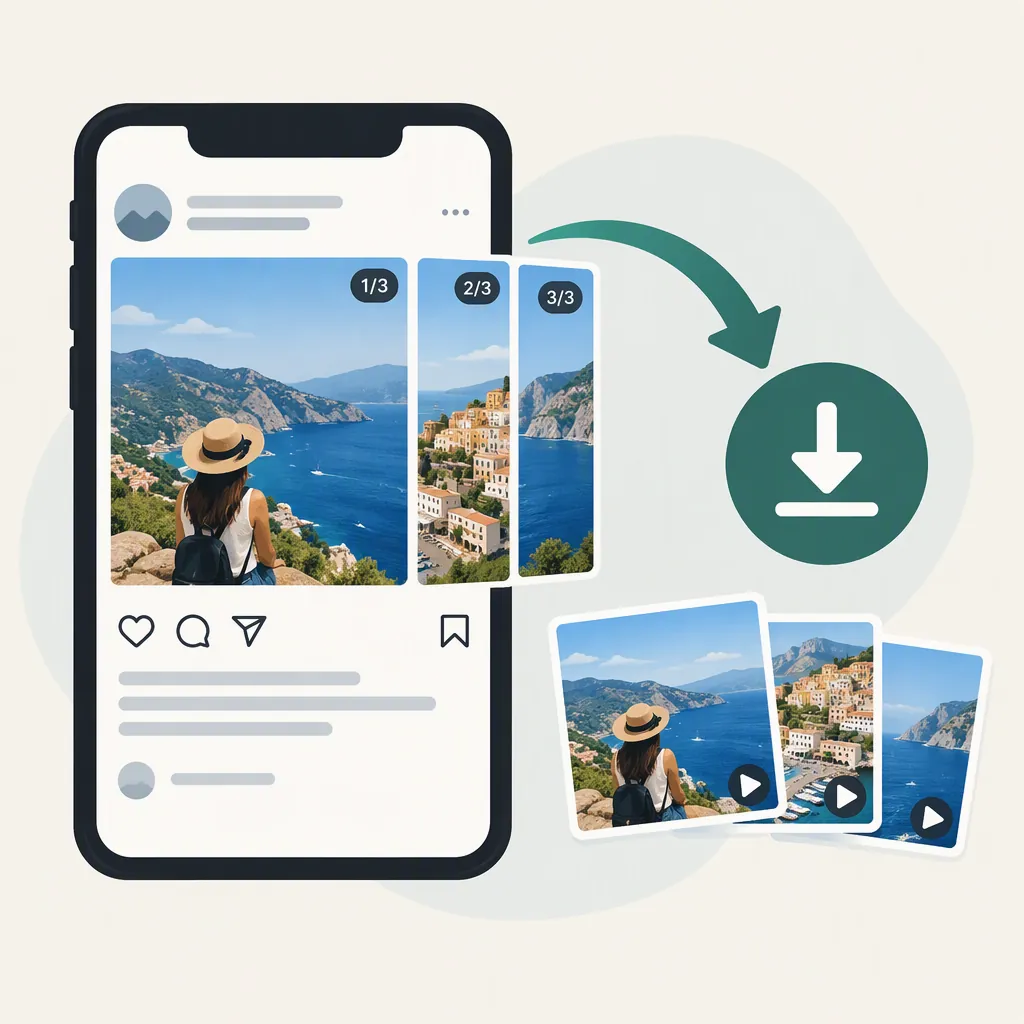
How to Download an Instagram Carousel’s Photos and Videos
To download an IG carousel, copy the public multi-slide post’s link and paste it into a carousel downloader. For example, Instappa’s published instructions say to select Get Slides, preview the returned photos and videos, then save one slide or every available file. This is a documented workflow, not an independently tested result; private, deleted, or restricted posts are outside its stated support. Download only content you have permission to keep. [c1]
Start with the Public Carousel Post
A carousel is a single Instagram post containing multiple photos or videos. For this workflow, use the link to the whole post—not a profile link or a screenshot of its cover. Instappa documents support for public multi-slide post URLs and mixed photo-and-video albums. [c1]
Open the intended post and check which slides you want to save. If you need the complete album, note its visible slide count and sequence before downloading. This gives you something to compare with the returned files rather than assuming the cover image represents the entire download.
Keep access and permission separate: a publicly viewable post is not, by itself, permission to republish its contents. Instappa’s guidance says to respect each creator’s rights and download only public content you are allowed to keep for personal use. [c1]
Download One Slide or the Available Album
The following steps follow Instappa’s published carousel instructions. They describe that service’s interface, not every downloader’s controls. [c1]
- Open the public carousel on Instagram.
- Use the post’s Share option or three-dot menu and choose Copy link.
- Open Instappa’s carousel page and paste the complete post URL into its input field.
- Select Get Slides.
- Inspect the returned previews. Save the selected slide or use the option to save every available slide.
- Open the saved files and compare them with the post.
Do not supply your Instagram password for this workflow. Instappa describes its carousel tool as a public-link service without an Instagram login. That description does not establish the service’s security or guarantee that a particular link will resolve. [c1]
Check Photos, Videos, and Slide Order
Do not treat a successful download as proof that the full carousel was saved. Instappa says it returns the slides available to it and cannot supply hidden or unavailable frames. It documents JPG output for photo slides and MP4 output for video slides. [c1]
For a mixed album, check both file types. Open each image and play each video, then compare the files with the post’s sequence. If order matters for a tutorial or visual story, consider renaming the checked files with numbered prefixes.
Also distinguish an available download from the creator’s original source file. IQSaved’s carousel page explicitly says its downloads are Instagram-processed versions, not the raw originals uploaded by users. Its quality claims do not independently establish the resolution of a file you receive from another service. [c2]
Carousel Download Check
- Record the visible slide count before downloading.
- Compare the returned previews with the public post.
- Check that both photo and video slides were saved when applicable.
- Open every saved file.
- Verify the sequence before adding numbered filenames.
- Mark missing slides rather than labeling the folder complete.
Find Downloads on Your Device
Instappa’s device instructions point Android and computer users to Downloads, and iPhone users to Files. For iPhone images, it describes opening the saved file in Files and using Save Image to add it to Photos. For videos, it points to the sharing controls. [c1]
Use those locations as starting points rather than a guarantee about your device’s settings. First confirm that the file exists and opens; then move or import it into your preferred photo library. A downloaded file and an item visible in a photo app are separate checks.
Handle Missing Slides or Failed Links
If the result contains only some slides, compare it with the post in a private browser window without signing in. Instappa recommends this check and copying the link again before retrying. Its page lists incomplete URLs, deleted content, restrictions, and media not exposed to logged-out viewers as possible causes of incomplete results. Those are possible explanations, not a diagnosis of your specific download. [c1]
Keep the workflow public-only. Do not try to bypass a private account or a restricted slide. If a needed file remains unavailable, ask the creator for a copy you have permission to use instead of assuming another downloader can recover it.
FAQ
Can I Download Every Slide in an Instagram Carousel?
Instappa documents an option to save every available slide, but availability is the limitation. Its page says hidden or unavailable frames cannot be supplied. Compare the downloaded set with the public post before calling it complete. [c1]
Can a Carousel Download Include Both Photos and Videos?
Yes, according to Instappa’s documented support for mixed albums. It lists JPG output for photos and MP4 output for videos. Check both types after saving rather than looking only for image files. [c1]
Does This Workflow Work for Private Instagram Carousels?
No. The Instappa workflow described here is for publicly accessible posts and does not provide a login bypass. For a private carousel, request an authorized copy from its creator. [c1]
Are Downloaded Slides the Creator’s Original Files?
Do not assume so. IQSaved explicitly distinguishes its Instagram-processed downloads from raw uploaded originals. Check the actual files you receive, and request source files from the creator if you need the originals. [c2]