How to Create and Schedule Instagram Carousel Posts in Later
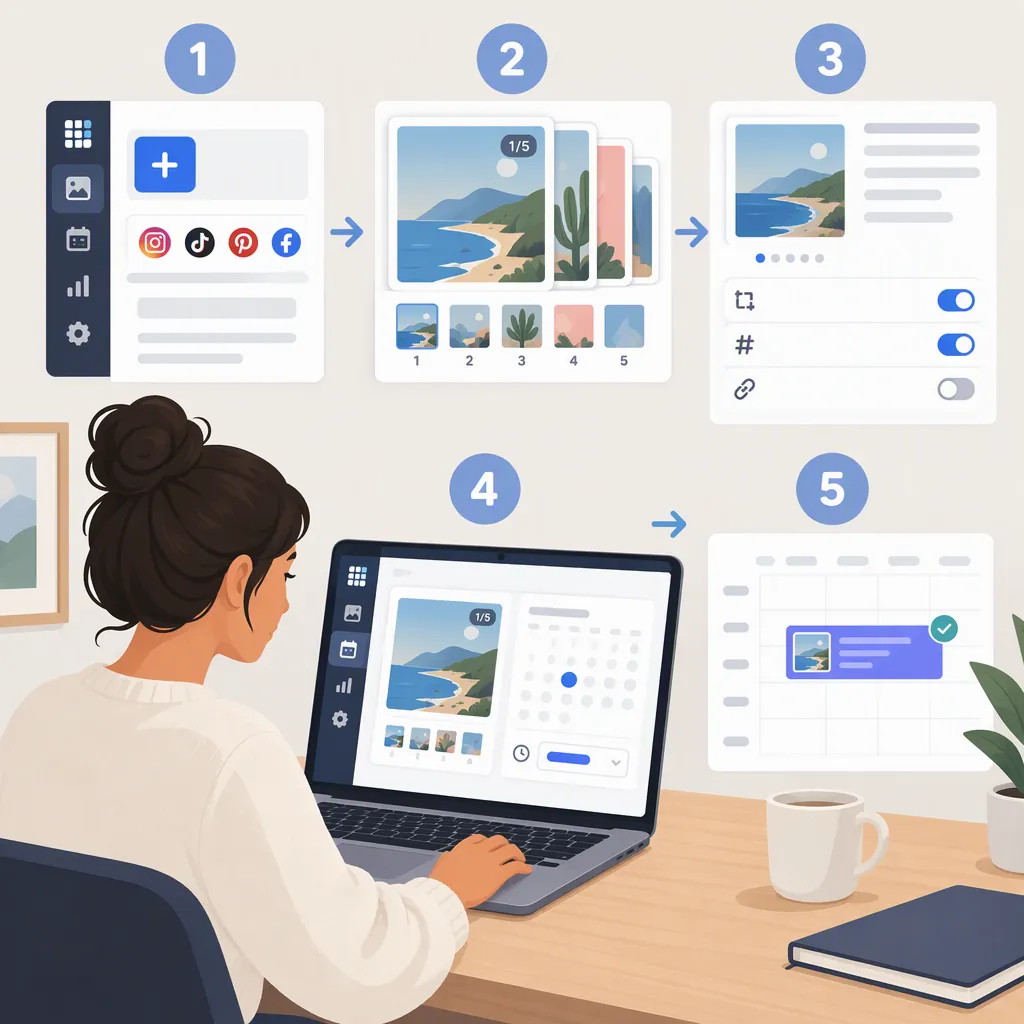
To schedule an Instagram carousel in Later, its published desktop guide describes selecting your Instagram profile in the Calendar, choosing images or videos from the Media Library, and dragging them to the Calendar or clicking “Multi-Photo Post.” Then set the date and time, write a caption, arrange and edit the media, choose “Auto Publish” or “Send Notification,” and save. These are documented steps, not a guarantee that every account will show the same options. [citation-1]
Prepare the Carousel Before Scheduling
An Instagram carousel combines multiple photos or videos in one post. Later’s guide describes preparing that media and scheduling the post through its desktop workflow. [citation-1]
Before opening the scheduler, decide what the post should communicate. A practical editorial structure is an opening slide that introduces the topic, supporting slides that explain it, and a final slide that summarizes the takeaway. This is a suggested production approach, not a Later feature or a performance promise.
Review the sequence as a whole. Keep text readable, remove repetitive slides, and check that important details remain visible after cropping. Later’s guide recommends a consistent crop across carousel items and warns that mismatched media may be cropped to the first image’s ratio. Treat that as preparation guidance from the supplied article rather than a complete statement of current Instagram media requirements. [citation-1]
Carousel Preparation Worksheet
Post topic:
Reader takeaway:
Opening slide:
Supporting slides, in order:
Closing summary:
Caption draft:
Chosen crop:
Target publication date and time:
Publishing method to check in Later:
Create the Carousel in Later on Desktop
The supplied Later article gives this desktop sequence: [citation-1]
- Open Later on the web and go to the Calendar.
- Make sure the intended Instagram profile is selected.
- In the Media Library preview, select the images or videos for the carousel.
- Drag the selected items to the Calendar, or click Multi-Photo Post at the bottom of the Media Library preview panel.
- Choose the publication date and time and write the caption.
- Use Change Media to adjust the order of the selected items.
- Use Edit Image on individual images to crop them or add a filter where needed.
- Choose the publishing method and click Save.
Before saving, compare the selected media with your planned sequence. Confirm the destination profile, caption, date, and time. These review checks are editorial recommendations; they do not imply that Later performs them automatically.
Choose Automatic or Notification-Based Publishing
Later’s guide distinguishes two publishing choices. With Auto Publish, it describes the saved carousel being published automatically at the scheduled time. With Send Notification, it describes a notification delivered through the Later mobile app so the user can publish manually. Saving a notification-based post therefore does not remove the manual publishing step. [citation-1]
Choose deliberately: automatic publishing and a reminder to publish are different workflows. If you use notification-based publishing, plan to be available at the scheduled time.
The supplied article does not establish current account eligibility, plan restrictions, or every media-related exception. If your account does not show the described option, this source alone cannot explain why. It also mentions mobile scheduling but does not provide the mobile steps in the supplied text, so the desktop instructions here should not be treated as a mobile walkthrough. [citation-1]
FAQ
How Do I Reorder Carousel Slides in Later?
In the desktop workflow described by Later, use “Change Media” to edit the order of the selected images or videos before saving the post. [citation-1]
Does Send Notification Publish the Carousel Automatically?
No. Later’s guide describes Send Notification as delivering a notification through its mobile app so you can publish manually. It distinguishes that workflow from Auto Publish. [citation-1]
Are These Instructions for the Later Mobile App?
No. These steps cover the desktop workflow in the supplied article. The article mentions scheduling on iOS and Android, but the supplied text does not include a step-by-step mobile procedure. [citation-1]