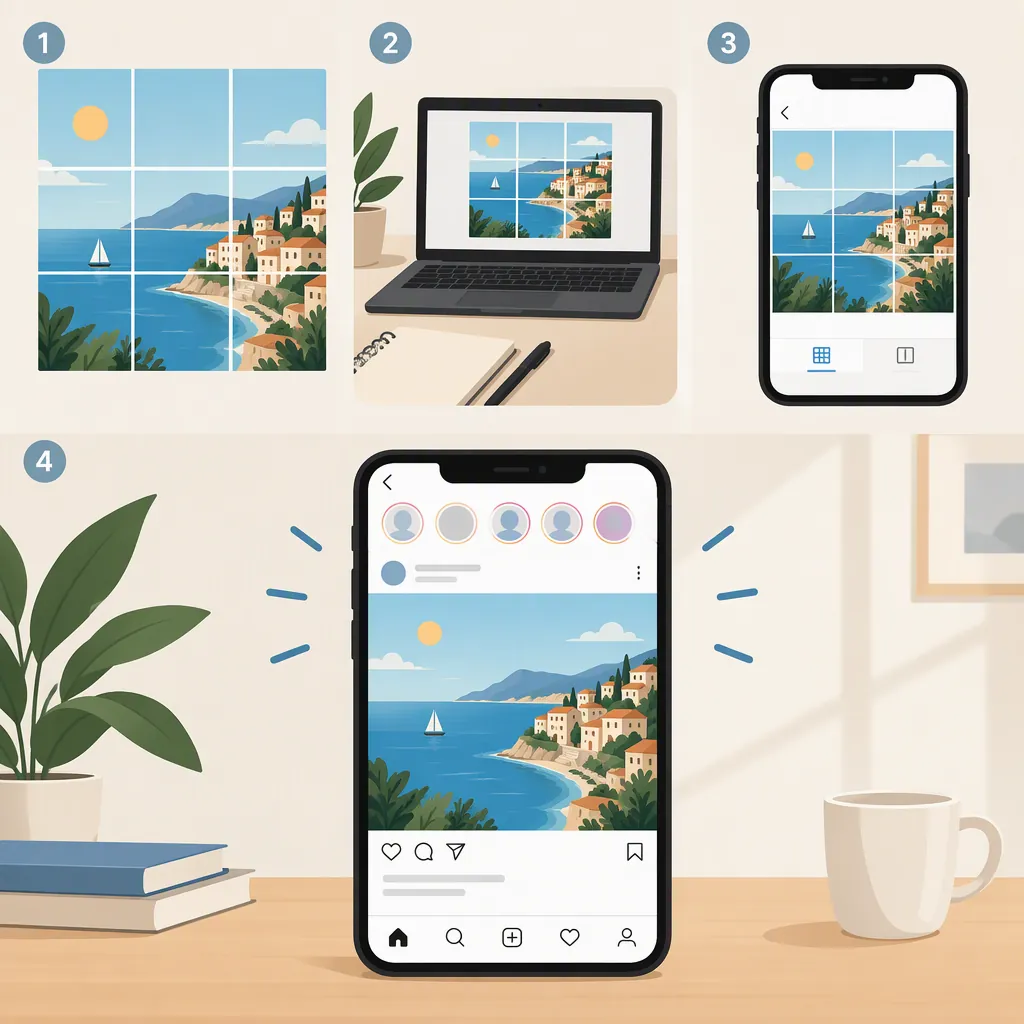
How to Create a Seamless Instagram Carousel Post
To create a seamless Instagram post, design the carousel as one wide image, then split it into equal-width slides. For a five-slide portrait example, use a 5400 × 1350 px canvas with boundaries every 1080 px. Design across those boundaries, export the full image, split it into five slides, and upload them in left-to-right order. This follows the workflow described in My Social Boutique’s Canva tutorial. [c1]
Plan One Canvas for the Whole Carousel
The seamless effect comes from neighboring slides sharing parts of the same composition. Instead of designing separate pages and trying to match their edges afterward, start with one horizontal canvas. The reference tutorial uses this approach before cutting the design into individual images. [c1]
Choose a slide count and keep every slide the same size. The tutorial provides two working formats: 1080 × 1080 px square slides and 1080 × 1350 px portrait slides. Its canvas formula is 1080 px × the number of slides for width, with the chosen slide height unchanged. [c1]
For this walkthrough, use five portrait slides. These dimensions are a tutorial-based example, not an exhaustive statement of Instagram’s current supported formats or carousel limits.
Five-Slide Canvas Recipe
Slide count: 5
Individual slide size: 1080 × 1350 px
Full canvas size: 5400 × 1350 px
Internal slide boundaries: 1080, 2160, 3240, and 4320 px from the left edge
Reading order: left to right
Mark Slide Boundaries in Canva
In Canva, create a custom-size design using your calculated canvas dimensions. The tutorial describes enabling Show Guides and Show Rulers from the File menu, then placing a vertical guide every 1080 px. These guides identify where one slide ends and the next begins. Exact interface labels may differ from those in the reference. [c1]
Use those boundaries deliberately. A background photo, gradient, or decorative shape can continue across a seam; the reference recommends overlapping elements and continuous backgrounds for this effect. [c1]
As a practical layout choice, keep essential sentences and small labels inside individual slides. Let decorative elements cross the boundaries instead. Aim for each slide to remain understandable on its own while contributing to the wider composition.
Export and Split the Design
Download the complete wide design before splitting it. The reference tutorial then uses its linked Instagram Grid Maker: upload the image, set Columns to the slide count, select Carousel under Image Cut, and choose Split Image. The tutorial describes the result as equal individual slides ready to download. This is the documented workflow, not a claim that the tool’s current interface or availability has been independently verified. [c1]
For the five-slide example, check that you receive five images, each 1080 × 1350 px. Avoid trimming or resizing individual slices differently after splitting; that would change the geometry you designed across the boundaries.
Give the files clear sequential names so their intended order is easy to recognize.
Suggested Export File Names
01-cover.png
02-context.png
03-main-point.png
04-example.png
05-summary.png

Assign these names in the original canvas’s left-to-right order.
Check the Seams Before Posting
The tutorial’s final step is to upload the resulting images as an Instagram carousel. It also describes upload order as the slide order. [c1]
Before publishing, inspect the images in sequence and compare each neighboring pair. If an edge does not align, check the original split positions, file order, and whether any slice was cropped separately.
During upload, inspect the preview rather than assuming the saved dimensions guarantee the displayed framing. The supplied tutorial does not establish Instagram’s current interface or guarantee identical cropping in every display context. If the preview changes the composition, resolve that before publishing.
Pre-Publish Alignment Checklist
- Confirm that all five files have identical dimensions.
- Confirm that the file order matches the canvas from left to right.
- Compare every neighboring pair for matching backgrounds and crossing shapes.
- Check that essential text remains readable within each slide.
- Inspect the upload preview for unintended cropping.
- If a seam is broken, correct the source design or export and check again.
FAQ
What Makes an Instagram Carousel Seamless?
A seamless carousel uses a continuous composition across neighboring slides, such as a shared photo or a shape that crosses a slide boundary. The supplied tutorial creates that continuity by designing one wide image and splitting it afterward. [c1]
What Canvas Size Should I Use for Five Slides?
Using the reference tutorial’s dimensions, five portrait slides require a 5400 × 1350 px canvas. Five square slides require 5400 × 1080 px. Both are split into five equal 1080 px-wide images. These are working examples rather than a complete list of current Instagram formats. [c1]
Should Text Cross Between Slides?
For this workflow, keep essential text within each slide and use backgrounds or decorative elements to bridge the seams. The reference recommends overlapping elements for continuity; treating text more cautiously is a readability recommendation, not an Instagram requirement. [c1]