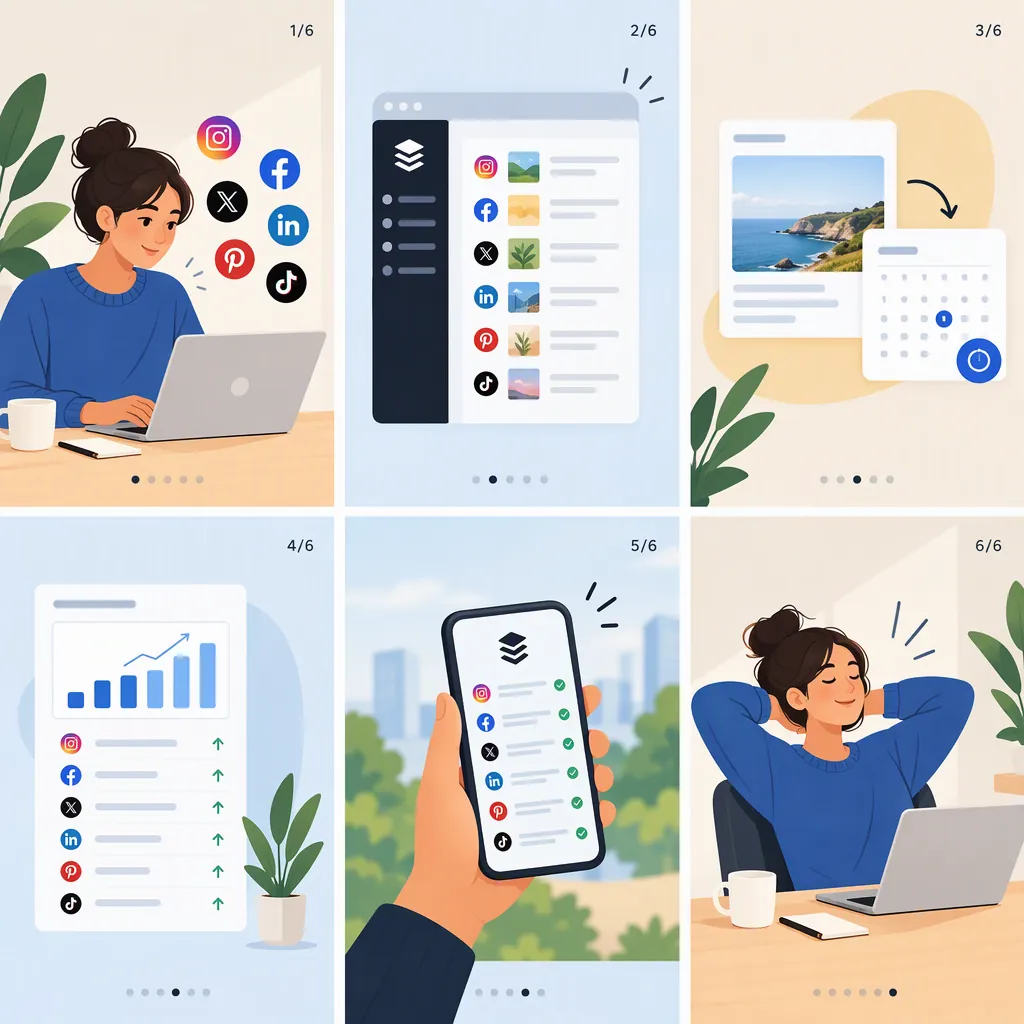
How to Create and Publish an Instagram Carousel with Buffer
To create an Instagram carousel with Buffer, prepare separate media files, assemble them in a draft for your connected Instagram channel, review the order and caption, then select a publishing method and schedule the post. Automatic publishing requires a Business or Creator account and supported content. Personal accounts and posts requiring unsupported features use Notify Me, which requires you to finish publishing manually on your phone. [c1]
The workflow below covers preparation, draft review, scheduling, and the final publishing check. It uses Buffer’s documented capabilities without assuming exact upload or scheduling button labels.
1. Prepare Your Carousel Files
Start with one main topic and a simple slide outline:
- Opening: Introduce the topic or question.
- Middle slides: Explain the steps, examples, or supporting points in a logical sequence.
- Final slide: Summarize the main takeaway.
This structure is an editorial suggestion, not a Buffer requirement. Export each slide as a separate file, and use numbered filenames to make the intended order easy to check. Review the exported files for spelling errors, clipped text, and missing information.
Check Buffer’s Documented Media Limits
Buffer’s Using Instagram with Buffer guide, last updated October 7, 2026, lists these constraints for carousel posts:
| Item | Documented constraint |
|---|---|
| Carousel length | Up to 10 images and videos combined |
| Image aspect ratio | Between 3:4 and 1.91:1 |
| Image file size | 8 MB limit |
These are the limits documented for the Buffer workflow—not a claim about every carousel option available through Instagram itself. The date identifies the guide’s update, not a separate live verification of the interface. [c1]
Buffer documents mixed-media carousels containing images and video. However, the guide’s specification table does not clearly provide a complete set of carousel-video requirements. Review any video validation messages before scheduling; do not assume that the table’s Reel specifications apply to carousel videos. [c1]
Preparation Checklist
- Define one main topic.
- Put the slides in an intentional reading order.
- Export separate, numbered files.
- Keep the carousel within the documented 10-item limit.
- Check each image’s aspect ratio and file size against the limits above. [c1]
- Review text for legibility and clipping.
- Prepare the caption and image descriptions.
2. Connect or Confirm the Instagram Channel
If the account is not yet connected, open Buffer’s Channels area to connect it. When managing multiple Instagram accounts, Buffer recommends logging in to the intended Instagram account in another browser tab before starting the connection process. This helps identify which account you want to connect. [c1]
If the channel is already connected, confirm that it is the intended destination before creating the draft.
Account type matters for publishing. To check it in the Instagram mobile app:
- Open your profile.
- Tap the menu in the upper-right corner.
- Look for the account-related options:
- Business tools and controls: Business account.
- Creator tools and controls: Creator account.
- Account type and tools: Personal account. [c1]
A Personal account can use notification-based publishing through Buffer; a Business or Creator account is required for automatic publishing. Account type alone does not establish eligibility—the post’s media and features must also be supported. [c1]
3. Assemble and Review the Carousel Draft
Use the intended Instagram channel in Buffer to prepare the post in the composer. Work through the draft in this order:
- Add the intended media to one carousel draft. Check that the files belong to the same post and that no item is missing.
- Review and arrange the sequence. Buffer documents the ability to rearrange carousel items. Match the draft to your slide outline rather than relying on filenames alone. [c1]
- Enter the caption. Buffer’s guide lists a 2,200-character limit for Instagram post captions. [c1]
- Add image descriptions where available. Buffer documents alt-text support for single-image and carousel image posts, but not for videos, Reels, or Stories. [c1]
- Resolve media warnings before scheduling. Check the draft against the documented requirements rather than assuming that an uploaded file is eligible for automatic publishing.
The guide confirms these capabilities but does not provide a complete click-by-click upload procedure. Use the composer’s current controls for adding and arranging media; this workflow does not assume a particular button name or layout.
Treat the slides and caption as complementary. The slides can carry the sequence, while the caption adds context or summarizes the point.
Draft Review Worksheet
- Destination Instagram account: ______
- Carousel topic: ______
- Opening slide: ______
- Middle-slide sequence: ______
- Final takeaway: ______
- Caption: ______
- Image descriptions: ______
- Media warnings to resolve: ______
- Intended publishing method: ______
4. Choose the Publishing Method and Schedule the Post
Before submitting the schedule, review the publishing method shown in the composer. Buffer documents a choice between Automatic and Notify Me, subject to the post’s eligibility. [c1]
| Publishing method | When it applies | What happens at the scheduled time |
|---|---|---|
| Automatic | A Business or Creator account with supported media and features | The post is set to publish without a final manual action |
| Notify Me | A Personal account, unsupported media, or features requiring manual completion | Buffer sends a phone notification so you can finish publishing manually |
Buffer identifies unsupported aspect ratios and features such as music on posts or product tags as reasons to use notification-based publishing. [c1]
For Automatic Publishing
- Confirm the destination account, media order, caption, and image descriptions.
- Check that Automatic is available and selected.
- Choose the intended publishing time using the scheduling controls.
- Submit the schedule, then review the scheduled entry for the correct account, time, and publishing method.
Automatic publishing is subject to the account and content requirements; selecting a schedule is not a guarantee that publishing will succeed. [c1]
For Notify Me
- Set up Buffer notifications on your mobile device before scheduling. Buffer identifies this as a requirement for notification-based publishing. [c1]
- Review the draft and select Notify Me where applicable.
- Choose a time when you can complete the phone handoff.
- Submit the schedule and review the scheduled entry.
- At the scheduled time, open Buffer’s notification and follow its prompts to complete the final manual publishing steps. [c1]
- Before finishing in Instagram, review the carousel and complete any intended manual additions, such as music. Buffer’s guide says music on posts is added in Instagram through the notification workflow. [c1]
Receiving the notification does not mean the carousel is live. Notification posts do not publish automatically; you still need to complete the manual publishing steps. The guide does not specify every mobile handoff screen, so follow the prompts rather than assuming a particular export, clipboard, or upload sequence. [c1]
5. Check the Live Carousel
After the scheduled time—or after completing the notification handoff—inspect the live Instagram post:
- Did it reach the correct account?
- Are all intended items present?
- Is the sequence correct?
- Does the caption match the reviewed draft?
- Are any manually added features present?
This is a practical quality-control step, not a guarantee of successful publishing.
If a post you expected to publish automatically instead requires a notification, revisit Buffer’s documented conditions: account type, accepted media aspect ratios, and features that require manual completion. [c1]
Keep the original media files and slide outline together. If you find a problem, compare them with the Buffer draft and live post to identify where the mismatch occurred.
FAQ
How Many Items Can an Instagram Carousel Contain in Buffer?
Buffer’s guide, last updated October 7, 2026, lists up to 10 images and videos combined in one carousel. Use that documented limit for this Buffer workflow rather than assuming that another Instagram publishing method has the same allowance. [c1]
Can I Combine Images and Videos in a Buffer Carousel?
Yes. Buffer documents mixed-media carousels containing images and video, with both counting toward the 10-item limit. Its specification table does not clearly provide complete carousel-video requirements, so review any video validation messages instead of applying Reel specifications to carousel videos. [c1]
Can a Personal Instagram Account Publish a Buffer Carousel Automatically?
No. Buffer’s guide says Personal accounts use notification-based publishing. Automatic publishing requires a Business or Creator account and a post that meets the supported media and feature requirements. [c1]
Can I Add Music to a Carousel and Still Publish Automatically?
Buffer’s guide says music on Instagram posts requires notification-based publishing, with the music added in Instagram. Its separate support for automatically publishing music on Reels should not be treated as carousel support. [c1]
Has My Carousel Been Published When I Receive a Notify Me Notification?
No. The notification starts the manual publishing handoff; it is not publication confirmation. Follow the notification’s prompts, finish publishing in Instagram, and then check the live post. [c1]
Can I Add Alt Text to Carousel Images in Buffer?
Yes. Buffer documents alt-text support for carousel image posts and single-image posts. The guide does not extend that support to videos, Reels, or Stories. [c1]