How to Make a Voiceover on TikTok
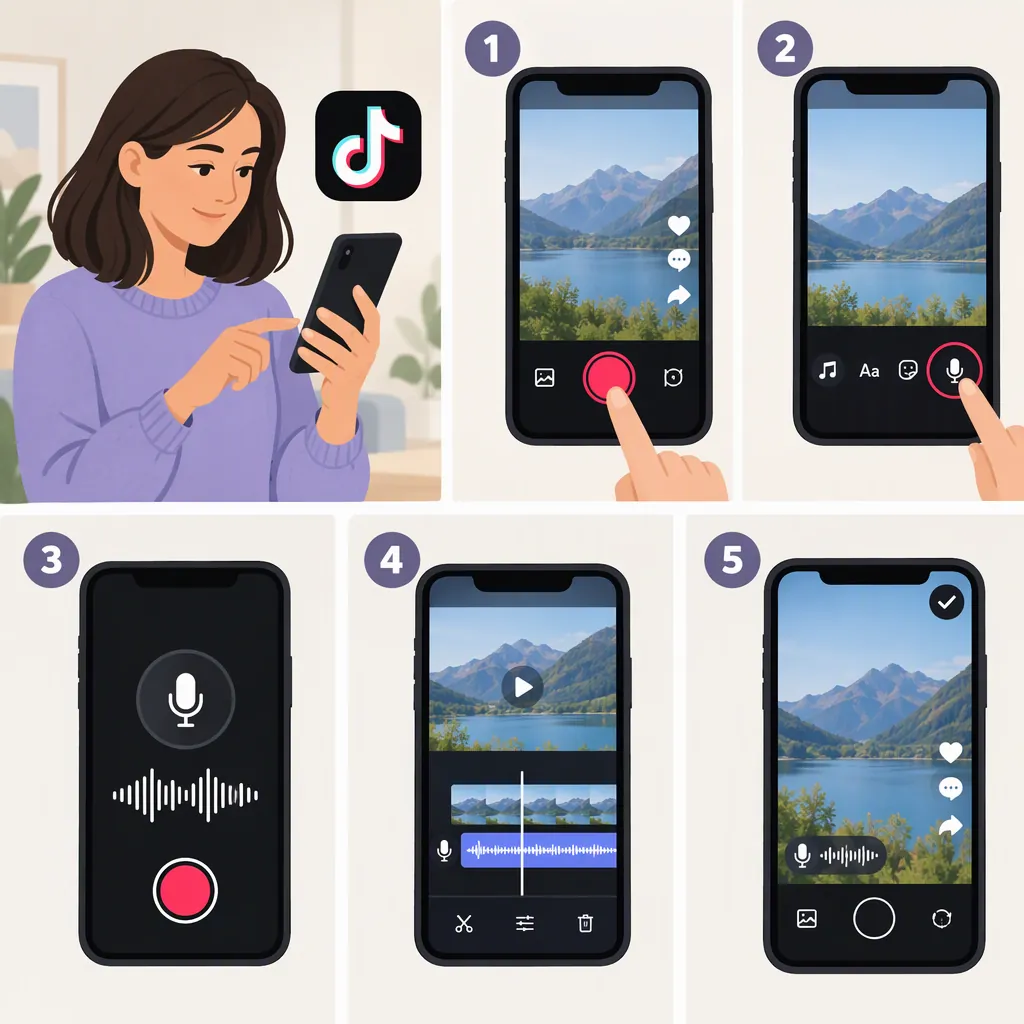
To make a voiceover on TikTok, record or upload a video, confirm the clip, and open Audio Editing → Voiceover. Move the timeline marker to where your narration should start, use the record control to speak over the video, then preview your take. Choose whether to keep or replace the original sound before continuing. These steps come from a third-party walkthrough; your app’s labels and layout may differ. [c2]
Record Your Own Voiceover
Use TikTok’s recorded voiceover option when you want to narrate the video in your own voice rather than have typed text read aloud. The supplied walkthrough describes this sequence: [c2]
- Open TikTok and tap the plus (+) button.
- Record a video or upload one from your gallery.
- Tap the checkmark to confirm the clip and enter editing.
- Move the white timeline marker to the point where your narration should begin.
- Open Audio Editing, then select Voiceover.
- Use the record control to speak over the video. The walkthrough describes holding the record button to begin and tapping it again when finished; follow the control shown in your app.
- Press play to listen back. If the take needs replacing, the walkthrough describes using X and recording again.
These are third-party instructions, not a verified description of every current TikTok interface. If your screen differs, do not assume the same labels or button positions apply. [c2]
Set the Timing and Original Sound
For narration at more than one point, move the timeline marker to another part of the video and record another voiceover segment. The supplied walkthrough describes this as a way to add multiple voiceovers. [c2]
Decide which sounds you want to retain:
- Narration only: The walkthrough identifies an option labeled Replace original sound with recording. Use it if you want the recorded voiceover instead of the clip’s original sound. [c2]
- Narration with existing audio: Leave replacement off if you want to retain the original audio, then preview the combination. The references describe adjusting audio levels to keep narration clear alongside other sounds. [c1] [c2]
As an editing check, listen to each transition between narration segments. If a sentence extends beyond the action it explains, try a shorter line or record it from an earlier starting point.
Prepare a Short Script and Preview the Result
Before recording, draft one short line for each action you need to explain. Try reading the lines while watching the clip so you can identify places where the wording needs to be shorter. This is a suggested preparation method, not a TikTok feature.
Use this checklist before moving on:
- Does each line begin near the action it describes?
- Can you understand every word over the original sound or music?
- Do you need to re-record a stumble or an unwanted background noise?
- Have you checked the captions against the spoken words?
The supplied walkthrough recommends listening back, retrying unsatisfactory takes, and adding captions before posting. It also notes background noise as a possible recording problem. [c2] After reviewing the result, use Next to continue to the posting stage described in that walkthrough; review the video before publishing. [c2]
Voiceover Script Worksheet
Fill in one row per narration segment:

| Visible Action | Line to Record | Start Cue | Preview Notes |
| --- | --- | --- | --- |
| [What happens in the clip] | [One short spoken sentence] | [The moment narration should begin] | [Timing, clarity, or retake needed] |

Read each line alongside the video. Shorten any line that does not fit, record it, and check the playback before continuing.
Use Text-To-Speech Instead of Recording
Text-to-speech is a separate option: TikTok reads typed text aloud rather than recording your microphone. Both supplied references describe this workflow. [c1] [c2]
- Record or upload your video.
- Open Text or the Aa text control and enter the words you want spoken.
- Select Text-to-Speech from the text controls. One reference describes tapping the text box first; the other places the control above it.
- Select and preview an available voice.
- Listen to the result and review its volume before continuing.
Do not confuse this with Voiceover, which records your speech, or with voice effects applied to an existing recording. The references describe these as different ways to produce or change narration. Specific voice names and control locations should not be treated as guaranteed for your app. [c1] [c2]
FAQ
Can I Add a Voiceover to a Video I Already Recorded?
Yes. The supplied walkthrough starts with either recording a new video or uploading one from your gallery, then adding narration on the editing screen. [c2]
Can I Record Narration at Different Points in One Video?
The walkthrough describes moving the white timeline marker to another part of the video and recording again to add another voiceover segment. Preview the segments together to check their timing. [c2]
How Do I Remove the Original Sound When Adding a Voiceover?
Look for the option labeled Replace original sound with recording in the workflow described by the supplied source. It is intended for using the recorded narration instead of the clip’s original sound. The exact label or location may differ in your app. [c2]
How Do I Add Narration Without Using My Own Voice?
Use TikTok’s text-to-speech option: add text to the video, select Text-to-Speech, and choose an available voice. This generates speech from your text rather than recording you speaking. [c1] [c2]
What If I Cannot Find the Voiceover Button?
The supplied walkthrough places it under Audio Editing after you confirm a recorded or uploaded clip. Check that editing stage first. These references do not establish every current interface layout or explain all reasons the control might be missing, so they cannot support a definite diagnosis. [c2]