TikTok Audio on Android: Video Voiceover or Voicemail Greeting?
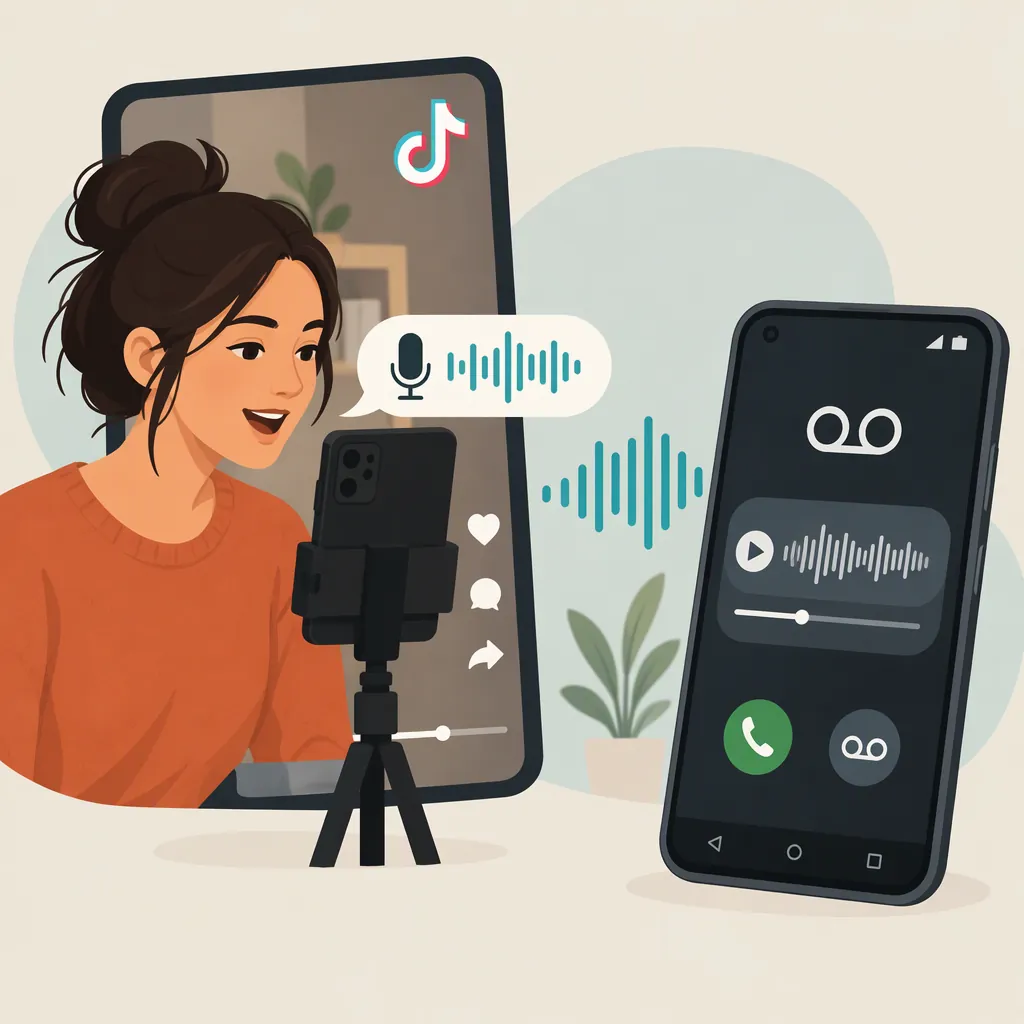
Recording and mixing narration for a TikTok video is different from making a TikTok sound your Android voicemail greeting. For video narration, plan what you will say, where it belongs, and which existing sounds should remain audible. The available source documents only the voicemail method—playing TikTok audio on a second device while recording a greeting—not TikTok’s Android voiceover or mixing controls. A verified, button-by-button video workflow cannot be established from that source. [c1]
Plan the Narration for Your TikTok Video
If your goal is recording and mixing video voiceover, keep the work focused on the video rather than your phone’s voicemail settings. The following is an editorial preparation checklist, not a claim about which controls your version of TikTok provides.
Start by deciding what the narration needs to explain. Write a short line for each relevant moment in the video, and identify moments that should remain without narration. Avoid describing every visible action if the viewer can already understand it.
Next, decide which existing sounds matter. For example, you might want a spoken explanation to take priority while preserving a brief sound that demonstrates the action. Mark those choices before recording so you have a clear target for the finished mix.
The plan below can help organize your narration, but it does not establish how to record, position, or mix it inside TikTok on Android.
TikTok Video Narration Plan
Complete one entry for each moment that needs narration:

- Video moment: [Describe the action or transition.]
- Narration line: [Write the exact words you want to say.]
- Timing goal: [Identify when the line should begin and end.]
- Existing sound to preserve: [Name the sound, or write none.]
- Audio priority: [Narration, existing sound, or intentional silence.]
- Review question: [What should the viewer understand after this moment?]
Set Recording and Mixing Review Goals
Use these checks as goals for your video’s audio, rather than as instructions for unverified app controls:
- Rehearse against the video. Read your planned lines while watching the relevant moments. Shorten a line if you cannot finish it without rushing.
- Check the narration itself. When you have a recording to review, listen for missing words, distracting noise, and uneven delivery. Note the passages you would prefer to record again.
- Review narration with the existing audio. Check whether you can understand each spoken line and whether important original sounds remain audible.
- Check timing. Confirm that each explanation accompanies the intended action rather than arriving too early or too late.
- Review the finished result. Listen through the whole video, not just the changed passages, before treating the audio as complete.
These are listening and editing criteria. They do not confirm that TikTok offers separate tracks, particular volume sliders, or specific recording and export options on your Android device. The cited source supplies no video-voiceover procedure, so exact steps for recording, mixing, and saving remain unverified here. [c1]
Voiceover Review Notes
- Line that needs attention: [Text or video moment.]
- Problem heard: [Unclear words, distracting sound, rushed delivery, or timing mismatch.]
- Desired change: [State the result you want without assuming a particular app control.]
- Existing audio that must remain audible: [Sound or none.]
- Recheck: [Listen to the affected moment and then the complete video.]
If You Meant an Android Voicemail Greeting
If “make a TikTok sound your voicemail” describes your actual goal, the documented process changes the greeting callers hear—not a video’s narration.
Distractify’s article, updated October 2, 2020, describes this method: [c1]
- Open the selected TikTok on a second phone or computer and cue the audio.
- On the Android phone, access voicemail and find the option to record a personal greeting. The article gives holding 1, entering a PIN, and navigating to “Change Settings” as its example sequence.
- While recording the greeting, play the TikTok on the second device near the Android phone’s microphone.
- Stop and listen back. If the result sounds poor, adjust the second device’s playback volume and record again. [c1]
Treat the old menu sequence as an example, not a verified path for your current service. Follow your voicemail service’s prompts for recording and saving. This playback-and-recording method does not establish direct audio-file import or provide a workflow for mixing video voiceover.
Voicemail Greeting Listening Check
- Does the recording include the beginning of the selected clip?
- Are the words understandable?
- Does the audio make sense as a greeting for callers?
- If the result sounds poor, change the second device’s playback volume and record again.
FAQ
Is a TikTok Voiceover the Same as an Android Voicemail Greeting?
No. The video-voiceover goal is narration accompanying a video. The cited voicemail method instead records TikTok playback as the greeting callers hear when they reach voicemail. [c1]
Which TikTok Buttons Should I Use to Record and Mix Narration on Android?
Exact controls cannot be verified from the available source, which covers voicemail greetings only. The narration plan and listening checks above help define the intended result, but they are not a substitute for current, relevant TikTok instructions. [c1]
Do I Need a Second Device?
The documented voicemail method uses a second phone or computer for playback. That requirement should not be carried over to video voiceover: the source does not establish how TikTok records narration on Android. [c1]
Can I Import the TikTok Sound Directly into Voicemail?
The source describes recording speaker playback through the phone’s microphone. It does not document direct file import, so it cannot establish whether your voicemail service supports that option. [c1]