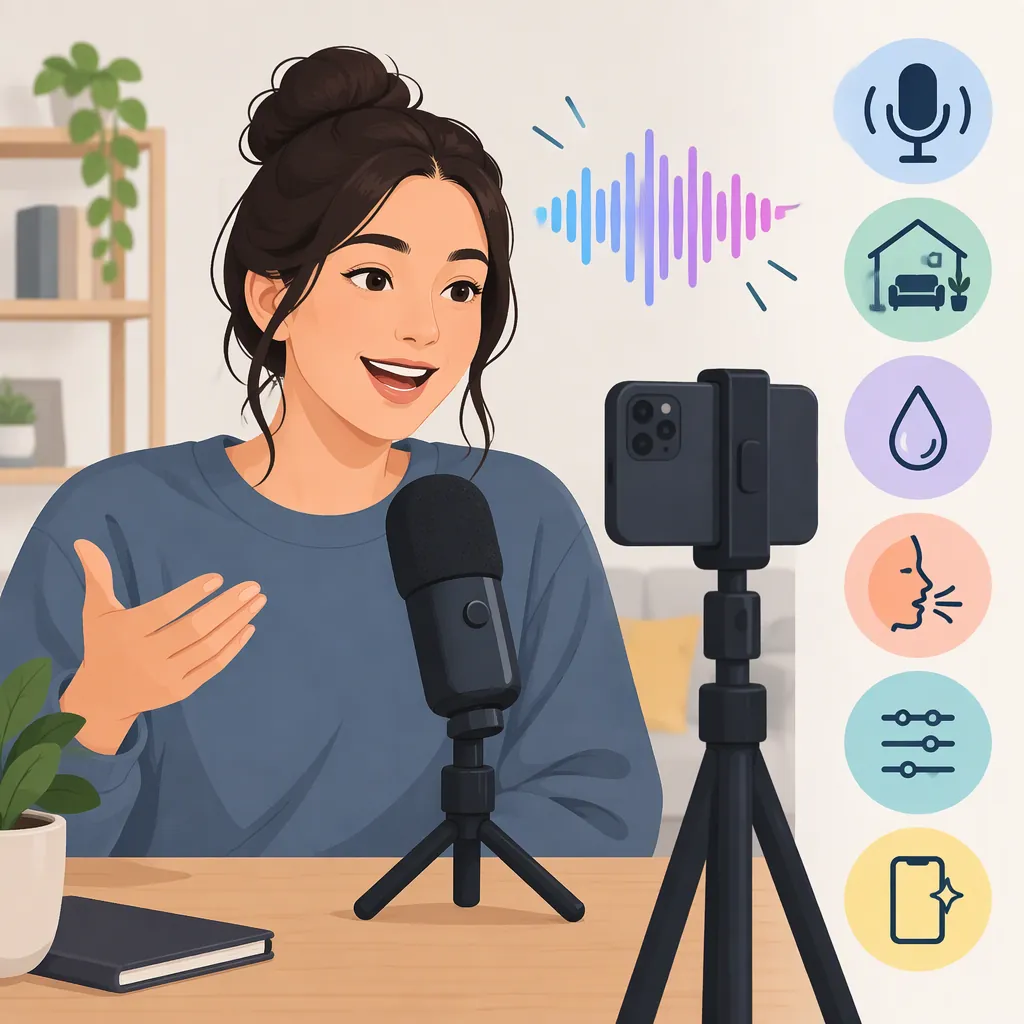
How to Make Your Voice Sound Better on TikTok
To make your voice sound better on TikTok, plan your narration, speak clearly in your natural voice, and test your microphone position before recording the full take. When mixing the video, check the voiceover first, then add only the scene sound or music that supports it. The goal is understandable speech that fits the footage—not a different voice or a flawless performance. [citation-1]
Source and interface limits: The recording recommendations here draw on a TikTok voiceover guide published on October 19, 2022. Its app labels are historical, not verified current instructions. The listening, troubleshooting, and mixing workflows below are general editing suggestions; they do not establish which controls your version of TikTok provides. [citation-1]
Plan Your Narration Around the Footage
Decide what viewers need to understand before you record. You do not necessarily need a full script, but you should know your main points. Use your normal speaking voice rather than trying to imitate someone else. [citation-1]
Watch the video and write a short line for each moment that needs explaining. Read those lines aloud while the footage plays. If a sentence does not fit its scene, shorten it or move it rather than squeezing it into the available time.
Voiceover Planning Template
- Opening: This video shows ____.
- Main explanation: The important step or detail is ____.
- Closing: The result or takeaway is ____.
- Timing check: Does each line fit the footage it describes without rushing?
Use the notes as a recording aid. A script is also an option if precise wording helps you explain the video.
Test Your Microphone Position and Delivery
Speak clearly, enunciate your words, and choose a pace listeners can follow. Avoid placing the microphone extremely close to your mouth or far away; the source does not specify a universal best distance. [citation-1]
Before recording everything, make a short test using one sentence from your narration. Listen back and ask:
- Can I understand every word without guessing?
- Does this sound like my normal speaking voice?
- Am I rushing or trailing off at the end?
- Is another sound distracting from the words?
If something is wrong, change one variable and record the same sentence again. Comparing the same wording makes the test easier to judge.
Match the Problem to a Test
These are general troubleshooting suggestions, not guaranteed fixes or TikTok-specific settings.
| What you hear | What to test first | What to compare |
|---|---|---|
| Distracting background noise | Try a quieter recording location or pause a controllable noise source. | Are the words easier to hear? |
| A hollow or echoing sound | Try a space with more soft furnishings and fewer bare surfaces. | Does the voice sound less distant or reverberant? |
| Mumbled or rushed words | Enunciate more deliberately and slow the difficult phrase slightly. | Can you understand it without reading the script? |
| Harsh, distorted, or overloaded sound | Test a little more microphone distance, or lower the recording input if your recorder offers that control. | Does the harshness decrease while speech remains clear? |
| A faint or distant voice | Test moving somewhat closer, without holding the microphone against your mouth. | Is the voice clearer without introducing new problems? |
Keep the position and delivery that work best in your comparison. Do not assume a fixed distance will suit every microphone or room.
Record the Voiceover for Your TikTok Video
Separate the recording workflow from the app’s interface labels.
If You Can Find the Voiceover Control in TikTok
- Record or upload the footage you want to narrate.
- Open the editing tools and locate the available voiceover recording control.
- Record your planned narration while following the footage.
- Save the recording and play it back with the video.
- Decide whether the original video sound should remain.
The 2022 guide describes a microphone icon labeled “Audio Editing,” followed by recording and saving the narration. It also describes an option to replace original sound and warns that controls may move or be renamed. This is not a current-interface tutorial. [citation-1]
Try a complete take when practical. Natural delivery matters more than repeatedly chasing perfection; a few attempts are reasonable. [citation-1] Redo a take when the words are unclear or the timing does not fit, rather than simply because it sounds like ordinary speech.
If You Cannot Find the Recording Control
An alternative is to use a video editor that supports recording or importing narration. Place the voiceover against the footage, review the combined edit, and export the finished video for upload to TikTok.
This is an optional production workflow, not a claim that TikTok currently offers a particular recording or mixing feature. Check that your chosen editor supports the audio tasks you need before relying on it.
Mix the Voiceover with Original Sound and Music
Treat the audio as three possible layers:
- Voiceover: Your recorded explanation.
- Original video sound: Audio captured with the footage.
- Added music: A separate soundtrack, if you choose to use one.
Keep original sound when it contributes to the scene—for example, cooking sounds that help convey the action. Otherwise, consider replacing it rather than keeping unnecessary background audio. [citation-1]
Use the following listening sequence wherever your editor allows you to control the relevant layers.
1. Check the Voiceover by Itself
Listen to the narration without other sound, if you can isolate it. Identify unclear words, distracting noise, or timing problems.
If the voice is difficult to understand on its own, try revising or rerecording that passage before adding other layers.
2. Add Useful Original Sound
Bring in the scene sounds you want to keep. Replay the sentence that is hardest to understand, especially where speech overlaps with a noticeable sound.
Compare the passage with and without the original sound. If the scene audio distracts from the explanation, lower or remove it where your editor permits. Keep it only if its contribution is worth the trade-off.
3. Add Music, If Needed
With the voiceover and useful scene sound in place, introduce music. Replay the difficult sentence again.
Ask whether you can follow every word without concentrating harder. If not, reduce or remove the music where controls allow. There is no recommended numerical level established by the supplied source; judge the combination by listening rather than assuming one setting fits every video.
4. Review the Whole Video
After adjusting the difficult passage, play the entire edit. A balance that works in one moment may still need attention elsewhere.
If your editor does not allow separate adjustments, consider removing an optional layer or completing the mix in an editor that does. Do not assume TikTok provides independent volume controls for every sound layer.
Final Sound Review Checklist
- Every spoken sentence is understandable.
- Narration matches the action or image it explains.
- Retained original sound contributes to the scene.
- Music does not make the words harder to follow.
- The revised video has been replayed from beginning to end.
Check Captions Before Publishing
Review the combined video, not just the voice recording. Listen for clear words, natural delivery, and narration that fits the footage.
The source recommends adding captions through TikTok’s built-in functionality to support accessibility. [citation-1] If caption generation and editing are available in your workflow, compare the text with what you actually said. Pay particular attention to names, unusual terms, and any passage you rerecorded.
Use captions alongside the audio review—not as a reason to leave difficult-to-understand narration unchanged.
FAQ
Do I Need a Full Script for a TikTok Voiceover?
No. Clear talking points may be enough; the source recommends planning what you want to communicate without requiring a full script. [citation-1] Use a script if it helps with wording or timing, then read it aloud against the footage to check that it does not feel rushed.
How Far Should the Microphone Be from My Mouth?
The source advises against recording extremely close to the microphone or far away, but gives no exact distance. [citation-1] Record the same short sentence at a few positions and compare clarity, unwanted sound, and any harshness. Choose based on the test rather than a universal measurement.
How Do I Stop Music from Covering My Voiceover?
Use speech as your listening reference. Check the narration alone, add music, then replay the hardest-to-understand sentence. Reduce or remove the music if it competes with the words, where your editor allows. This is a general mixing workflow; the cited guide does not establish current TikTok music-volume controls or recommended levels. [citation-1]
What If I Cannot Find TikTok’s Voiceover Button?
The cited guide’s “Audio Editing” label dates to October 2022 and is not a verified current location. [citation-1] If you cannot locate a suitable recording tool, an alternative is to record and mix the narration in a video editor that supports voiceovers, then upload the completed video.
Should I Keep the Original Video Sound?
Keep it when it helps communicate the scene. The source gives cooking sounds as an example and recommends replacing original sound when it has no useful role. [citation-1] Listen to it together with the narration: a sound can be relevant to the footage yet still need reducing or removing if it obscures speech.