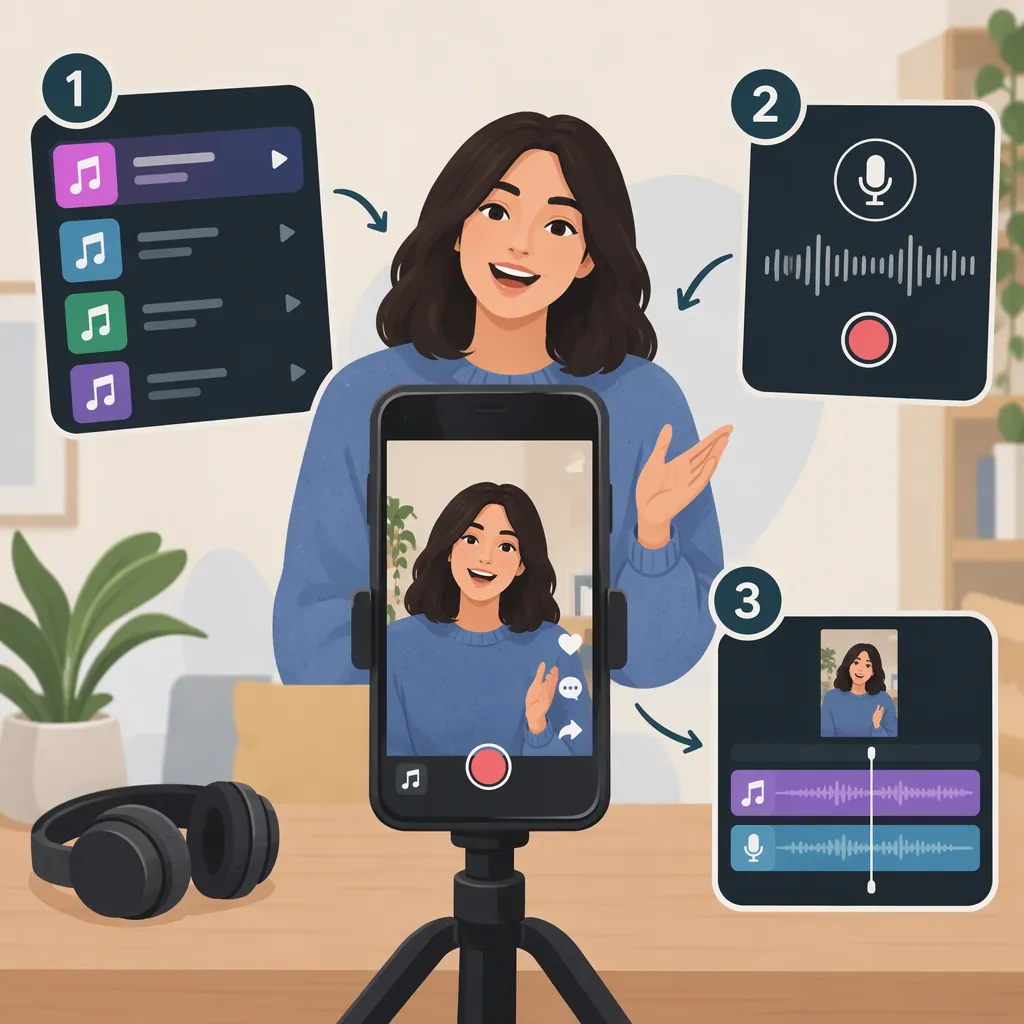
How to Make a TikTok with Music and Your Voice
Record your video with your voice, then add background music and keep it quieter than your speech. If your TikTok editor provides separate voice and music controls, use them to balance the two. If those controls are unavailable, combine the voice and music in a video editor before uploading the finished video to TikTok. Preview the entire clip to check that every spoken word remains understandable.
Start with a Clear Voice Recording
Choose whether you want to speak while filming or record narration afterward.
- Speaking on camera: Record the video with your spoken audio. Avoid playing background music in the room during recording; aim to capture your voice separately from the music you will add later.
- Adding narration afterward: Film the visuals first, then record your narration using a voiceover option if your editor offers one. Otherwise, record and add the narration in a separate video editor.
For either approach, choose a quiet recording spot and make a short test before recording the whole clip. Listen to the test for unclear words, room noise, and harsh distortion. Re-record a problem passage rather than trying to hide it under music.
Add Music Without Losing Your Voice
Use this workflow in TikTok when the relevant audio controls are available. The supplied reference does not verify current TikTok button names or editor layouts, so these steps describe the editing actions rather than a fixed tap-by-tap interface.
- Record or upload your clip. Preview it before adding music to confirm that your spoken audio is present.
- Choose background music. Use an available sound-selection option, and choose a passage that fits the length and mood of your video.
- Preserve the spoken audio. If the editor distinguishes original audio from added music, do not mute the original audio when it contains your voice.
- Lower the music first. If separate volume controls are available, reduce the music until your speech is easy to follow. Avoid relying on one universal percentage; judge the actual recording.
- Check the full timeline. Listen especially where the music becomes louder or your voice becomes softer.
If you cannot retain your voice while adjusting the music independently, use the external-editing workflow below instead.
Voice-And-Music Preview Checklist
- Play the clip from beginning to end.
- Confirm that the spoken audio has not been muted.
- Lower the music wherever it competes with speech.
- Check the opening, quietest sentence, and ending.
- Listen once on headphones and once through the phone speaker.
- Confirm that the exported or uploaded preview still contains both voice and music.
Mix Before Uploading When Needed
For an alternative workflow, choose a video editor that lets you adjust speech and music separately:
- Import your video and keep its spoken audio, or add a separate narration recording.
- Add a music track you have permission to use.
- Trim the music to match the video.
- Lower the music beneath the narration. If your editor supports volume changes over time, lower it further during speech and raise it gently during pauses.
- Export the video with both audio elements included, then upload that finished file to TikTok.
When reviewing the upload, avoid adding a second music layer unless that is intentional. If you make further audio changes, preview the mix again before publishing.
Consider an Instrumental Background
If song lyrics compete with your narration, consider choosing an instrumental track instead.
The supplied LALAL.AI article, dated September 17, 2021, describes extracting an instrumental stem from a song and using it as custom TikTok audio. That is an optional preparation step, not a requirement for combining music with your voice. The article does not document TikTok’s current voiceover or volume controls. [citation-1]
Do not assume that removing vocals gives you permission to use a song. Choose music whose permitted use covers your intended video; audio preparation and usage permission are separate questions.
FAQ
What Should I Check If My Voice Disappears After Adding Music?
First preview the original clip to confirm that it contains your voice. Then check whether the editing step muted or replaced that audio. If separate original-audio and music controls are available, keep the voice-containing track enabled. Otherwise, return to a video editor and export a file containing both voice and music.
How Loud Should the Background Music Be?
Use speech clarity as the test rather than a fixed volume percentage. Start with the music low and increase it only while every word remains easy to understand. Check the quietest spoken passage and the loudest musical passage before finishing.
Do I Need Lalal.ai to Add Music and My Voice?
No—instrumental extraction is not a necessary step in the workflow described here. The supplied LALAL.AI article covers an optional method for preparing an instrumental background, rather than instructions for balancing spoken voice and music in TikTok’s current editor. [citation-1]