How to Make a TikTok Without Sound
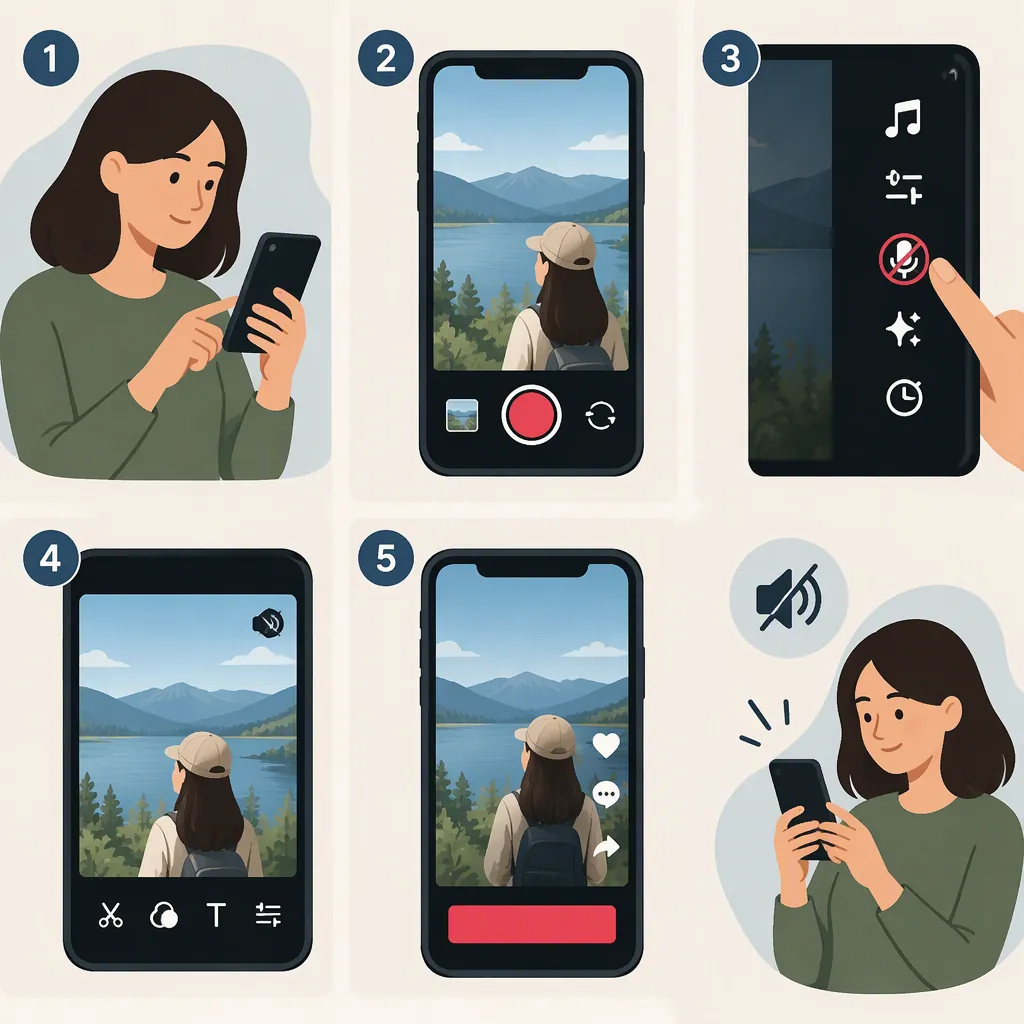
To make a TikTok without sound, prepare a recorded or uploaded video for editing before posting, lower its audio volume to the lowest setting, and confirm the change. Check any added sound separately, then play the full preview to make sure nothing remains audible. A third-party Wondershare tutorial describes the volume-slider method. [citation-1]
Silencing your phone is not the same as removing sound from the video. Make the audio changes in the editor and check the result with your phone’s playback volume audible.
Mute the Video Before Posting
Start with the video you intend to publish—not a video you are simply watching or an already-published post.
- Prepare your footage. Record or upload the video you want to use, then enter its pre-post editing stage.
- Find the audio volume control. The Wondershare tutorial identifies a Volume button near the top of the editing screen.
- Lower the video’s audio volume. Drag the relevant volume slider to its lowest setting.
- Confirm the adjustment. The tutorial shows a check mark for saving the volume change. [citation-1]
- Check added sounds. If you have added music or other audio, review that separately before posting.
Interface note: These control labels and locations come from a third-party tutorial, not verification of every current TikTok version. Use them as a starting point; if your screen differs, look for the available audio controls or use the pre-upload alternative below.
Check Original Audio and Added Sounds
For a completely silent TikTok, check both the sound in your recorded or uploaded footage and any sound added during editing. The reference treats the video’s own audio and platform-added sounds as separate considerations. [citation-1]
Use this single checklist before posting:
- Original video audio: Lower it to the lowest setting if the editor provides a separate control for it.
- Added sounds: If you added music, a voiceover, or another sound, remove it or lower its volume where the editor provides that option.
- Confirmed changes: Save or confirm each audio adjustment as required by the controls shown.
- Full preview: Play the entire video with your phone’s playback volume audible.
If you still hear sound, return to the editor and check which audio remains. Do not assume that lowering one slider silences every audio source.
Alternative: Remove Audio Before Uploading
If you cannot find a suitable volume control in TikTok, you can prepare a no-audio video file before uploading. The reference gives an example using Wondershare UniConverter, a separate editing tool—not a TikTok feature. [citation-1]
The tutorial’s workflow is:
- Add your video file to the external editor.
- Open the Advanced audio dropdown.
- Select No Audio.
- Choose Convert to create the output file.
- Open the Finished tab to preview it. [citation-1]
These labels apply to the tool described in the tutorial; another editor may use different controls.
Check the exported file with playback volume audible before uploading it to TikTok. During TikTok editing, avoid adding a new sound, then check the full preview again before posting.
FAQ
Is Muting the Original Audio Enough?
Only if no other audio remains. If you added a sound during editing, check it separately: the reference distinguishes the video’s own audio from added TikTok sounds. [citation-1]
What If I Cannot Find the Volume Button?
Use the pre-upload method above instead of relying on a specific button location. The reference describes exporting a silent file through an external editor’s No Audio option. [citation-1]
Should I Use Noise Removal to Make the Video Silent?
No—use muting or a no-audio export when you want complete silence. Background-noise removal is a different workflow intended to reduce unwanted noise rather than remove the entire soundtrack. [citation-1]
Sources
- [citation-1] [Sloved] How to Mute Tiktok Video in 2026