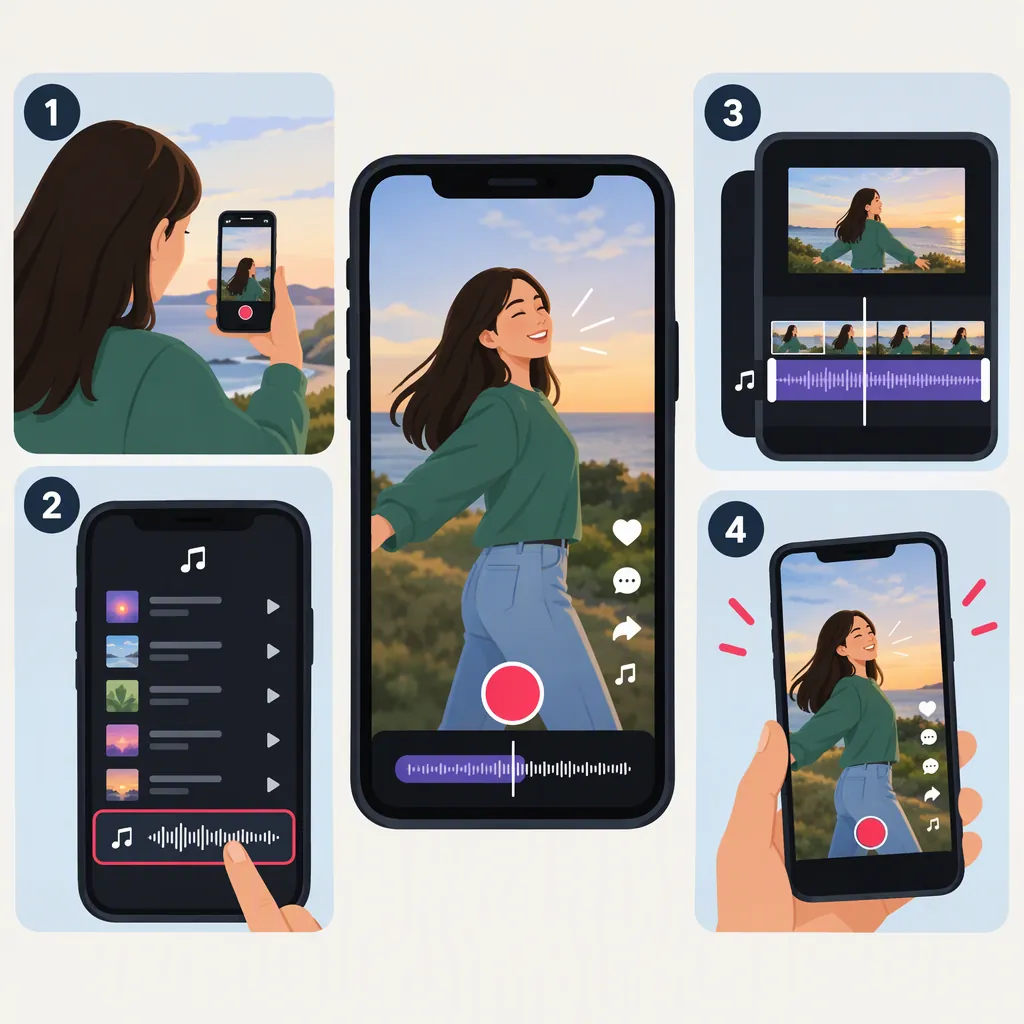
How to Make a TikTok Video with Music
To make a TikTok video with music, prepare your footage, open it in TikTok’s video editor, and select a song from the music catalog. Preview the complete video to check the timing and make sure important speech remains clear. Check that the music is permitted for your intended use before publishing. Selecting catalog music in the editor is separate from distributing your own song to TikTok’s music library. [citation-1]
This walkthrough focuses on adding catalog music to a video, not uploading an artist’s recording to the catalog. The available reference supports music selection in the editor but does not verify current button names, screen layouts, editing controls, or duration limits. Follow the options displayed in your version of TikTok.
1. Plan the Video Around the Music
Decide what the music should do:
- Background: Support narration without competing with it.
- Rhythm: Give movement or cuts a beat to follow.
- Main focus: Accompany a dance, performance, or visual sequence.
For a first attempt, choose one simple action with a clear beginning and ending. For example, a short demonstration could show the starting materials, the main action, and the finished result.
Choose a musical passage that fits that sequence rather than trying to squeeze an entire song into the video. TikTok’s catalog offers music users can select in the video editor. [citation-1] Treat finding a suitable track and checking permission for your intended use as separate tasks.
Quick Planning Template
- Video idea: ____
- Music’s role: Background / rhythm / main focus
- Action to match to the music: ____
- Speech that must remain clear: ____
- Music permission to check: ____
2. Prepare Your Footage and Enter the Editor
Record the action you planned. If the video includes speech, listen to a short test recording before filming the full sequence. Move to a quieter setting if background noise makes the words hard to understand. The referenced guide also recommends minimizing background noise when recording original music. [citation-1]
Then work through the creation options shown in TikTok:
- Start a new video. Find the control for creating a post.
- Bring in your footage. Use the recording option, or select existing footage if your version offers that option.
- Continue to the video editor. Check that the intended clips are present and in the right order before adding music.
These are navigation goals rather than verified button-by-button instructions. If your screen differs, use the controls available in the app rather than looking for a particular label.
3. Select Music and Check the Result
In the video editor, open the music-selection option and choose a catalog track. This is the general music-adding workflow supported by the reference. [citation-1]
Work through these checks before moving on:
- Listen to the track. Does its mood and pace suit the action?
- Apply your selection using the on-screen controls. Return to the video preview.
- Play the preview with sound on. Confirm that the selected music is audible alongside the footage.
- Check the timing. Does the important action happen at a suitable musical moment?
- Check speech clarity. Can you understand every word that matters?
If passage selection is available, choose a section that fits the action. If separate music and recorded-audio levels are available, adjust them while listening to the preview—not just by looking at the settings.
If those controls are unavailable, choose a better-fitting track or revise the footage. For example, removing an unnecessary pause can help the action fit the music without requiring a particular audio-editing feature.
4. Preview, Check Permissions, and Publish
Watch the video from beginning to end. Pay special attention to:
- An opening that feels disconnected from the music.
- Music that masks narration.
- Background noise that distracts from the action.
- An ending that cuts off awkwardly.
For music you recorded yourself, check whether the recording contains someone else’s composition, recording, or sample. Recording audio yourself does not replace a permission check. The referenced guide advises clearing music rights and obtaining permission for cover songs. [citation-1]
This walkthrough does not establish which tracks are permitted for a particular account or commercial use. Resolve any uncertainty before publishing; successful selection in the editor is not proof that every intended use is authorized.
Once the preview and permission checks are complete, continue to the posting screen using the available controls. Review the post details and audience settings before completing publication.
Before-Posting Checklist
- The intended footage is included and in order.
- The selected music plays in the preview.
- Important speech is understandable.
- The music fits the action and ending.
- Distracting background noise has been addressed.
- The music is permitted for the intended use.
- Post details and audience settings have been reviewed.
FAQ
Do I Need a Distributor to Make a TikTok Video with Music?
Not for the catalog-selection workflow described here. Users select catalog music in the video editor; distributors are involved in delivering artists’ songs to TikTok’s music catalog. These are different tasks. [citation-1]
What Permissions Should I Check for Music I Recorded Myself?
Check the rights to any composition, recording, or sample included in your audio. Do not assume that performing or recording a song yourself removes the need for permission. The referenced guide specifically recommends clearing music rights and obtaining permission for cover songs. [citation-1] This article does not cover the separate procedure for attaching your own audio recording.
How Long Can the Music Play in My Video?
Check the options displayed for your selected track and video in TikTok. The reference includes example clip lengths, but it does not establish current duration limits, so those examples should not be treated as present-day rules. [citation-1]
What Should I Do If the Music Makes My Voice Hard to Hear?
Listen to the complete preview. If your editor provides separate audio-level controls, lower the music relative to the voice and listen again. If it does not, try a less intrusive track or rerecord unclear speech in a quieter setting. The guide’s recording advice emphasizes minimizing background noise. [citation-1]
Sources
- [citation-1] How to Add Your Own Music to TikTok