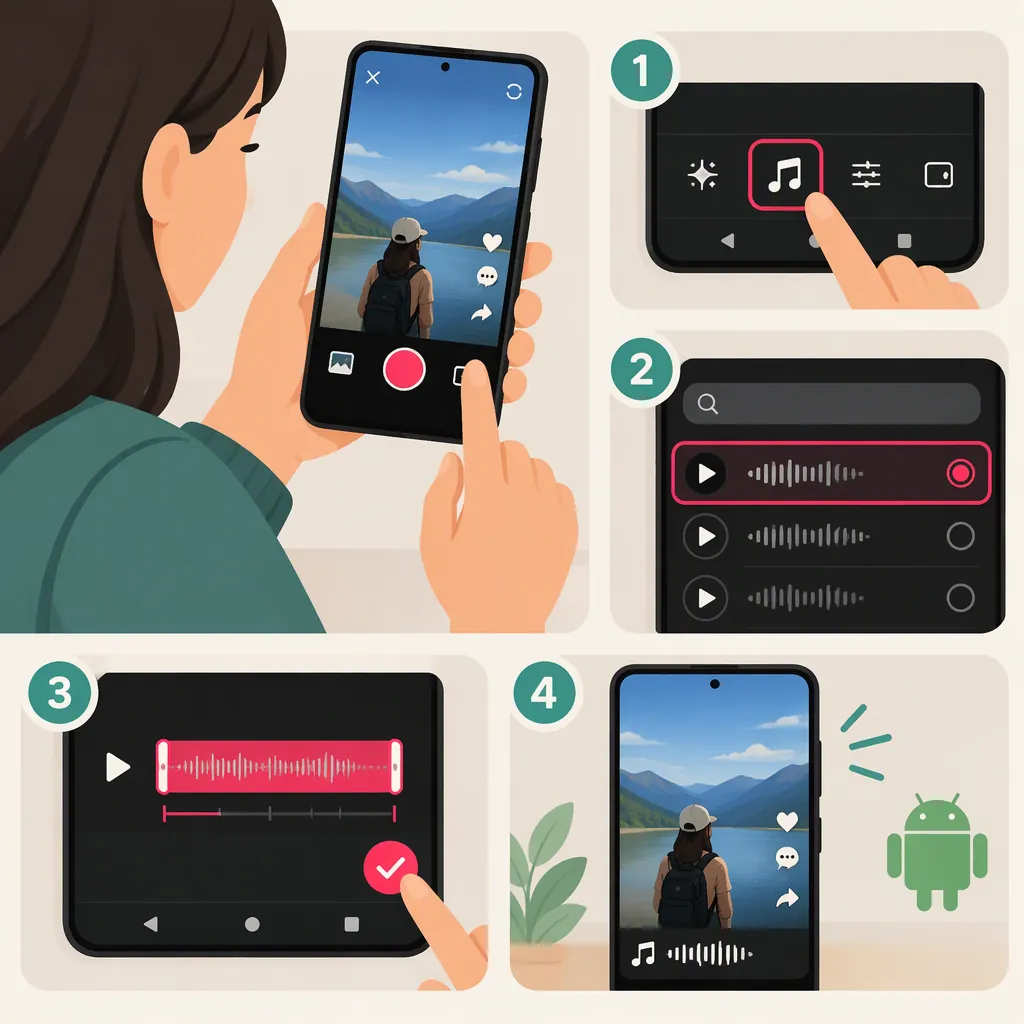
How to Make a Reusable Original Sound on TikTok on Android
To make an original TikTok sound, record or upload a video containing your own audio and post it. Then open the posted video, tap the spinning record icon, and name and save the sound. Adobe describes this general TikTok workflow, but does not document a separate Android interface, so exact controls may differ on your phone. [c1]
Record Your Original Audio in TikTok
The sound starts with the audio in a video—not with a separate audio-file upload. Adobe states that posting a video with original audio automatically creates a TikTok sound. [c1]
- Open TikTok on your Android phone and tap + to start a video.
- Record the footage and audio using the phone’s camera and microphone.
- If needed, use the voice tools to add a voiceover.
- For this original-audio workflow, leave out a library song. Adobe warns that selecting one can override the original audio.
- Tap Next, review the posting settings, and post the video. [c1]
Before posting, listen to the recording. Aim for clear speech without distracting background noise, and check that any accompanying audio does not drown out your voice. These are audio-quality recommendations, not a guarantee that others will reuse the sound. [c1]
Use a Video with Audio You Already Recorded
If your original audio is already part of a video saved on your phone, use the upload route instead of recording again:
- Start a TikTok project and choose Upload.
- Select the video containing your audio.
- Use the clip-adjustment controls to trim the video so the desired audio starts and ends where you want it.
- Continue to the posting screen and publish the video. [c1]
The supplied guide describes uploading a video or recording containing audio. It does not establish a direct Android workflow for importing a standalone MP3 or WAV file. Keep that distinction in mind if your starting material is only an audio file. [c1]
Name and Save the Sound
After posting, open the video and tap the spinning record icon in the bottom-right corner to access its sound. Adobe describes naming and saving the sound from there. Choose a clear, descriptive name so it is easier to recognize later. [c1]
To find saved sounds, go to your profile, open the favorites area marked with a bookmark symbol, and look under Sounds. Saving the sound gives you a place to find it when preparing another video. [c1]
The guide supports creating and saving an original sound, but it does not provide an Android-specific sequence for attaching that saved sound to a second video. Follow the sound options shown in your installed app rather than assuming every account displays identical controls.
Check Privacy and Audio Rights
Adobe describes an Only me workflow: set the video’s audience to Only me, post it, and open it from the private folder to find and rename its sound. This is an option for keeping the source video out of public view. However, the guide does not establish whether a sound from that private video will be available for other people to reuse. Do not treat private posting as proof of public sound availability. [c1]
For the simplest original-sound approach, use your own voice or audio you created. Adobe notes that TikTok may mute copyrighted music that is not cleared for use. Creating a sound from a video does not itself clear rights to someone else’s recording. [c1]
FAQ
Do I Need to Post a Video to Create the Sound?
Yes, in the workflow described by Adobe: posting a video with original audio creates the sound. The guide also describes posting with an Only me audience, but does not establish that other users can reuse a sound from a private video. [c1]
Can I Rename My Original TikTok Sound?
Adobe says to open the posted video, tap the spinning record icon, and look for an edit icon beside the sound title. It notes that the name can usually be edited only once, so choose it carefully. [c1]
Why Was My Sound Muted?
One possible reason is copyrighted music that is not cleared for use, according to Adobe. The guide does not diagnose every cause of muting, so this is a possibility rather than a definite explanation for your video. [c1]