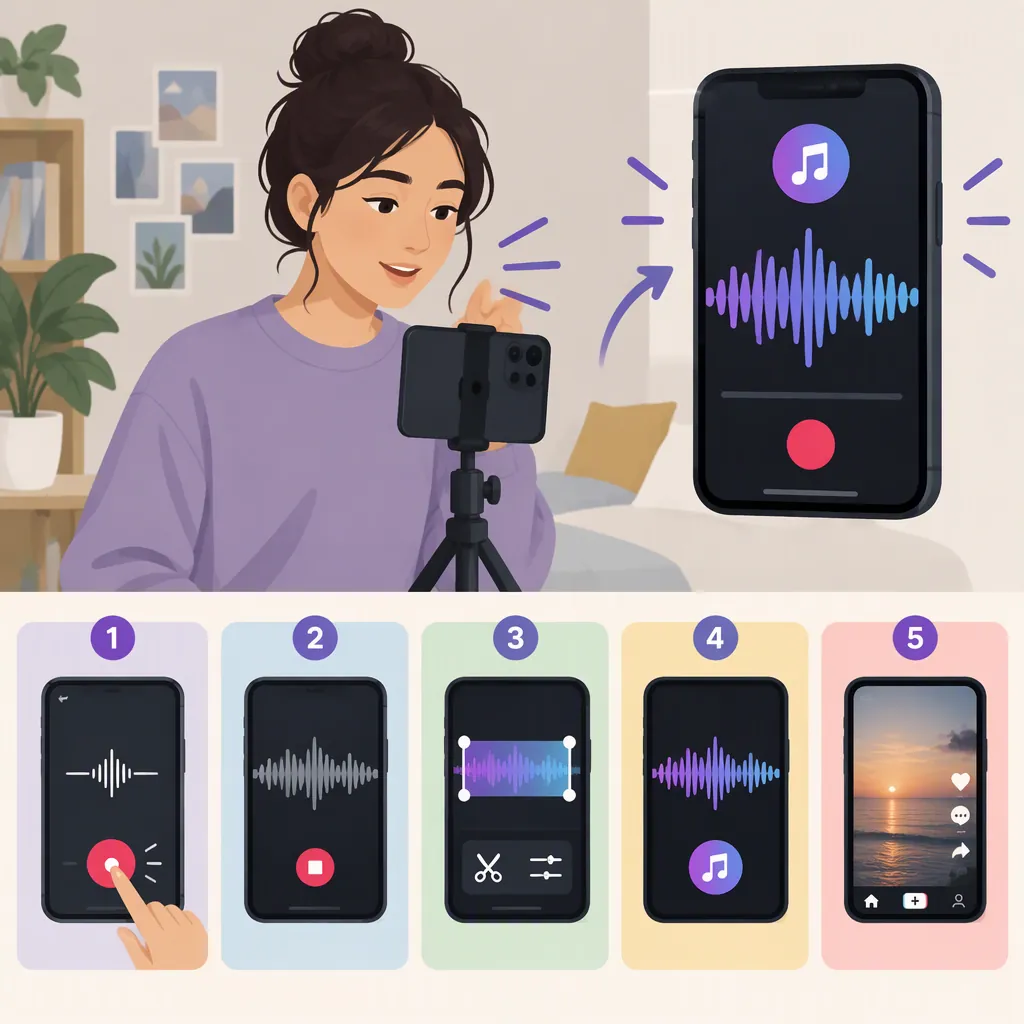
How to Make Your Own Sound on TikTok for Reuse
To make your own reusable sound on TikTok, record or upload a video containing audio you created, then publish it publicly. Open the published video, tap the spinning record icon, and select “Use this sound” to make another video with that audio. For this workflow, leave TikTok library music unselected so your own recording remains the audio source. These steps come from third-party guides, not TikTok documentation; public posting is the supported route in the references for making the sound available to other people. [c1] [c2] [c3]
Prepare the Audio You Want Others to Reuse
Start with an original voice recording, an instrument performance of music you created, or a sound effect you made. Use audio you own or have permission to use; labeling a recording “original sound” is not a substitute for having rights to its contents. The supplied guides warn against uploading uncleared copyrighted music. [c1] [c2] [c3]
For a practical first recording:
- Record in a quiet place to reduce distracting background noise.
- Make the words or main sound easy to hear.
- Trim unnecessary silence before and after the useful part.
- Listen to the beginning and ending together if you want the clip to loop.
Adobe recommends clear audio, careful volume balance, and attention to the transition between the end and beginning. These are preparation suggestions, not a guarantee that people will reuse the sound. [c2]
Pre-Publish Audio Checklist
- Confirm that you created the audio or have permission for its intended use.
- Listen to the entire clip for accidental background music or distracting noise.
- Check that speech is audible and the beginning and ending are intentional.
- Leave library music unselected for the original-audio workflow.
- Decide whether you are comfortable publishing the source video publicly.
Record in TikTok or Upload an Edited Video
You can create the source video in TikTok or prepare a video with its audio in an external editor. Both routes are described in the supplied guides. [c1] [c2]
Record Directly in TikTok
- Open TikTok and tap the create button, usually shown as +.
- Record a video while speaking, performing, or making your original sound.
- Use the available editing tools to add a voiceover or adjust the recording if needed.
- Review the finished video with its audio before posting. [c2] [c3]
Use Audio You Already Recorded
- Prepare a video that includes your original audio in an external editor.
- In TikTok, choose the upload option and select that video.
- Trim the clip as needed so the sound starts and ends where you intend.
- Preview the result before proceeding to the posting screen. [c1] [c2]
For either route, leave the library-song option unselected. The guides describe creating the sound from the audio in the video itself, rather than selecting an existing TikTok sound. Button placement and editing controls may differ from the third-party walkthroughs. [c1] [c2]
Publish the Video and Open Its Sound Page
To make the sound available for other people to reuse, follow the public-posting route described in the Jeff Bullas forum answer:
- On the posting screen, choose a public audience and publish the video.
- Open the published video from your profile.
- Tap the spinning record icon, described in the guides as being at the bottom right.
- Look for the sound page. The forum answer describes its default label as “Original sound – [Your Username]”.
- Tap “Use this sound” to start another video with that audio. [c1] [c3]
The forum answer says other viewers can open the same sound page and use that button as well. Treat this as the described workflow, not a promise that every upload will remain available for reuse. The supplied references are third-party explanations rather than current TikTok policy documentation. [c1]
If a sound-title editing control is available, use a clear descriptive name. Adobe describes editing the title from the sound page and cautions that renaming is usually limited to one edit, so choose the wording carefully. [c2]
Understand Private Posts and Copyright Limits
The references disagree about private posts. Adobe describes posting with an “Only me” audience to create and save a sound for personal use. The Jeff Bullas forum answer says a private video cannot generate a sound and recommends public posting. These sources do not establish a consistent private-post workflow. [c1] [c2]
For the goal of letting other people reuse your audio, use the public-posting steps above rather than relying on the private-video workaround. Public posting also means making the source video public; consider that before publishing. [c1]
If the sound is muted, copyrighted music may be a reason: Adobe says TikTok may mute audio containing music that is not cleared for use. Check whether your recording includes music you do not have permission to use. The references do not provide enough detail to diagnose every missing or unavailable sound, and renaming a track does not establish permission to use it. [c2] [c3]
FAQ
Do I Need a Video to Make My Own TikTok Sound?
The supplied guides create the sound from a video’s audio: either record the video in TikTok or upload a video containing your custom recording. They do not establish a standalone audio-file upload method for this workflow. [c1] [c2] [c3]
How Do I Use My Original Sound in Another Video?
Open the published source video, tap the spinning record or disc icon, then tap “Use this sound.” Mashable describes this as the route for creating another video with your original audio. [c3]
Can I Keep the Source Video Private and Let Others Use Its Sound?
The references do not establish that combination. Adobe describes private posting for creating and saving a sound, while the Jeff Bullas forum answer requires public posting for a shareable original sound. For community reuse, follow the public-posting route rather than assuming a private source video will work. [c1] [c2]
Can I Rename My Original Sound?
Adobe says to open the sound page through the spinning record icon and look for an edit icon next to the title. It also says the name can usually be edited only once. If that control is available in your app, choose a clear name before saving. [c2]