How to Make TikTok Sync with Music: A Simple Beat-Matching Workflow
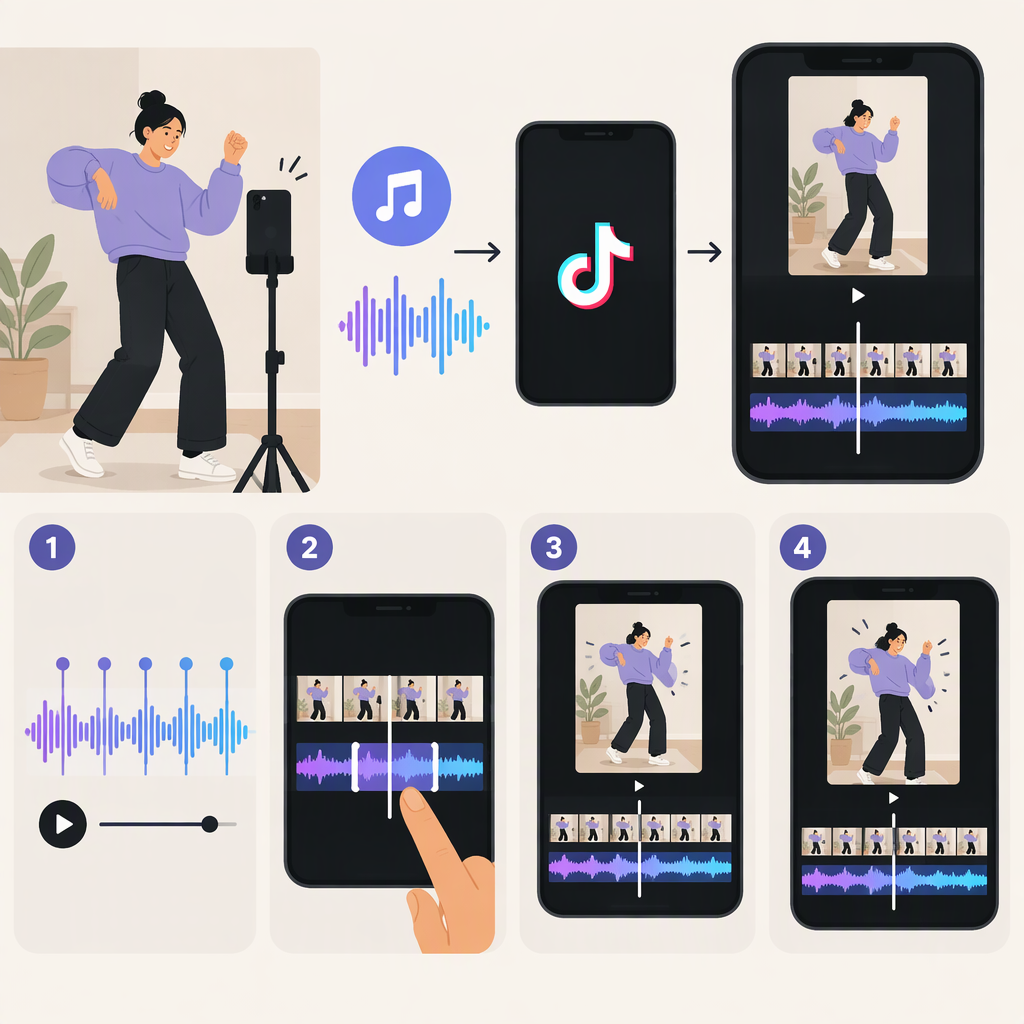
To make a TikTok video sync with music, choose your sound, decide which visual moments should land on the beat or a change in the music, adjust your clip timing, then replay the edit and refine it. You can use this approach in TikTok or another editor; the key is to check how the cut feels against the sound, rather than relying on an automatic-sync feature.
A Step-By-Step Workflow
- Choose the sound and the section you want to use. In TikTok, you can preview sounds and select one from the recording screen, or add a sound from the editing screen. TikTok’s Help Center also describes using the sound’s Edit option to adjust the sound clip. (support.tiktok.com)
- Listen for moments worth matching. Play the selected section and notice a repeated beat, a stronger accent, or a change in the musical phrase. Pick a few visual moments to line up with those points—such as a cut, a change of angle, or an action in the video. You don’t need to mark every beat.
- Arrange or trim your clips. Place the visual moment you chose at the corresponding point in the music. If a clip feels too long or short, adjust its boundary; if a transition needs a new edit point, split the clip there. TikTok’s editing guidance describes trimming and splitting clips in its in-app editor. (support.tiktok.com)
- Preview the section and adjust. Replay from just before the edit point. If the visual change comes before or after the musical moment, make a small timing adjustment and replay it. Repeat until the change feels aligned.
Find Beats and Choose What to Sync
Listen once without editing and choose one or two moments that matter most. A strong beat or a phrase change can work as an edit point; a visual change does not have to happen on every beat. Start with a simple pattern, then decide whether the footage supports more cuts.
Illustrative example: Imagine a short clip of someone opening a box. You might place the cut to a closer view on a strong beat, then show the item as the music changes phrase. That’s only one possible arrangement—not a rule or a tested TikTok result.
Edit in TikTok or Another Editor?
TikTok’s editing guidance describes ways to add sounds and trim or split video clips in the app. That may be enough for a short edit with a few clear timing points. Another editor may suit a workflow where you prefer to arrange clips and sound in a separate editing environment. In either case, preview the result in the final sequence; a cut that looks well placed on a timeline may still feel early or late when you hear it with the music. (support.tiktok.com)
TikTok’s editing controls and their labels can change. The steps above use the controls described in its public Help Center; if a label or option differs in your app, use the closest available clip-editing or sound-editing control rather than assuming an automatic beat-sync tool is available.
If It Still Feels Out of Sync
Use a short replay-and-adjust loop:
- Replay the section where the timing feels wrong. Listen and watch for the first moment that seems early or late.
- Identify what needs to move. If the music’s start does not match the intended opening moment, adjust the sound clip in the editor if that control is available. If the sound feels right but a visual change misses the beat, adjust the relevant clip boundary or split point instead.
- Make one small change at a time. Replay the same section after each adjustment so you can judge whether that specific change helped.
- Check the surrounding moments, too. A fix to one cut can affect how the next cut feels, so replay the sequence rather than judging only a single frame.
The goal is to make the visual changes feel intentional against the music. There is no need to force every cut onto a beat.