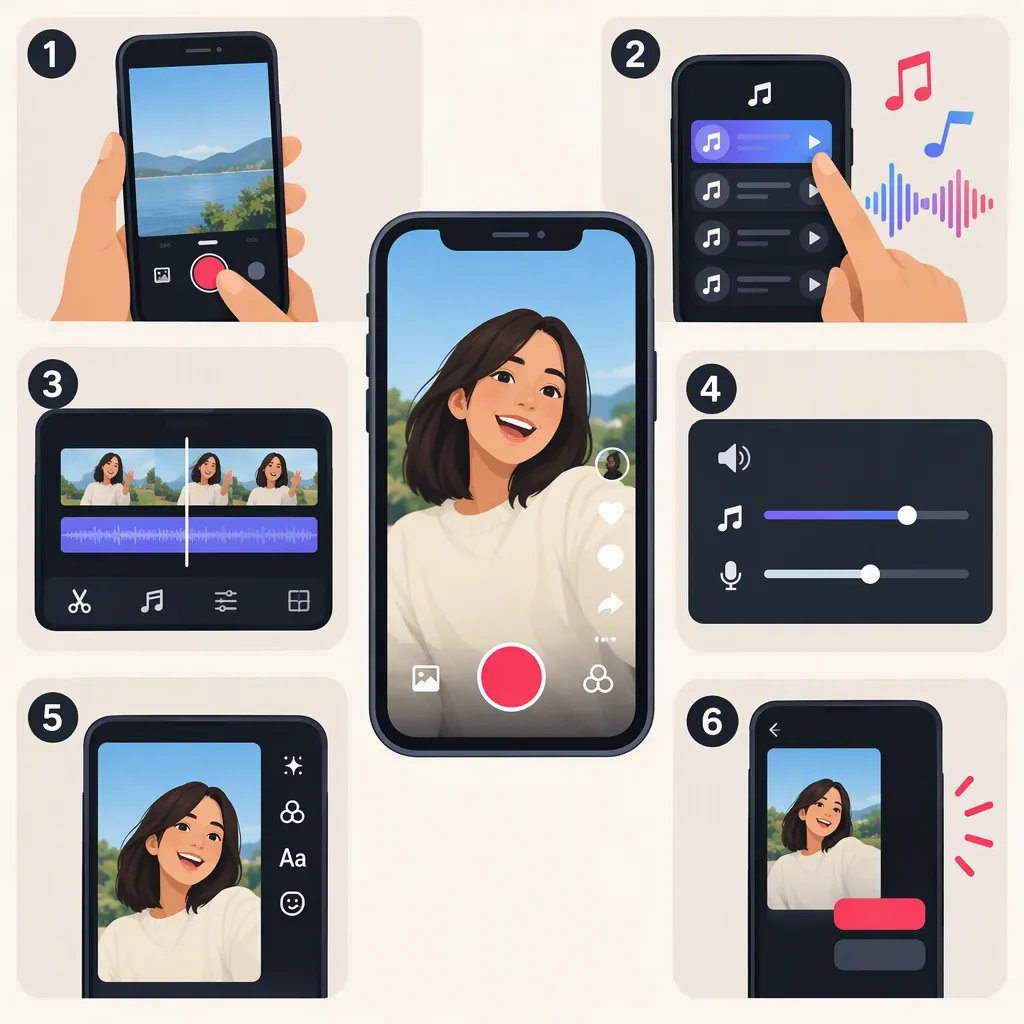
How to Make a TikTok with Your Voice and Background Music
To make a TikTok with sound and music, start with a video containing clear speech, then add background music without replacing the voice. If your TikTok editor lets you adjust original audio and added music separately, lower the music beneath your speech. If those controls are unavailable—or your voice disappears—mix both elements in a video editor and upload the finished video. Adobe’s guide describes recording and uploading custom audio, but warns that choosing a library song can override original audio. [c1]
1. Record Your Voice Before Adding Music
Start with speech that is easy to understand on its own. Adding music will not fix an unclear voice recording.
- Record a short test in a quiet place at your normal speaking volume.
- Listen for unclear words, distracting noise, or distortion.
- Adjust your recording position or location if needed, then record the full take.
- Save a copy with your voice intact and no added music.
To record directly in TikTok, tap the plus (+) icon to start a project and capture your footage with the camera and microphone. If you prefer to record narration afterward, Adobe’s guide describes adding a voiceover through the voice tools in the side panel. [c1]
For this workflow, original audio means the sound already in your video, including your recorded speech. Background music is the additional audio you want underneath it.
2. Check Whether You Can Mix Both Elements in TikTok
This section is a feature check, not a complete TikTok menu-by-menu tutorial. The cited guide does not establish a universal path for adding music and independently adjusting both audio elements. Use the in-app approach only if your editor exposes those controls. Otherwise, go directly to the external mixing workflow.
If you can locate the sound-selection option in your editor, add your chosen music and preview a section where you speak. Adobe warns that selecting a library song can override original audio, so confirm that your voice is still present before continuing. [c1]
In-App Mixing Check
- Listen for your voice. Preview a sentence you know was audible in the saved recording.
- Check for separate audio controls. Look for controls that distinguish the recording’s original audio from the added music. A single overall volume control will not let you change their balance.
- Test the music control. Lower the music and replay the same sentence. Confirm that the music becomes quieter without reducing your voice.
- Keep or switch workflows. If you can retain and adjust both elements, continue balancing them. If the voice is missing or you cannot adjust the elements separately, return to your saved recording and mix outside TikTok.
Keep the voice prominent. Raise the music only as far as it can go without making speech difficult to understand; Adobe identifies background music drowning out speech as a common audio mistake. [c1]
3. Mix Your Voice and Music in a Video Editor
For this alternative, use a video editor that supports the video’s existing audio, a separate music track, independent volume adjustment, and video export.
You also need a local music file that you have legally obtained and have permission to use in this video. Do not assume that a sound selected inside TikTok is available to download or permitted for external editing. If you do not have a suitable file, use music you created yourself or music whose terms explicitly allow downloading and your intended use.
The following are suggested editing steps, not menu instructions for a particular editor:
- Import your saved video. Place it on the timeline and play a spoken passage to confirm that the original voice is present.
- Add the music on a separate track. Import the permitted music file without replacing or muting the video’s existing audio.
- Align and trim the music. Position its beginning where you want it to start, then trim its ending to fit the video.
- Lower the music beneath the voice. Adjust the music track’s volume while leaving the voice unchanged. Replay a quieter spoken sentence as you work.
- Check the whole timeline. Listen for passages where the music gets louder or the voice gets softer. Reduce the music wherever words become hard to follow.
- Export the complete mix. Export a video containing both audio elements, then play that file outside the editor to confirm that neither is missing.
Adobe’s guide describes using TikTok’s Upload button to select a video or recording and Adjust clips to trim footage. Upload your finished video and preview it before posting. [c1]
Avoid adding another TikTok song unless you intend to change the finished mix. Keeping the saved voice-only recording and the exported mix gives you two useful files for troubleshooting.
Choose a Sound for the Scene and Time One Clear Transition
Start with the video's purpose. For spoken instruction, choose music with enough space for the voice and avoid a competing vocal passage. For a visual reveal, choose a clearly audible beat or phrase change that supports the reveal. Preview the selected passage, not just the song's opening; a later loud section may change the balance. Popularity alone does not establish relevance or permission, and this workflow does not assume a universal trending-sounds list.
In an editor that permits timeline adjustment, mark one beat, align the important cut or movement to it, and replay the surrounding action at normal speed. Nudge the cut or audio start only while preserving a complete instruction and a natural movement. Do not chop every shot to a beat if that makes the demonstration harder to follow. After export, check that the cut and sound still line up and that the voice remains audible. These are manual editing suggestions, not a claim that every TikTok version offers automatic beat synchronization.
4. Check the Balance and Permissions Before Posting
Do not rely on a fixed music-volume percentage. Use speech intelligibility as your test: every word should be easy to understand without effort. Adobe’s guidance specifically cautions against background music overwhelming speech. [c1]
Final Listening Checklist
- Opening: Is the first sentence clear when the music begins?
- Quiet passages: Can you understand softer words without concentrating?
- Playback: Is the mix understandable through both headphones and your phone speaker?
- Timing: Does the music start and stop where intended?
- Export: Does the exported file contain both voice and music?
- Uploaded preview: Are both audio elements still present after uploading?
Also check the music’s license or usage terms for your intended use. Adobe warns about unlicensed audio in commercial posts and notes that TikTok may mute copyrighted music that is not cleared for use. [c1] A “royalty-free” label alone does not establish that every use is permitted.
FAQ
Why Does My Voice Disappear When I Add a TikTok Sound?
Adobe’s guide warns that selecting a library song can override original audio. [c1] To narrow down the problem, compare the files and previews:
- Voice is audible in the original recording but quiet in TikTok: If separate controls are available, check whether the original audio has been turned down.
- Voice is audible in the original but absent after adding music: Remove the added song and preview again. If you cannot retain both elements, use the external mixing workflow.
- Voice is missing from the exported file before upload: Return to the video editor and check whether the original audio was muted, replaced, or excluded from the export.
These are troubleshooting checks, not guarantees about which controls your TikTok editor provides.
What Volume Should Background Music Be Under My Voice?
Use a level that leaves every spoken word easy to understand. Start with the music low and test a quieter spoken passage, then check any louder sections of the track. There is no universal percentage established by the cited guide; its practical warning is to avoid music drowning out speech. [c1]
Can I Upload a Video That Already Contains Voice and Music?
Yes. Adobe’s guide describes uploading videos or recordings with custom audio. [c1] Preparing the mix before upload is an alternative when in-app controls do not preserve or independently adjust both elements. Play the exported file first, then compare it with the uploaded preview.
Can I Use a TikTok Sound as the Music File in an External Editor?
Do not assume that selecting a sound in TikTok gives you a downloadable file or permission to use it outside the app. For external mixing, use a legally obtained local file with terms that permit your intended use. Adobe’s warning about unlicensed commercial audio makes checking those permissions important. [c1]
Why Was My Music Muted After Uploading?
TikTok may mute copyrighted music that is not cleared for use, according to Adobe. [c1] Check permission for the specific track and intended use. Mixing music into the video before upload does not remove that requirement.