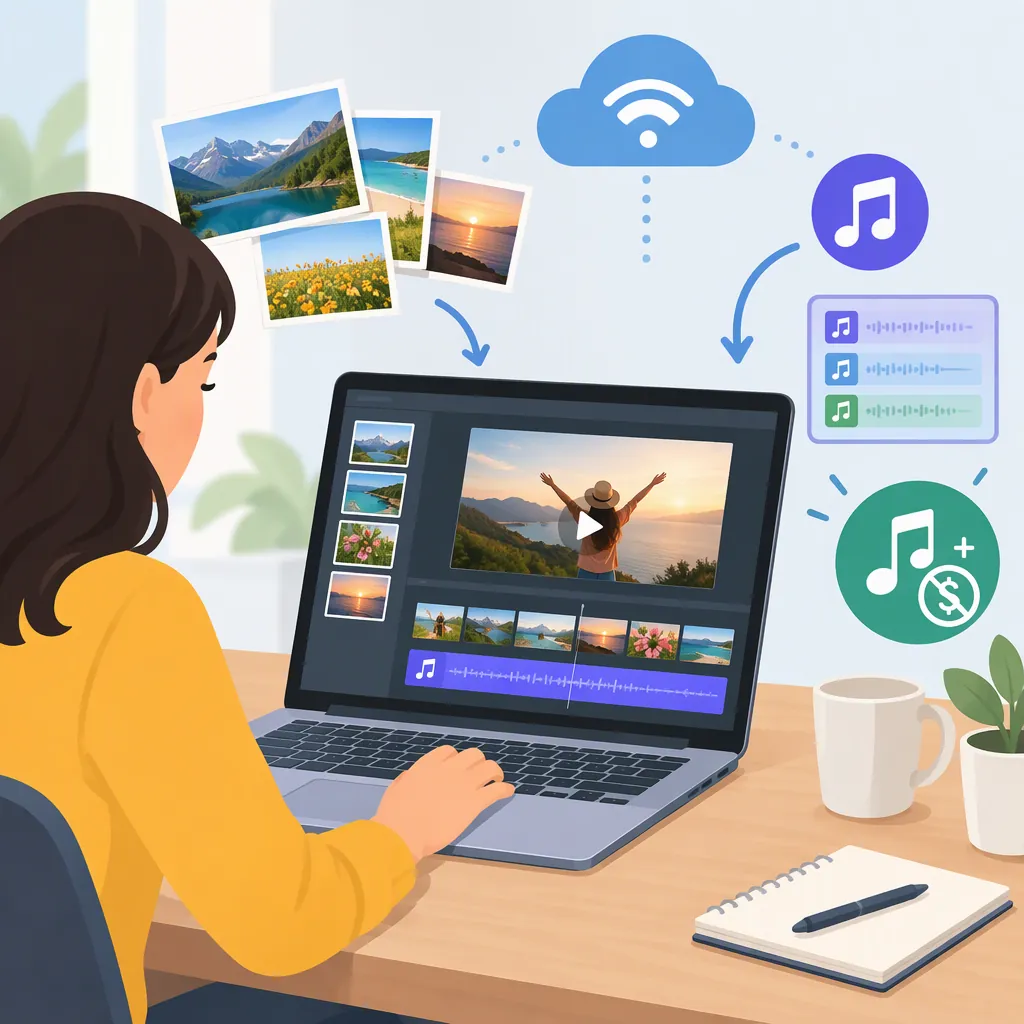
How to Make a Photo Video with Music Online for Free
To make a photo video with music online, upload your pictures to a browser-based editor, set their display time, add a soundtrack you have permission to use, preview the sequence, and export it. Check the download format and free-export conditions before building the full project: the referenced tools differ on format, watermarks, and how clearly they explain free access. [c1] [c3] [c4]
The tool-specific steps below are based on public pages, not firsthand editor testing. MusicMake provides the worked example; EchoWave and Adobe Express offer separate browser workflows. [c1] [c3] [c4]
Choose an Online Tool Before You Start
Choose according to the output you need, rather than assuming every “free” photo video maker has the same conditions.
| Browser tool | What its page describes | Free-use caveat |
|---|---|---|
| MusicMake | Photo upload, slideshow presets, an optional music track, and WebM export. | Its page describes free access but does not specify an allowance or watermark policy. [c4] |
| EchoWave | Photo sequencing, music, transitions, and MP4 export. | Its page says free full-editor exports include an EchoWave watermark. [c1] |
| Adobe Express | Photo videos, adjustable scene durations, uploaded music, and stock soundtracks. | Its photo-video page advertises free creation and watermark-free downloads; check the terms for the assets you use. [c3] |
If you need MP4, EchoWave’s page documents that format, with the free watermark caveat. If watermark-free downloads are your priority, Adobe Express’s page explicitly advertises them. Neither statement establishes MusicMake’s export policy. [c1] [c3] [c4]
The similarly named Photo video maker with music on Google Play is an installable app marked as containing ads and in-app purchases, not evidence of an online browser workflow. [c2]
Prepare Your Photos and Soundtrack
Choose pictures that tell one clear story. Plan an opening image, a main sequence, and a closing image before uploading. This is an editing recommendation, not a claim that an editor will automatically sort your photos.
For a video with music, prepare an audio track whose permissions cover your intended use. Owning a copy of a song or having a streaming subscription does not by itself establish permission to publish it in a video. EchoWave’s guide specifically cautions against redistributing streaming-service tracks. Check the license of music labeled “royalty-free” rather than treating the label as unrestricted permission. [c1]
Also decide where the finished video will be viewed. Confirm that the destination accepts your chosen tool’s output format before spending time on a larger project.
Photo Video Planning Sheet
- Project purpose: __________
- Opening photo: __________
- Main photo sequence: __________
- Closing photo: __________
- Soundtrack file: __________
- Music license and intended use checked: __________
- Intended viewing destination: __________
- Required download format: __________
Build a Photo Slideshow with Music in Musicmake
MusicMake’s Photo Video Maker page includes Photos, Template, Seconds per photo, an optional Music track input, Title, Subtitle, a preview, and WebM export. [c4]
- Upload your photos. Add the pictures through the Photos upload area.
- Choose a slideshow preset. Use the Template control to select the slideshow direction.
- Set an initial display time. Use Seconds per photo to establish the pace.
- Add your soundtrack. Use the Music track input to add the audio you have permission to use. Music is optional in the tool, but include it for a photo-and-music project.
- Add text if useful. Enter a brief Title and Subtitle.
- Review the preview. The page describes a canvas-rendered 16:9 slideshow frame.
- Export the draft as WebM. WebM is the download format named on the page. [c4]
During the preview, check whether important subjects remain visible and text is readable. Do not assume that features from another editor are available here: MusicMake’s page does not establish individual-photo timing, timeline reordering, audio trimming, or MP4 export. [c4]
Match Photo Timing to the Music
Start with a simple estimate:
Nominal sequence length = photo count × seconds per photo
For example, 12 photos at 4 seconds each gives a nominal 48-second sequence. This is planning arithmetic, not a verified export duration. MusicMake’s page does not explain how transitions affect total runtime or how the soundtrack is handled at the ending. [c4]
Worked Example: 12 Photos and a Soundtrack
- Select a permitted audio track. Check that its license covers how you plan to use the finished video. [c1]
- Upload 12 photos and add the audio through Music track. Set Seconds per photo to 4 seconds as an initial value. Those inputs are described on MusicMake’s page. [c4]
- Use 48 seconds as a planning estimate. Compare that estimate with the soundtrack length or the musical ending you want.
- Preview the picture-and-music relationship. Listen for whether the opening suits the first image, the pacing feels appropriate, and the closing image arrives at a sensible musical point.
- Adjust Seconds per photo and preview again. If the pictures finish too quickly, try a longer display time. If they linger too long, try a shorter one. This changes the overall pacing; it does not establish precise beat synchronization.
- Use a separate editor for finer audio work. If the result needs a trimmed soundtrack, a fade-out, or more detailed timing, use an editor that documents those controls. MusicMake’s FAQ describes finishing its exported draft in a dedicated video editor. [c4]
Do not force a duration match at the expense of readability. A shorter selection of photos or a different permitted soundtrack may suit the story better than making every image flash past or remain onscreen too long.
Timing and Preview Checklist
- The opening and closing images make sense.
- Important subjects fit within the frame.
- Titles and subtitles remain readable.
- Photo pacing suits the soundtrack.
- The music ending has been reviewed.
- Any needed audio trimming or fading is noted for a suitable editor.
- The exported file has been played back before publication.
Check Free-Use Conditions and Export Limits
For the MusicMake example, keep these boundaries in mind:
- Free access is described, but the allowance is unspecified. Its FAQ mentions upgrading for more usage, credits, or advanced workflows without giving a specific free allowance.
- The watermark policy is not stated. Do not assume exports are watermark-free.
- The documented output is WebM, not MP4. Confirm that your intended destination accepts it.
- The output is a browser-rendered slideshow with transitions. The page explicitly distinguishes this workflow from AI-generated video scenes.
- Further finishing may be needed. Its FAQ describes the download as a draft that can be polished in a dedicated video editor. [c4]
Before committing to a large project, check the current export conditions and review a small draft. These checks help separate “free to start” from the particular download requirements of your project.
FAQ
How Do I Add My Own Music to an Online Photo Video?
Choose an audio file with permissions covering your intended use, then add it through the editor’s music upload control. MusicMake documents an optional Music track input; EchoWave and Adobe Express also describe uploading your own music. Preview the result to check pacing and the ending before export. [c1] [c3] [c4]
What Should I Do If the Photos End Before the Music?
Try increasing the photo display time, then preview again. If that makes the slideshow feel too slow, consider a shorter permitted soundtrack or finish the audio in an editor with trimming controls. MusicMake documents Seconds per photo and recommends a dedicated editor for further polish, but its page does not establish audio trimming or fade-out controls. [c4]
Can I Make a Free Online Photo Video Without a Watermark?
Adobe Express’s photo-video page advertises free creation and watermark-free downloads. EchoWave says its free full-editor exports carry a watermark. MusicMake’s page does not specify its watermark policy, so that outcome cannot be confirmed from the page. [c3] [c1] [c4]
Which Referenced Tool Documents Mp4 Export?
EchoWave documents MP4 export. MusicMake documents WebM instead; EchoWave’s capability should not be attributed to MusicMake. Check the required format for your destination before choosing a workflow. [c1] [c4]
Can I Make a Slideshow Without a Soundtrack?
Yes. MusicMake’s page marks the music track as optional, so its described workflow allows photos, slideshow settings, preview, and WebM export without adding music. [c4]