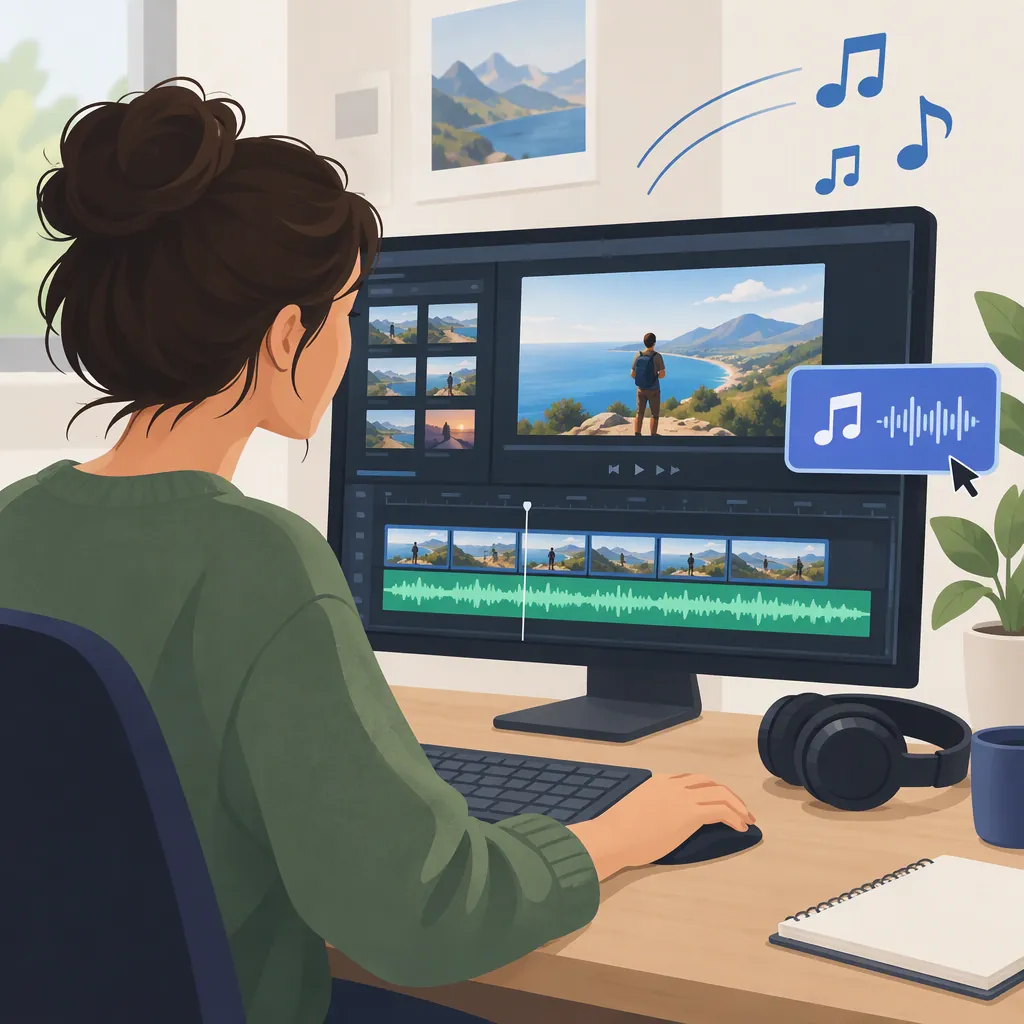
How to Make a Video with Music
To make a video with music, start with either an existing video or a sequence of photos, add your chosen soundtrack, match its length to the visuals, and preview the exported result. For an existing video, Clideo documents uploading, adding audio, trimming or looping music, and adjusting audio levels. For photos, the separate Video Maker with Music app lists slideshow timing, transitions, and device-stored music. [c2] [c1]
Choose Your Starting Point
There are two different starting points for making a video with music:
- An existing video: You need to add a soundtrack and decide whether to keep, reduce, or mute the original audio. Clideo’s Add Audio to Video page documents this workflow. [c2]
- A collection of photos: You need to assemble a slideshow, set the image timing, and add music. The Google Play listing for Video Maker with Music, listed under photo & video editor apps, describes these functions. [c1]
These are separate tools, not interchangeable names. The app listing supports a photo-slideshow example; it does not document adding music to existing video footage. The Clideo steps below apply to its dedicated add-audio tool, not to Video Maker with Music.
Prepare the Visuals and Music
Before opening an editor, choose the video or photos you want to use and identify the soundtrack. For a slideshow, arrange the photos into an opening, a main sequence, and a closing image. For an existing video, review the footage and decide which moments the music should accompany.
Treat permission checking as a separate preparation step rather than assuming that an editor’s ability to import a song establishes permission to publish it. Use this checklist before a public release:
- Confirm that the track’s permission or license covers your planned platform and use, including commercial use if relevant.
- Check whether attribution is required and prepare it in the requested form.
- Save the license or permission record with your project.
- If permission is unclear, choose another track or clarify the terms before publishing.
This is a preparation checklist, not a legal determination or a guarantee that a platform will accept the finished video.
Add Music to an Existing Video
Clideo’s Add Audio to Video page gives the following sequence. These are documented steps, not a firsthand test of the service. [c2]
- Upload the video. Select your video file from your device or a supported cloud-storage source.
- Add the soundtrack. Upload the music you intend to use.
- Match the audio length. Trim the track if it is too long or loop it if it is too short. The page also describes setting the point at which the added audio begins.
- Adjust the sound balance. Set the video and added-audio volumes separately. Keep useful original sound, make it quieter, or mute it when replacing it entirely.
- Choose the output format and export. The page identifies an Export control after editing.
- Preview and download. Watch the result before downloading; return to editing if it needs changes. [c2]
As a review practice, listen especially closely wherever speech overlaps with music. If words are difficult to follow, try lowering the soundtrack and preview again.
The dedicated tool’s page says it does not support several music tracks. It points to a separate all-in-one editor for that purpose; those additional controls are outside this workflow. The supplied page does not establish current free-export, watermark, or account limits. [c2]
Make a Photo Slideshow with Music
For a photo-based project, Video Maker with Music is one referenced example. Its listing describes combining photos, adjusting their timing and transitions, adding music from the device, and exporting a video. It does not provide screen-by-screen instructions, so use this as a project sequence rather than a menu guide. [c1]
- Assemble the selected photos in the order you planned.
- Choose the visual arrangement. The listing describes single- and multiple-photo scenes, including grids.
- Set the image timing and transitions. Preview the sequence and allow enough viewing time for important details or text.
- Add device-stored music. Listen alongside the images and revise the slideshow timing if the pairing feels rushed or incomplete.
- Export a short version first. Review the saved file before making a longer project. [c1]
The listing advertises Full HD 1080p output, but it does not establish current availability on every device or which export options are free. Audio trimming, looping, fades, and independent volume controls are not documented in the supplied app description. Do not transfer Clideo’s controls to this app. [c1]
Check the Finished Video
Review the exported file, not only the editing preview. Use the checklist below to decide whether another editing pass is needed. Clideo explicitly describes previewing the exported result before downloading; the same checklist can serve as a review plan for a saved slideshow. [c2]
Pay particular attention to the beginning, the end, and any point where the soundtrack repeats. If a repeat sounds distracting, consider a different track or revise the visual duration rather than assuming looping will create a smooth ending.
Final Video Review Checklist
- Play the finished file from beginning to end.
- Confirm that all intended visuals appear in the correct order.
- Check image framing and text readability.
- Listen for missing music, unwanted silence, and abrupt starts or endings.
- Check that any retained speech remains understandable.
- Inspect the saved file’s resolution rather than assuming an advertised setting was applied.
- Confirm that the file opens successfully.
- Recheck music permission and any required attribution before public posting.
FAQ
Can I Add My Own Music to a Video?
Clideo describes uploading a soundtrack to an existing video. Video Maker with Music’s listing describes adding music from your device to a photo slideshow. Neither description establishes permission to publish your chosen song, so check its terms separately. [c2] [c1]
What If the Music Is Longer or Shorter than the Video?
Clideo documents trimming a longer track or looping a shorter one. Preview the ending and any repeated passage before downloading. For Video Maker with Music, the supplied listing documents photo-timing adjustments but not audio trimming or looping; consider changing the track or slideshow duration instead. [c2] [c1]
Can I Keep the Original Sound While Adding Music?
Clideo describes separate volume controls for the video and added audio, including making the original sound quieter or muting it. Start by retaining useful speech or ambient sound, then preview the balance. These controls are not documented for Video Maker with Music in the supplied listing. [c2] [c1]
Are These Tools Free and Watermark-Free?
The supplied sources do not establish unrestricted free, watermark-free output for both tools. Video Maker with Music’s listing promotes no-watermark output but also identifies ads and in-app purchases. Clideo’s supplied page does not clearly establish current export charges or watermark limits. Check the conditions shown for your project before relying on a particular export option. [c1] [c2]