Audio to Video Maker Online: From Recording to Mp4
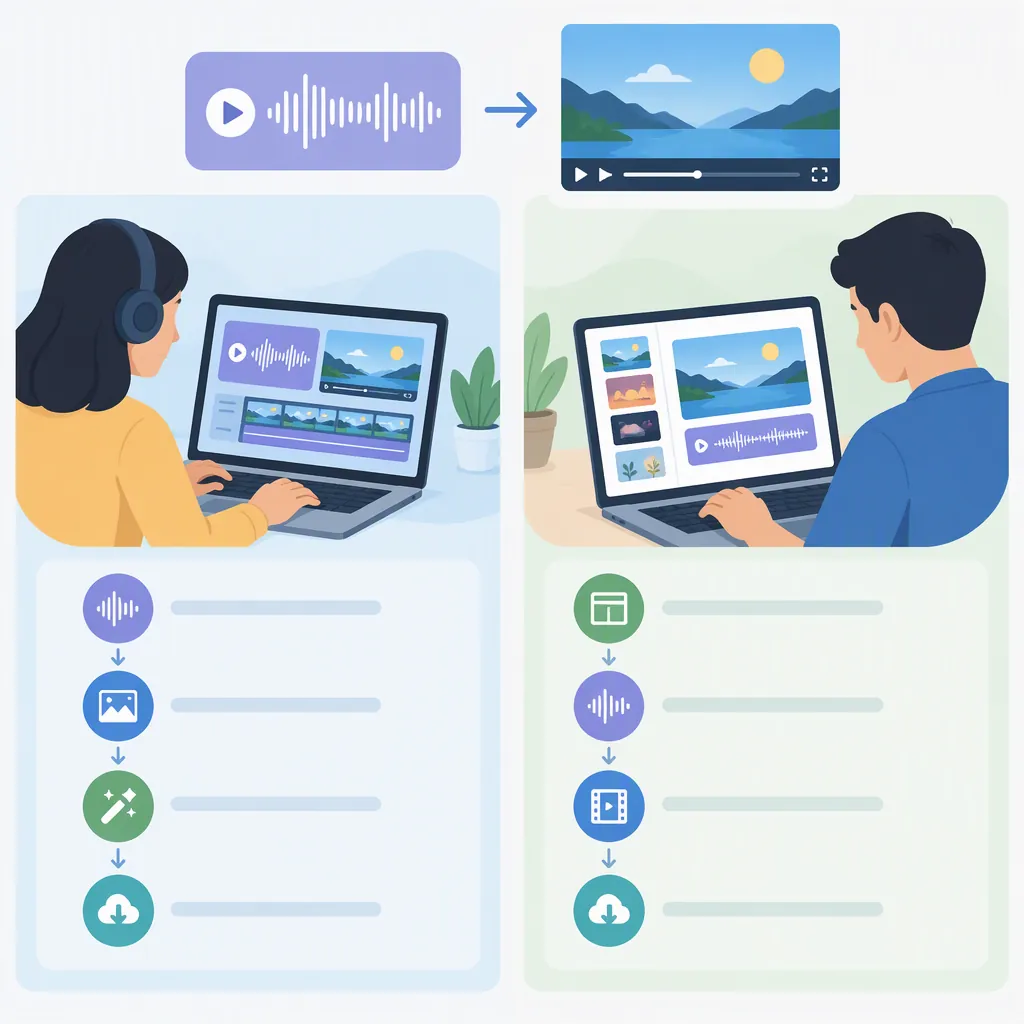
To make a video from audio online, add a visual layer to your recording and export the combined project as an MP4. Descript documents a cover-image or background workflow; Revid documents a speech-focused workflow with captions and supporting visuals. Choose the approach based on whether you need a simple visual cover or an illustrated spoken recording. These are descriptions from the supplied product pages, not independently tested results. [c1] [c2]
Choose the Visual Treatment First
An audio-to-video project needs a decision about what viewers will see while the recording plays. The two documented approaches here are different:
- Cover image or background: Descript describes pairing audio with a static image, title card, simple layout, or solid background, with captions available as an additional layer. [c1]
- Captioned supporting visuals: Revid describes transcribing spoken audio, placing synchronized captions, and adding stock or generated B-roll while retaining the recording as the soundtrack. [c2]
For a straightforward presentation, consider a cover image with a clear title. For an explanation or interview excerpt, consider captions and visuals that help explain the speech. Those are editorial choices, not guarantees of engagement or reach.
Neither supplied page establishes that every browser, device, file size, or project length will work equally well. Check current limits before uploading a long recording.
Descript: Audio with a Cover or Background
Descript's supplied page documents the following sequence for converting audio into video. Its listed audio inputs include MP3, WAV, M4A, FLAC, and AIFF. [c1]
- Import the recording. Add the audio file to the project.
- Add the visual layer. Pair it with an image, title card, layout, or background color. Add captions if the recording contains speech and the project needs visible text.
- Review the composition. Check the image placement and any caption text before export.
- Export the video. The documented path is Export → Video, then save an MP4. [c1]
For a composition built around one audio file and a static visual layer, Descript says the resulting video generally runs for the duration of that audio. Review the actual export rather than assuming the background covers the entire recording. [c1]
The page also cautions that its fuller recording and editing workflow is better supported on desktop. Its online positioning should not be read as proof of identical editing support on mobile. [c1]
Revid: Spoken Audio with Captions and B-Roll
Revid's Audio to Video page describes a workflow intended primarily for spoken recordings such as podcasts, interviews, voice notes, lectures, and voiceovers. It lists MP3, WAV, and M4A audio uploads. [c2]
- Upload the spoken recording. Use a supported audio file.
- Choose the portion to convert. The documented choices are Full length, AI highlights, or a selected time range.
- Choose the visuals. With Add B-Roll enabled, the page lists stock videos, animated AI images, AI video, or uploaded media. It also describes full-screen or split-screen B-roll settings.
- Generate and inspect the edit. Review captions and replace unsuitable clips in the editor.
- Export an MP4. The page lists 720p, 1080p, and 4K export options. [c2]
Treat automatically selected highlights as draft edits: listen for missing context and avoid cuts that change a speaker's meaning. Likewise, supporting imagery should illustrate the recording without implying that generated or stock scenes depict the actual event.
Revid states that conversion uses credits whose cost depends on recording length and visual choices, and that AI video B-roll requires a paid plan. Do not assume every listed visual option is included at no cost. The page distinguishes this speech workflow from its separate music-video generator. [c2]
Review the Export Before Publishing
Use the checklist below as an editorial review, not as a claim that either tool performs these checks automatically. Both documented workflows provide an opportunity to review the project before MP4 export. [c1] [c2]
Keep the original recording separately so you can compare the finished video against it. For sensitive recordings, review the service's current handling and retention terms before uploading; the supplied audio-to-video pages do not establish a shared privacy standard.
Also distinguish neighboring tools from this task. The supplied Google Play listing describes an Android audio-to-video app with offline conversion, not a browser-based workflow. HappyScribe's supplied Video to MP3 page documents the reverse direction—extracting or converting audio from a video—not adding visuals to an audio recording. Neither should be treated as interchangeable evidence for an online audio-to-video maker. [c3] [c4]
Audio-To-Video Export Review
- [ ] Confirm permission to use the recording and visual assets.
- [ ] Listen to the opening, ending, and every edited transition.
- [ ] Compare names, numbers, and technical terms in captions with the audio.
- [ ] Check that visual assets do not misrepresent the speaker or event.
- [ ] Confirm the background or imagery covers the intended duration.
- [ ] Check text readability in the intended video layout.
- [ ] Review the displayed cost and export settings before rendering.
- [ ] Open the downloaded MP4 and verify both audio and visuals.
FAQ
Can I Turn an Mp3 into an Mp4 Video?
Yes, both supplied audio-to-video pages document MP3 input and MP4 output. Descript describes adding a cover or background; Revid describes adding captions and supporting visuals to spoken audio. These are documented capabilities, not independently verified performance results. [c1] [c2]
Does Audio-To-Video Conversion Replace My Voice?
Not in the basic workflows described here. Descript says its export includes the original audio and the added visual layer. Revid explicitly says the recording remains the soundtrack and is not re-voiced. Check any additional editing or speech-generation settings separately. [c1] [c2]
Should I Use the Same Workflow for Music and Speech?
Not necessarily. Descript lists music tracks among the recordings that can be paired with a cover or background. Revid describes Audio to Video as built for speech and points music users to a separate music-video generator. A static-cover project and a beat- or lyric-driven music video are different production choices. [c1] [c2]