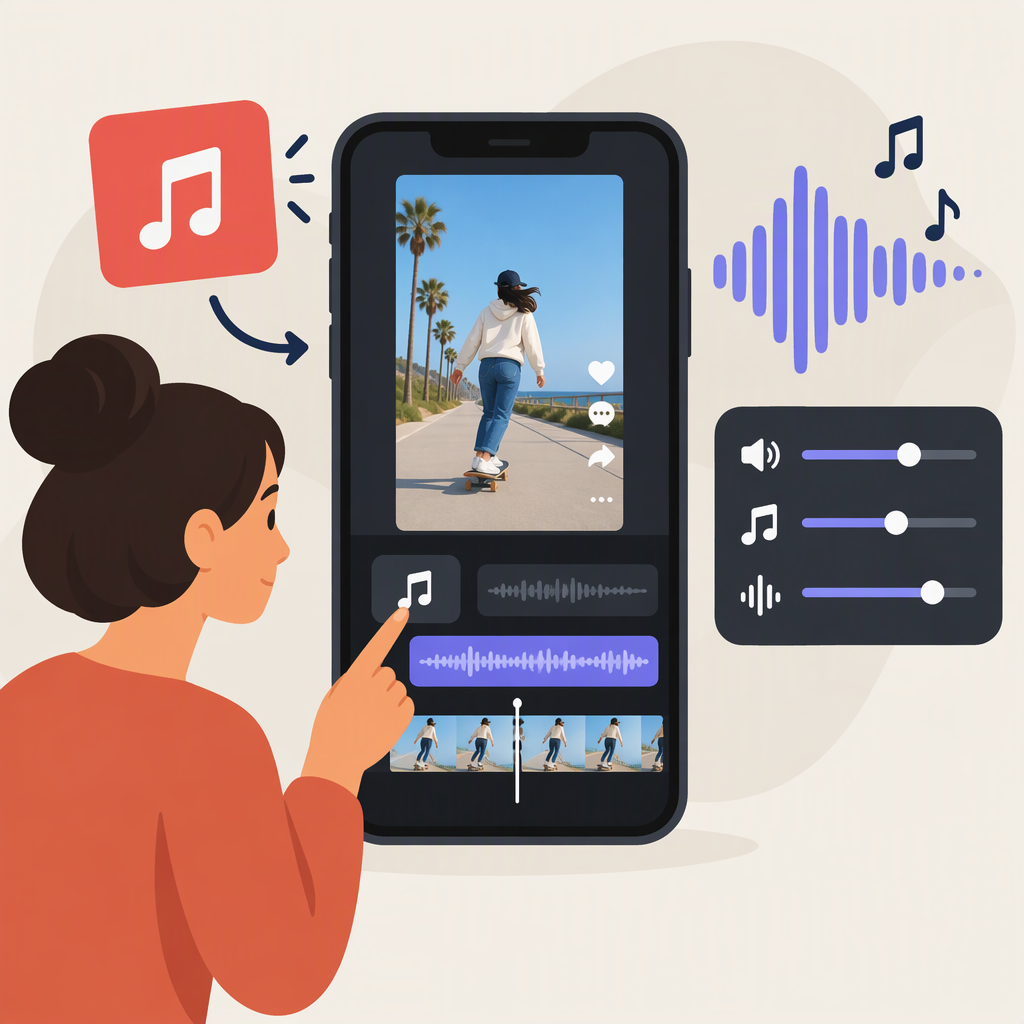
YouTube Shorts Sounds: How to Add and Adjust Audio
To add music using YouTube’s Shorts creation tools, start a Short in the YouTube mobile app, tap Add sound, choose a track, and select the section you want. In the Shorts editor, use Volume to adjust the audio, then listen to the result before publishing. Track availability and permitted use can vary, so check the limits shown for the sound and make sure any audio you supply yourself is cleared for your intended use.
Add a Sound to a YouTube Short
These instructions describe the Shorts creation workflow in the YouTube mobile app; they are not desktop YouTube Studio steps.
- Open the YouTube app and start creating a Short. You can record with the Shorts camera or select video or photos from your camera roll.
- Before recording, tap Add sound and choose a track from the available library. You can also choose a sound from a Short: open that Short, tap Sound, then Use this sound.
- Select the portion of the track you want to use. YouTube says the available duration depends on the track; for eligible music in a three-minute Short, the limit may be up to 90 seconds, while some tracks are limited to 60 or 30 seconds. The selection screen shows how long the chosen sound can cover.
- Record or assemble your Short, then continue to the editor. Listen to the sound with your video and make any available volume adjustment before completing the upload flow.
The exact screen layout may change, and not every sound is available in every territory. If a track cannot be selected, try another sound shown in the Shorts library rather than assuming the track is available for every use. YouTube’s creation guidance and music eligibility guidance describe these steps and limits.
Adjust the Sound and the Video’s Audio
In the Shorts editor, tap Volume and move the slider to change the volume. YouTube’s editing guidance confirms this control, but does not specify in that guidance which separate audio layers it adjusts in every version of the editor. Check the controls shown in your own project rather than assuming there will be an individual slider for every source.
A practical check: play the Short from the beginning and listen once for the main audio—such as speech or sound captured with the video—and again for the added music. If the editor offers the relevant controls, lower the music when it masks speech, or raise it when it is difficult to hear. The aim is intelligible main audio with music at a level that supports rather than competes with it.
For more detailed track editing, YouTube Create is a separate editing app, not the same workflow as adding a sound in the Shorts camera. Its audio tools include selecting an audio layer, changing that layer’s volume, splitting it, setting fades, and dragging or trimming its length. Availability and some music restrictions can depend on the project and device. YouTube Studio’s desktop audio editor is another distinct workflow for adding tracks to existing videos; its instructions should not be treated as the Shorts camera steps. YouTube Create audio guidance and Studio audio-track guidance explain those tools.
Align Cuts and Prepare for an Unavailable Sound
Treat beat alignment as an editing choice, not a required Shorts effect. Choose one audible beat or phrase change for the main reveal, then preview the transition at normal speed. Move a cut only if the action remains understandable; do not shorten a spoken instruction just to hit every beat. Where your editor supports timeline adjustment, nudge the cut or music start and replay the surrounding seconds. This does not assume an automatic beat-sync control in the Shorts editor.
If a sound is no longer selectable before publication, return to a saved copy containing your original speech and footage. Pick a replacement you can currently select, or use audio for which you have the necessary rights. Recheck duration, edit points, and voice balance: a new track will not necessarily fit the old cuts. Do not download another creator's copy to bypass availability or licensing restrictions. For an already published Short, inspect its specific notice and follow the remedy YouTube actually offers; this guide does not promise that every published Short permits an in-place sound swap. YouTube's music eligibility guidance explains that rights and territory can affect availability.
Choose a Sound Source and Check Before Publishing
| Sound source | When it may fit | What to check |
|---|---|---|
| Sound selected inside the Shorts creation tools | You want to use a track offered for Shorts through YouTube’s in-product workflow. | Check the allowed duration displayed for that track and whether it is selectable for your Short. Library availability can vary by territory, and some tracks have shorter limits. |
| Audio you provide yourself | You created the audio or have permission or a license for your intended use. | Confirm that the permission covers your planned use, including any commercial or branded use. Adding copyrighted audio outside YouTube’s creation tools can result in a Content ID claim or a copyright removal request. |
| Music from YouTube’s Audio Library | You want tracks or sound effects offered through YouTube Studio’s Audio Library. | Check the track’s license. Some Creative Commons tracks require attribution in the video description; other tracks are marked as not requiring attribution. |
A sound appearing in a YouTube tool is not a blanket guarantee that it is available for every track length, territory, or commercial context. YouTube says Shorts Audio Library music may be limited to personal, non-commercial use unless you have the appropriate licenses; commercial or branded uploads may encounter restrictions. If the Short is for a business or brand, verify the specific track’s terms before using it. For independently supplied audio, do not assume that crediting the creator or owning a copy is enough—check that you have the necessary rights. YouTube’s Shorts guidance, commercial-use upload guidance, and Audio Library instructions describe these considerations.
Before publishing, confirm that the selected audio plays as intended, speech is still understandable if the video includes it, and you have checked any applicable track-duration or license conditions. These are practical checks, not a legal guarantee that a particular use is cleared.