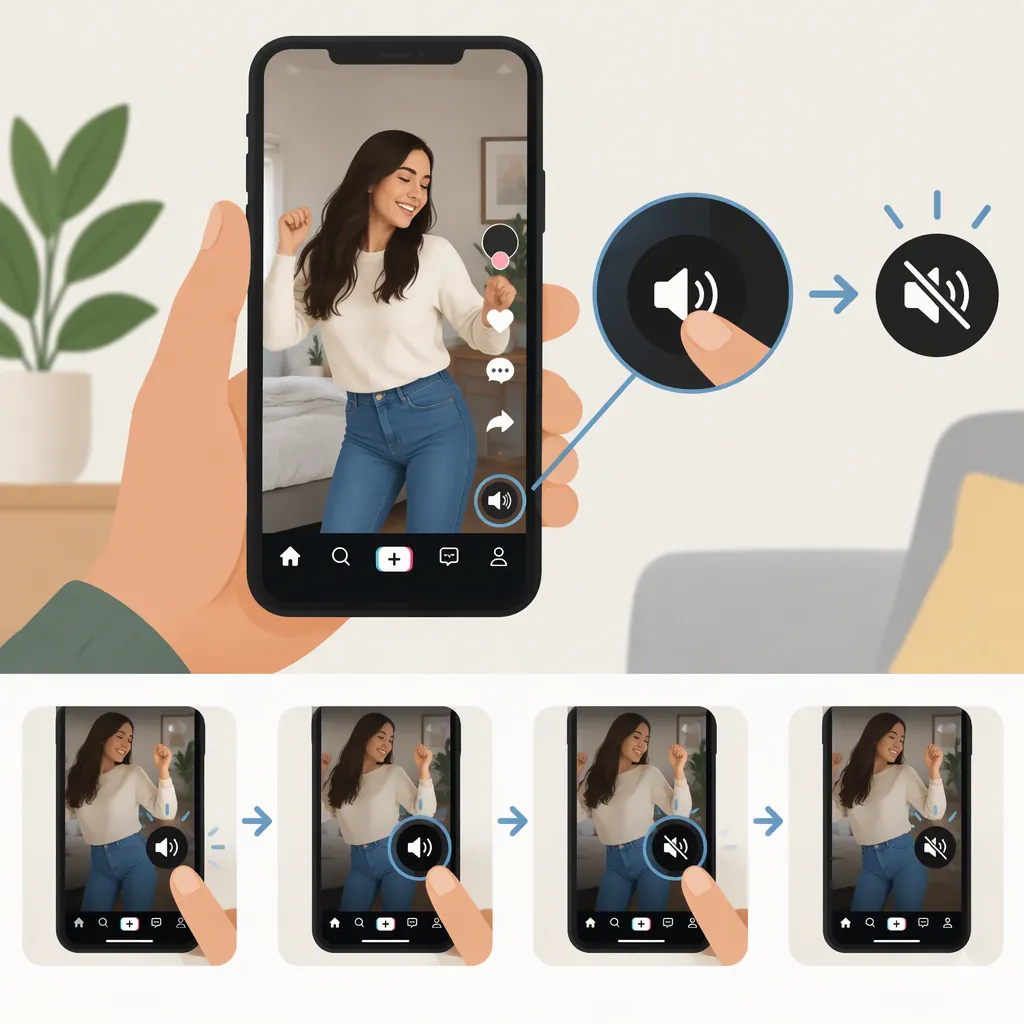
How to Have No Sound on a TikTok Video
To make your own TikTok video silent, mute every active audio source or remove the audio before posting. Check the recorded sound, any added music, and any voiceover—not just one volume setting. Then preview the video with playback volume turned up.
Turning down your phone only changes what you hear during playback; it does not establish that the video itself is silent. Device and TikTok playback-volume settings can both affect whether you hear sound. [reference-1]
Mute Your Video Before Posting
The workflow below is conditional, not a verified TikTok button-by-button tutorial. The available reference covers playback-volume troubleshooting, not editing-menu locations or intentional audio removal. [reference-1]
- Open the video you are preparing to post. Work on the version that includes your intended edits and any added audio.
- Check for audio or volume controls. If the editor provides them, identify which source each control affects before changing it.
- Mute the recording’s audio. Set its volume to zero or remove it, if those options are available. This is the sound captured with the video, such as speech or background noise.
- Check added audio separately. Remove or mute any added music, sound, or voiceover. Do not assume that muting the recording also mutes these additions.
- Preview the entire video. If you still hear anything, return to the controls for the remaining source. If the controls are missing or insufficient, use the silent-copy workflow below.
Which Audio Sources Should You Check?
| Audio source | What to check | Action for a fully silent video |
|---|---|---|
| Recorded audio | Speech, room noise, wind, or other sound captured with the footage | Mute it or remove it where supported |
| Added music or sound | Audio selected separately from the recording | Remove it or set its volume to zero |
| Voiceover | Narration recorded or imported during editing | Remove it or mute its separate track |
Treat these as a checklist of possible sources, not a description of controls that every TikTok editing screen provides.
If You Cannot Mute Everything in TikTok
Prepare a silent copy before uploading. Use a video editor that explicitly offers clip muting, audio-track removal, or export without audio. This is a general editing workflow; exact controls depend on the editor.
- Import a copy of your original video into a new project so you can keep the original unchanged.
- Select the video clip and inspect its audio options. If muting is supported, set the clip’s audio volume to zero.
- Check the rest of the project. Remove or mute any separate music, narration, or other audio tracks.
- Choose the result you need:
- For silent playback, muting all audio sources is the goal.
- For a file with no audio track, use explicit audio-track deletion or export-without-audio options, if supported. A volume setting of zero should not be treated as proof that the track has been deleted.
- Export a new video file. Do not rely only on the editor’s preview; check the exported copy.
- Upload that copy to TikTok. Avoid adding new music or voiceover, and check the posting preview again.
If your editor cannot provide the result you need, consult its documentation rather than guessing at export settings.
Check the Final Video
A silent preview can be misleading when playback itself is muted. The reference identifies device volume, app volume, and headphone or speaker connections as relevant playback checks. [reference-1]
Use this checklist once you have finished editing:
- Turn up device playback volume and check any available app playback-volume setting.
- Confirm that a clip you know has sound is audible through your current speaker or headphones.
- Play the entire exported video or posting preview.
- Listen for remaining recorded sound, music, or voiceover.
- If sound remains, return to that source’s mute or removal step, then export or preview again.
- Post only after confirming the intended silent playback.
This listening check confirms no audible sound under the tested playback conditions. It does not prove that the file contains no audio track. If track removal matters, use an editor’s explicit removal or no-audio export options.
If You Only Want to Watch TikTok Without Sound
For watching someone else’s video silently, lower your device’s playback volume or use a TikTok playback-volume control if one is available. The reference discusses device and app volume but does not establish a universal mute-button location. [reference-1]
That is different from making your own post silent: for publishing, change the video’s audio rather than only your listening volume.
FAQ
Does Turning Down My Phone Make My TikTok Video Silent for Everyone?
No. Device volume affects your playback, so it is not a reliable test of the video’s audio. Mute or remove the audio during editing, then check with playback volume turned up. [reference-1]
Why Can I Still Hear Music After Muting the Recorded Sound?
Check whether the music is a separate added source. Muting one source is not a sufficient check of the others. Review added music and voiceover, remove or mute anything that remains, and replay the full video.
What Should I Do If I Cannot Find Suitable Audio Controls?
Prepare a silent copy in an editor that explicitly supports muting or audio removal. Export it, test the exported file, and upload that copy without adding new audio. Do not rely on an assumed TikTok menu path.
Is Muting Audio the Same as Deleting the Audio Track?
No. Muting is intended to produce silent playback; deleting the track is a different requirement. If you need a file without an audio track, use explicit track-removal or export-without-audio options rather than relying on a silent listening test.
Sources
- [reference-1] Why No Sound on TikTok and How to Fix it