How to Use Your Own Sound on TikTok
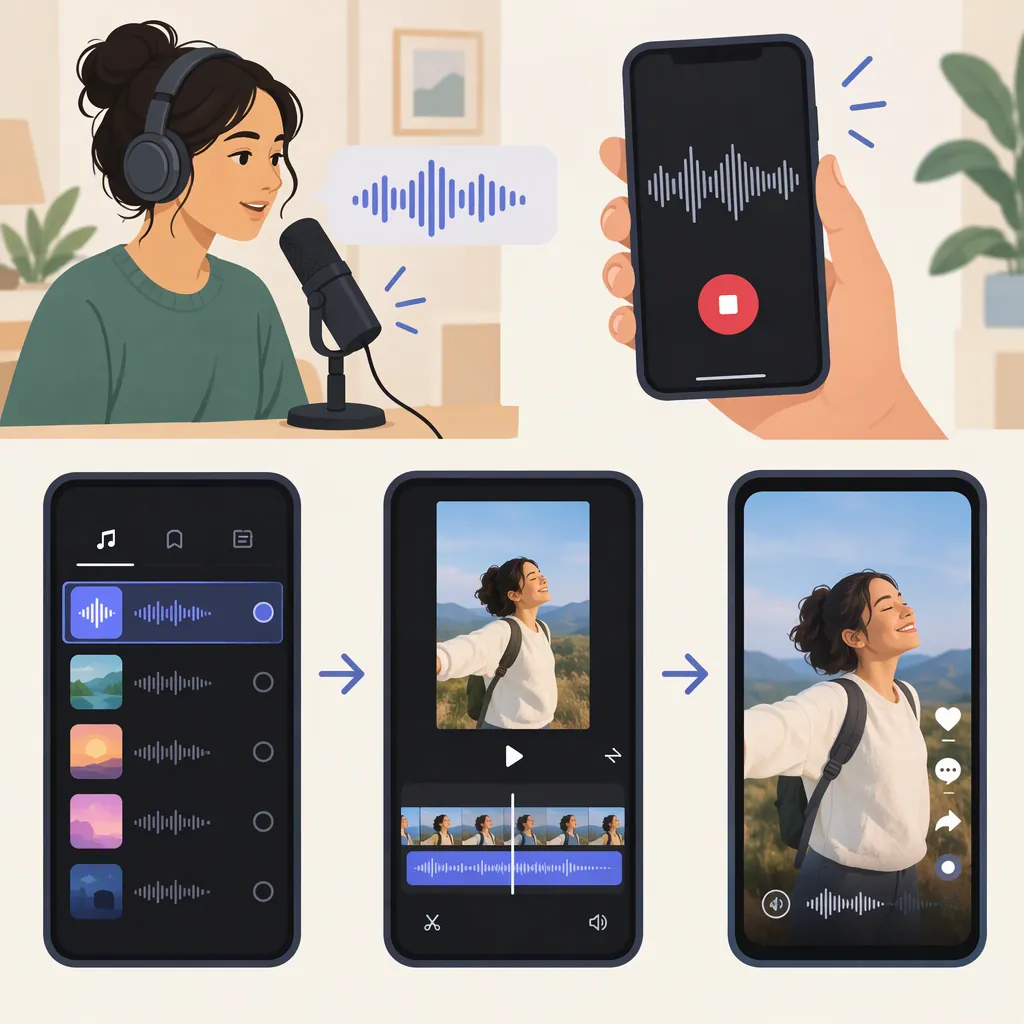
Record a TikTok video with your audio, edit it, and publish it. Then open that post from your profile, tap the sound disc at the bottom right, and select “Use this sound” to create another video with the same audio. This is the workflow described in Mashable’s March 2024 guide; it does not verify the current TikTok interface. [c1]
Record Your Original Sound
For this workflow, your sound starts as audio recorded with a video, rather than as a separate audio-file upload.
- Open TikTok and tap the create button at the bottom of the screen.
- Record a video with the audio you want to use—for example, your own spoken introduction or an instrumental passage you created.
- Continue to the editing screen.
Mashable describes the audio recorded with this video as the basis for your custom sound. Its guide does not document a standalone audio-file import process. [c1]
Edit the Audio Before Posting
Mashable’s guide identifies three editing options on the screen after recording: voice effects, voiceover, and clip-speed adjustment. It directs users to the bottom and right-side panels to access these options. [c1]
Choose the changes that serve your video, then listen through before publishing. As a practical check, make sure the words you want to keep are understandable and any effect supports the intended result.
When you are satisfied, follow the guide’s completion step: tap the check mark and post the video. The source does not provide detailed instructions for trimming audio or setting separate volume levels, so those controls are not covered here. [c1]
Use Your Sound in Another Video
After publishing the video that contains your original audio:
- Go to your profile and open that video.
- Tap the sound disc at the bottom right.
- Select “Use this sound.”
- Create the next video using that audio.
Mashable says the audio title appears at the top of the creation screen when you reuse the sound. This route starts from your published video; the guide does not establish whether the same process works from a draft or a private post. [c1]
Keep Rights and Interface Limits in Mind
Use audio you created or have permission to use. Calling a track an “original sound” is not a substitute for permission: Mashable warns against uploading copyrighted music as original audio because it can be taken down. [c1]
The instructions above follow a guide dated March 7, 2024, not a verified current walkthrough. If you cannot find the described controls, this source does not establish why they are missing or provide a confirmed fix. It also does not verify how privacy settings, account restrictions, or sound availability affect reuse. [c1]
FAQ
How Do I Use a Sound from My Own TikTok Post?
Open the published video from your profile, tap the sound disc at the bottom right, and choose “Use this sound.” Then create another video with that audio. These steps come from Mashable’s March 2024 guide. [c1]
Can I Upload an Audio File Directly?
The cited guide does not document direct audio-file uploads. Its method is to record audio with a video, publish the video, and reuse its original sound. That does not establish whether other import methods are currently available. [c1]
What Audio Edits Does This Guide Cover?
The source names voice effects, adding a voiceover, and adjusting clip speed before posting. It does not give detailed steps for audio trimming, separate volume controls, or editing a sound after publication. [c1]