How to Lip Sync on TikTok
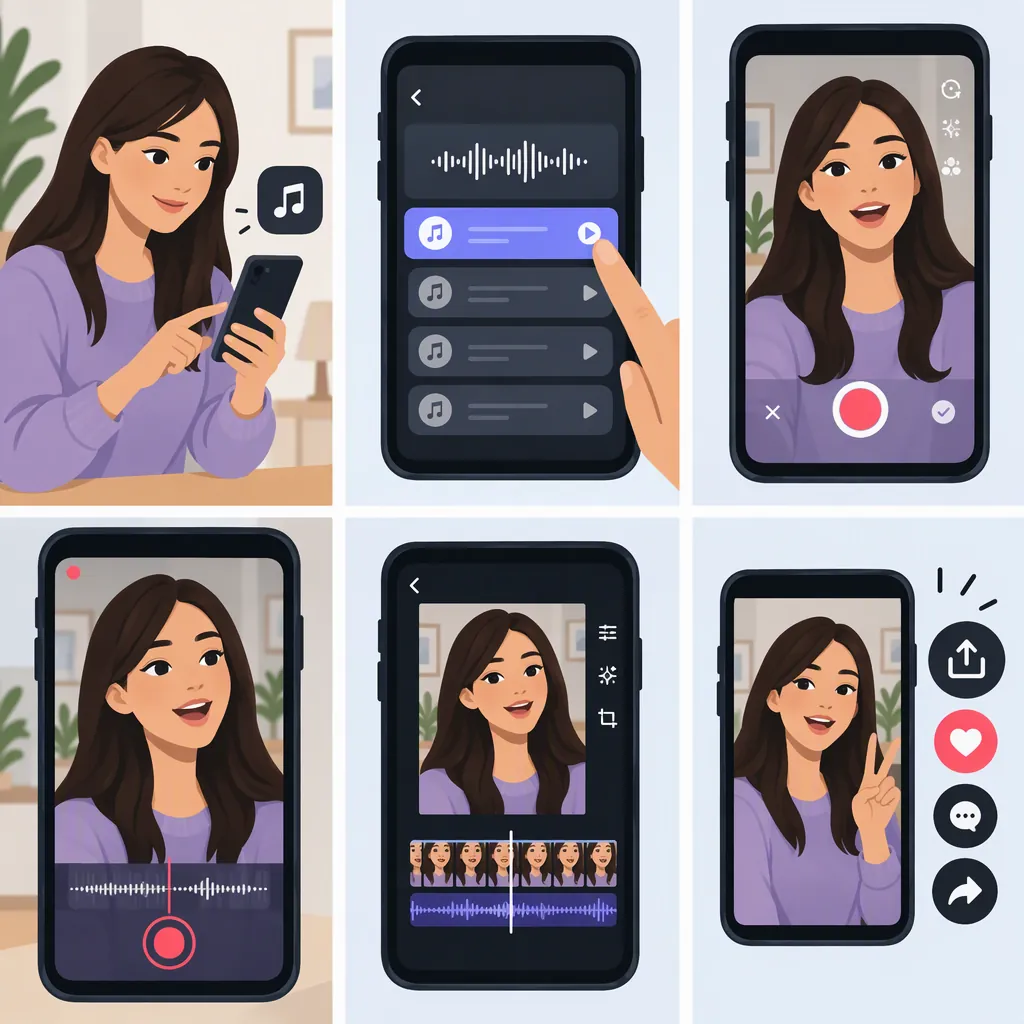
To lip sync on TikTok, open the creation screen with the + button, select Add Sound, choose an audio clip, and select the passage you want to perform. Record yourself mouthing the words while the sound plays, then review the timing before posting. This workflow comes from a third-party tutorial updated in June 2025; current controls and available options may differ. [citation-1]
Choose Your Sound and Starting Point
Lip syncing means matching your mouth movements to words or vocals in an existing audio track rather than delivering a new vocal performance. The supplied tutorial covers songs and spoken audio clips. [citation-1]
- Open TikTok and tap + to start creating a video.
- Select Add Sound on the recording screen.
- Search for the sound you want, then select and confirm it.
- Choose a recording length that fits your selected audio passage.
- If a sound-trimming control is available, use it to select the passage you want to perform. The tutorial describes opening the selected sound and using a scissors icon to adjust its starting point. [citation-1]
Interface limitation: These steps reflect a third-party guide updated in June 2025, not current TikTok documentation. Treat button names and icon locations as a starting point, and use the controls actually available in your app. Avoid planning around the guide’s listed duration limits.
Rehearse the Exact Audio Passage
The tutorial notes that the basic recording workflow requires learning the words and understanding the beat of the selected sound. [citation-1]
For a manageable rehearsal, try these steps:
- Start with one short phrase rather than a long verse.
- Listen to the exact passage you selected, including any pause before the first word.
- Practice mouthing it without recording.
- Pick a clear opening word as your timing cue.
- Keep the same audio starting point between practice and recording.
These are practice suggestions, not additional TikTok features. The goal is to learn the timing of the actual clip you will use, rather than relying on your memory of the full song.
Rehearsal Cue Sheet
Selected passage: ______
First audible word: ______
Pause before the first word: ______
Phrase that needs more practice: ______
Final word or stopping cue: ______
Record Your Lip-Sync Performance
Once your sound is selected, tap the record button and mouth the words as the audio plays. The tutorial describes TikTok playing the chosen audio passage while recording the performance. [citation-1]
For your first take, keep the performance simple: make your mouth clearly visible and focus on the words before adding gestures or camera movement.
If you need time to get into position, look for the Timer control. The supplied guide describes a timer that delays the start of recording. Use it as preparation time—not as a reason to intentionally mouth the words late. [citation-1]
For this basic workflow, start with normal-speed recording. The supplied guide also discusses speed controls, but it does not provide sufficiently clear guidance to recommend a particular speed setting here.
Review the Timing Before Posting
Review the take before moving to the posting screen; the tutorial places posting after checking the result and completing edits. [citation-1]
Use these checks to decide whether to keep the take or record again:
- Opening: Does your mouth begin with the first audible word, rather than before or after it?
- Middle: Do you keep pace through the harder phrase?
- Ending: Do your mouth movements stop with the final word?
- Visibility: Can you clearly see your mouth throughout the performance?
If you start late, rehearse the opening cue and try another take. If you begin in sync but lose the words midway, practice that phrase or choose a shorter passage. If the performance no longer matches after changing the audio selection, record again against the new passage.
These are performance checks, not claims that TikTok provides an automatic lip-sync correction tool.
Finish the Video in TikTok
When you are satisfied with the take, proceed to the next screen, add a description if desired, and review the posting options available to you. The tutorial describes selecting Next and then Post to publish. [citation-1]
You do not need to follow the tutorial’s separate Wondershare Virbo workflow to complete its in-app TikTok recording steps. The source also discusses talking-photo generation and translated lip syncing, but those are distinct workflows—not the same as filming yourself mouthing a selected TikTok sound. [citation-1]
FAQ
Do I Need to Sing to Make a TikTok Lip-Sync Video?
No. Lip syncing means mouthing the words to an existing audio track. In the supplied TikTok workflow, the chosen sound plays while you record your performance. [citation-1]
Can I Choose Which Part of a Song to Lip Sync?
The supplied tutorial describes selecting a passage with the sound’s trimming control before recording. It identifies a scissors icon, but that control’s availability and location are not verified for the current app. [citation-1]
Does the Timer Fix Lip-Sync Timing?
The tutorial describes the timer as delaying the start of recording. That gives you preparation time; it should not be treated as a verified way to correct an out-of-sync performance. Practice matching the audio cue and review the recorded take. [citation-1]
Sources
- [citation-1] How to Make Stunning Lip Sync Videos with Ease