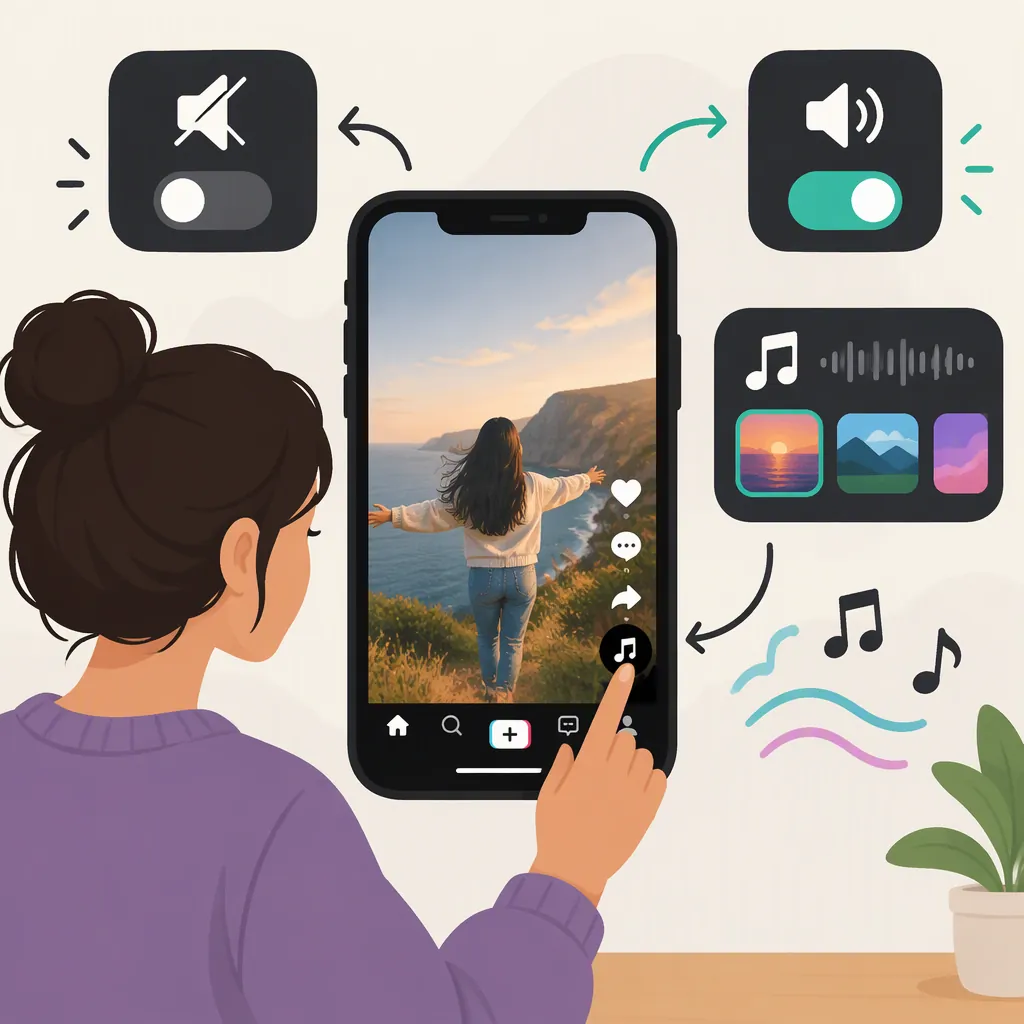
How to Have Your Voice and Background Music on TikTok
To have your voice and music together on TikTok, record or upload a video with your voice, select “Add sound,” and choose a music track. Keep “Original Sound” enabled, then use “Volume” to balance the music against your original audio. For spoken videos, lower the music until every word is easy to hear. The referenced walkthrough describes these controls, but it is dated August 2024, so treat its button locations as a guide rather than a guarantee. [citation-1]
Add Music Without Removing Your Voice
Start with a video that already contains the speech or other original sound you want to keep.
- Open TikTok and tap + to record a video or upload an existing one.
- After recording or uploading, tap Add sound.
- Search for a track, browse the suggested sounds, or choose a saved favorite. Preview it before selecting it.
- Keep Original Sound enabled. The referenced guide says unchecking this option removes the video's original audio.
- Open Volume to adjust the balance between the music and your video's audio. [citation-1]
The guide also describes adding a sound before recording. For a video where speech is the priority, adding music after recording gives you a straightforward way to judge the balance against the finished dialogue.
These instructions follow a third-party walkthrough last updated in August 2024, not current TikTok documentation. If your editor looks different, look for the equivalent sound and volume controls rather than relying on the exact screen positions described in that guide. [citation-1]
Balance Speech Against the Music
Use the volume controls to make music support the speech rather than compete with it. The source describes both a balance control after selecting a sound and a volume option for the music track in the editor. [citation-1]
As a practical listening method:
- Start with the voice clearly audible and the music low.
- Play a section containing your quietest words.
- Raise the music gradually, stopping before it makes any words harder to understand.
- Listen through the full video, including pauses and changes in speaking volume.
There is no verified universal percentage in the provided reference. Choose levels by listening to your particular recording, not by treating a fixed slider setting as a rule.
Voice-And-Music Listening Checklist
- [ ] Original Sound remains enabled.
- [ ] Both the voice and music are audible in the preview.
- [ ] Quiet words remain understandable without straining.
- [ ] The music does not distract from important speech.
- [ ] The full video has been checked with headphones and the phone speaker.
Check Missing Voice or Overpowering Music
If the music plays but your voice is missing: Check that Original Sound is still enabled, then revisit the volume balance. The source specifically identifies disabling Original Sound as a way to remove the original track. [citation-1]
If your voice is present but difficult to understand: Lower the added music and replay the quietest spoken passage. As a diagnostic step, listen to the original recording without the added music. If the words are already unclear there, changing the music level alone will not address that problem.
If the wrong part of the song is playing: The referenced workflow describes a scissors control for trimming or choosing the music segment, plus an Adjust option in the editor. Choose the intended passage, then listen to the voice-and-music balance again. [citation-1]
If you cannot find the described controls: The reference does not establish the current interface for every account or device. It cannot confirm why a particular option is missing; avoid assuming that a differently named control has the same function.
Review the Mix and Music Use Before Posting
Before moving to the posting screen, preview the whole video rather than only its opening. Check that the voice stays audible, the selected music passage is correct, and neither track disappears unexpectedly. The source describes editing the music track and then proceeding to Next and the posting details. [citation-1]
Keep music permissions separate from audio mixing. The reference cautions that third-party music can raise copyright issues, but it does not provide authoritative licensing terms for a particular track or use. Do not treat an audible preview, an imported file, or these mixing instructions as confirmation that you have permission to publish the music. [citation-1]
FAQ
Can I Keep My Voice While Adding a Song on TikTok?
Yes—the referenced workflow describes adjusting added music against the video's original audio. Keep Original Sound enabled and lower the music until your voice remains clear. The walkthrough is dated August 2024, so exact controls may not match your screen. [citation-1]
Why Did My Voice Disappear After I Added Music?
One setting to check is Original Sound: the guide says unchecking it removes the original audio. Also check the volume balance. These are troubleshooting checks, not a confirmed diagnosis of your video. [citation-1]
What Volume Should Background Music Be Under Speech?
The provided guide confirms that you can adjust the balance, but it does not establish a universal percentage. Start with low music and increase it only while the quietest words remain easy to understand. [citation-1]
Sources
- [citation-1] How to Add Music to TikTok Videos: Step-by-Step