How to Edit a Music Video on Your Phone
On Android, create a project in a video editor, import your footage, trim and reorder the clips, then open the music option to add a track. Choose where the song begins and ends, adjust the original audio volume, and save. The supplied guide describes this general Android workflow; it does not verify a particular mobile editor’s current interface or provide iPhone instructions. [citation-1]
Start with the Footage and Song Segment
Decide which part of the song your video should cover before you make detailed cuts. For a short montage, choose a passage with a clear beginning and ending. For footage of someone singing, plan to preserve the relationship between their visible performance and the soundtrack.
Review your clips and note which shots you want to keep. As an editing approach, assemble the useful footage first, then refine the cuts while listening to the music.
The supplied reference describes trimming in Google Photos and a separate, general Android editing workflow for cutting, reordering, and adding music. It does not establish that Google Photos provides all the music-editing controls discussed below. [citation-1]
Trim and Arrange Your Video Clips
The reference outlines the following Android editing sequence. Treat control names and icons as examples rather than guaranteed labels in your app. [citation-1]
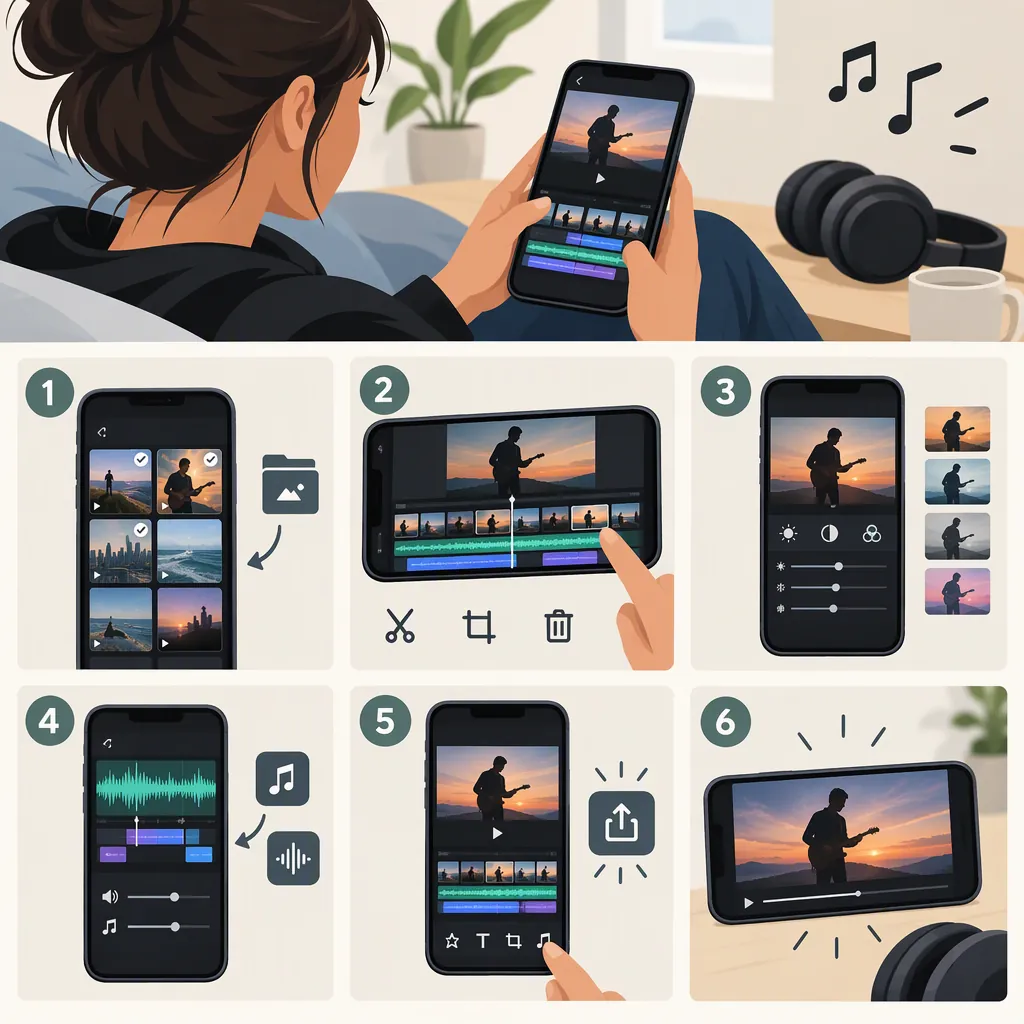
- Open your video editor and start a new project.
- Select the footage from your gallery and confirm the selection.
- Choose the frame shape appropriate for your intended video.
- Trim unwanted material from the beginning and end of each clip.
- Split or cut out unwanted sections within a clip.
- Drag the remaining sections into your preferred order.
For the first pass, focus on the sequence rather than perfect musical timing. A useful editorial approach is to alternate wider shots with closer details, then check whether the sequence feels coherent when played continuously.
Add Music and Choose the Audio Segment
In the reference’s general Android workflow, the music option leads to tracks and effects. A seek bar is used to choose where the song begins and ends. The reference does not document importing a personal audio file or identify which mobile apps support that option. [citation-1]
Use this sequence where your editor provides those controls:
- Open the music option.
- Select the track you want to use.
- Choose the starting point within the song.
- Set the ending point for the passage you want to include.
- Play the sequence from its beginning to check how the music fits the pictures.
Avoid assuming that the first second of a song is the best starting point. As an editing choice, try an opening that supports the first image, and choose an ending that feels deliberate rather than abruptly interrupted.
Balance Original Audio and Refine the Cuts
The reference describes an original-audio volume control, while noting that its location is typical rather than universal. Use the equivalent control in your editor if available. [citation-1]
Decide what the recorded sound contributes:
- Music-only montage: Consider lowering the camera audio if it adds unwanted chatter or background noise.
- Music with speech: Keep the words understandable and reduce competing music if your editor offers a separate music-volume control.
- Visible singing or playing: Check that the soundtrack matches the visible performance before adjusting cuts for style.
Next, replay each transition with the song. As an editorial technique, try placing selected cuts at clear musical changes. You do not need to cut on every beat; let important actions remain on screen long enough to read.
Separate music-volume controls, detailed synchronization tools, and fades are not documented in the supplied reference, so their availability should not be assumed.
Review the Complete Video Before Saving
Before saving, watch the entire edit without stopping. Use this review checklist:
- Does the opening image fit the chosen music passage?
- Are any unwanted clip fragments still present?
- Do the transitions feel intentional?
- Is any speech you intend to preserve understandable?
- Does visible singing match the soundtrack?
- Do the picture and music finish at a deliberate point?
The supplied workflow ends with saving the edited video. It does not specify export resolution, frame rate, file format, or watermark behavior, so no particular output setting is established here. [citation-1]
After saving, play the saved video as a final check rather than relying only on the editing preview.
FAQ
Can I Use Google Photos for the Whole Music-Video Edit?
The supplied reference documents trimming a video in Google Photos. It describes adding music separately in a general Android video-editor workflow, so it does not establish Google Photos as a complete tool for these steps. [citation-1]
Should I Remove the Original Sound from My Video?
Not necessarily. Keep it when speech, performance audio, or atmosphere matters; consider lowering it when it distracts from the music. The reference describes adjusting original audio volume, but it does not specify separate music-volume controls for a named mobile app. [citation-1]
Do These Exact Steps Work on an iPhone?
The supplied reference covers Android, not iPhone. The editorial decisions—choosing footage, selecting a song passage, and reviewing audio balance—can inform your plan, but iPhone app controls and feature availability are not verified here. [citation-1]
Sources
- [citation-1] How to Edit Videos on Android | Pinnacle Studio