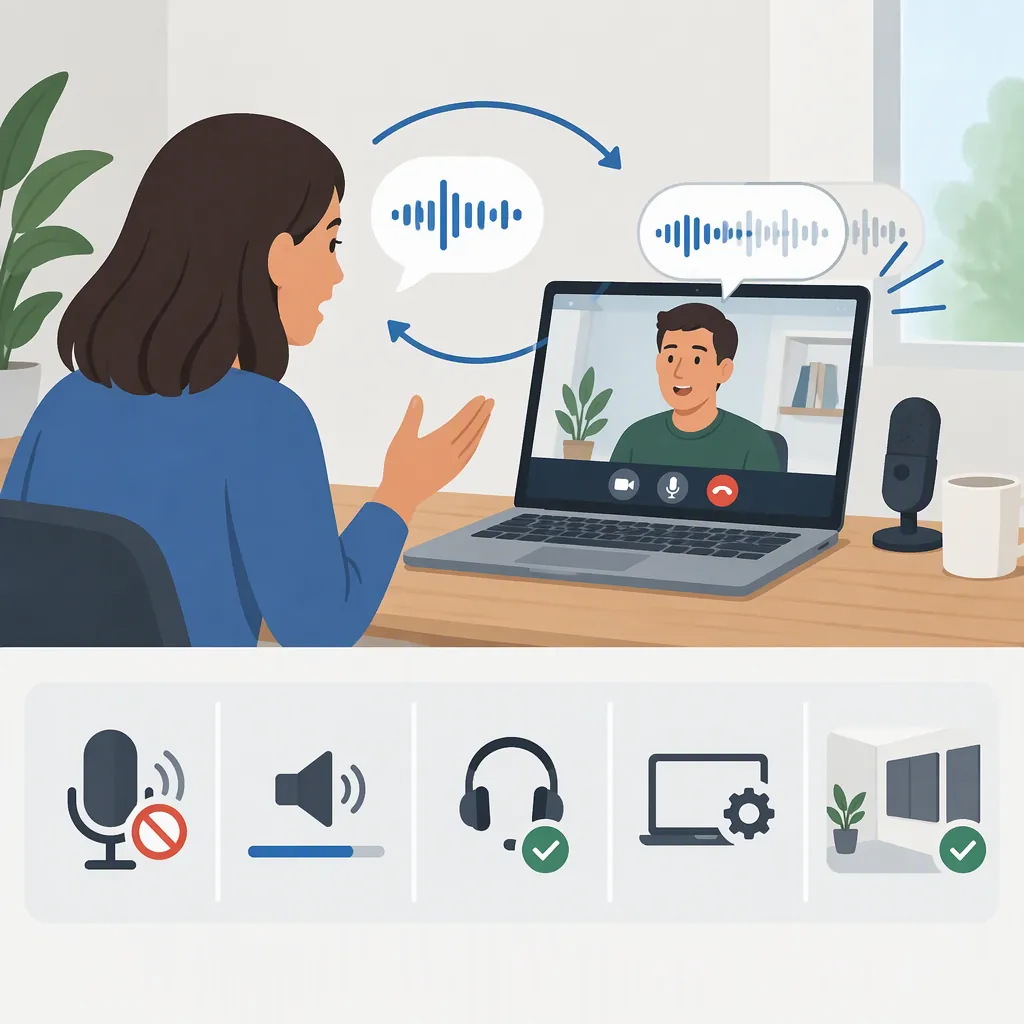
How to Troubleshoot and Fix Echo in Video Audio
To troubleshoot echo in video audio, compare the original recording with the edited version, then listen to each audio track separately. If the repeat appears only in the edit, check overlapping tracks and added effects before processing the recording. If it is already in the source file, test cleanup on a short passage and compare it with the original before changing the full video.
Identify What You Are Hearing
Choose a spoken sentence with a pause afterward. Listen for a recognizable repeat of a word or a continuous, fading room-like tail. Notevibes describes echo as distinct repeats and reverb as a continuous wash of reflections. This distinction helps describe the sound, but does not establish its cause. [citation-1]
Before making changes:
- Play the original recording outside the editor. Check whether the unwanted sound is already present.
- Listen to one project audio track at a time. Compare camera audio, a separate microphone recording, and any copied clips.
- Bypass delay, echo, and reverb effects. Check both clip-level effects and any effects applied to the track or overall mix.
- Export a short sample. Compare the same passage in timeline playback and the exported file.
Use the results to choose the next step rather than applying cleanup immediately.
Match the Test Result to a Fix
The possibilities below are working hypotheses, not confirmed diagnoses. Make one change at a time and replay the same passage.
| Test result | Possible explanation to check | Next step |
|---|---|---|
| Each track sounds acceptable alone, but together they produce a repeat or doubled voice | Two recordings of the same speech may overlap with a timing difference | Mute the secondary recording and retest. If only one dialogue source is needed, keep the clearer one active. If both are needed, check their timing against the same spoken sound and verify synchronization with the picture. |
| The unwanted sound disappears when effects are bypassed | A clip, track, or mix effect may be adding delay or reverb | Re-enable effects individually to locate the change. Leave the unintended effect disabled, then check a short export. |
| Timeline playback sounds acceptable, but the export does not | The export may include audio tracks or effect settings different from those you checked | Review which tracks and effects are included in the export. Export the test passage with only the intended dialogue track active, then compare again. |
| The original recording already contains a continuous room-like tail | Reflections may be embedded in the recording | Try a short reverb-reduction test. Evaluate speech quality as well as the remaining tail. |
| The original recording already contains distinct repeated words | The repeat is embedded in the source rather than created only by the edit | Check whether an alternate microphone recording or take is cleaner. Do not assume a reverb-removal workflow will resolve a separate, clearly audible repeat. If a cleanup trial is unsatisfactory, consider replacing the affected dialogue. |
If the original file sounds clean, prioritize project changes. Processing a clean source does not address an unintended second track or an effect that remains active in the edit.
Short-Clip Comparison Checklist
- Choose one spoken sentence with a pause afterward.
- Listen to the original recording outside the editor.
- Listen to each project audio track separately.
- Compare playback with effects bypassed.
- Note which test changes the unwanted sound.
- Make one targeted adjustment.
- Export the same passage and listen again.
- Confirm dialogue remains synchronized with the video.
Test Cleanup on the Existing Recording
For a room-like tail already present in the source, a reverb-reduction workflow is a possible next step. As one documented example, Descript describes creating a project, importing the video, opening Underlord, and choosing the Sound Good tools. Its page also identifies Studio Sound for reverb removal. The documentation explains the workflow, but does not establish how well it will work on every recording or provide a reliable setting for your particular clip. [citation-2]
Evaluate a short sample before processing the whole video:
- Keep the original unchanged. Work on a copy or a reversible edit.
- Choose a representative passage. Include speech, quiet syllables, word endings, and a pause.
- Apply the cleanup as a trial. Avoid treating a quieter tail as the only measure of success.
- Compare at similar listening volume. Listen for intelligibility, natural voice quality, and whether words become clipped or distorted.
- Check the exported sample. Confirm that the improvement remains audible in the output.
If the processed voice sounds less natural or loses important syllables, reduce the treatment where controls allow, or return to the original. A cleaner alternate recording or a replacement line may be preferable to an unsatisfactory processed version.
Adding Echo Is Not Removing Echo
An echo effect creates repeats rather than cleaning up an existing recording. For example, Notevibes Echo Effect documents adding delayed copies mixed with the original audio, and accepts audio files rather than video directly. It is not the reverb-cleanup workflow described above. [citation-1]
Keep intentional echo and reverb effects bypassed while diagnosing the underlying problem.
Check the Setup Before Recording Again
Before another full take, record the same short sentence under a few controlled conditions. These comparisons can help you choose a clearer setup; none guarantees that the problem will disappear.
- Test a closer microphone position. Move the microphone closer to the speaker while keeping it out of the shot if necessary. Adjust the recording level to avoid clipping, and compare the voice and room tail with the original position.
- Compare recording spaces. Try a location with fewer nearby hard, bare surfaces, or compare a furnished area with the original space. Listen to the pause after the sentence, not just the voice.
- Remove speaker playback from the test. Mute loudspeakers and use headphones for monitoring so playback is not fed back into the microphone. If playback is unnecessary, turn it off.
- Change only one variable at a time. Keep the sentence and speaking level similar so you can tell which adjustment helped.
Listen to each test before continuing. Select the setup with the clearest, most natural speech rather than relying only on the recording level meter.
FAQ
Is Echo the Same as Reverb?
Not exactly. Notevibes describes echo as distinct repeats you can count, while reverb blends reflections into a continuous tail. Use that distinction to describe what you hear, then test the original file, tracks, and effects to locate where it appears. [citation-1]
Why Does My Original Recording Sound Fine, but the Edited Video Has Echo?
Check for overlapping recordings of the same dialogue and unintended effects first. Listen to each track alone, then bypass effects. If muting a secondary track removes the repeat, review whether that track is needed and whether its timing matches the intended dialogue. If bypassing an effect resolves it, isolate that effect before exporting again.
What Should I Do If the Echo Appears Only After Export?
Export a short passage with only the intended dialogue track active. Review the tracks and effects included in the export, then compare the exported file with timeline playback. Restore other tracks or effects one at a time to identify which change introduces the problem.
Can Reverb Cleanup Completely Fix My Recording?
Do not assume complete removal. Descript documents a reverb-removal workflow, but that does not establish results for your clip. [citation-2] Compare a short processed sample with the original, focusing on word endings, quiet syllables, and natural voice quality. If cleanup damages the speech, retain the original or use a cleaner alternate take.