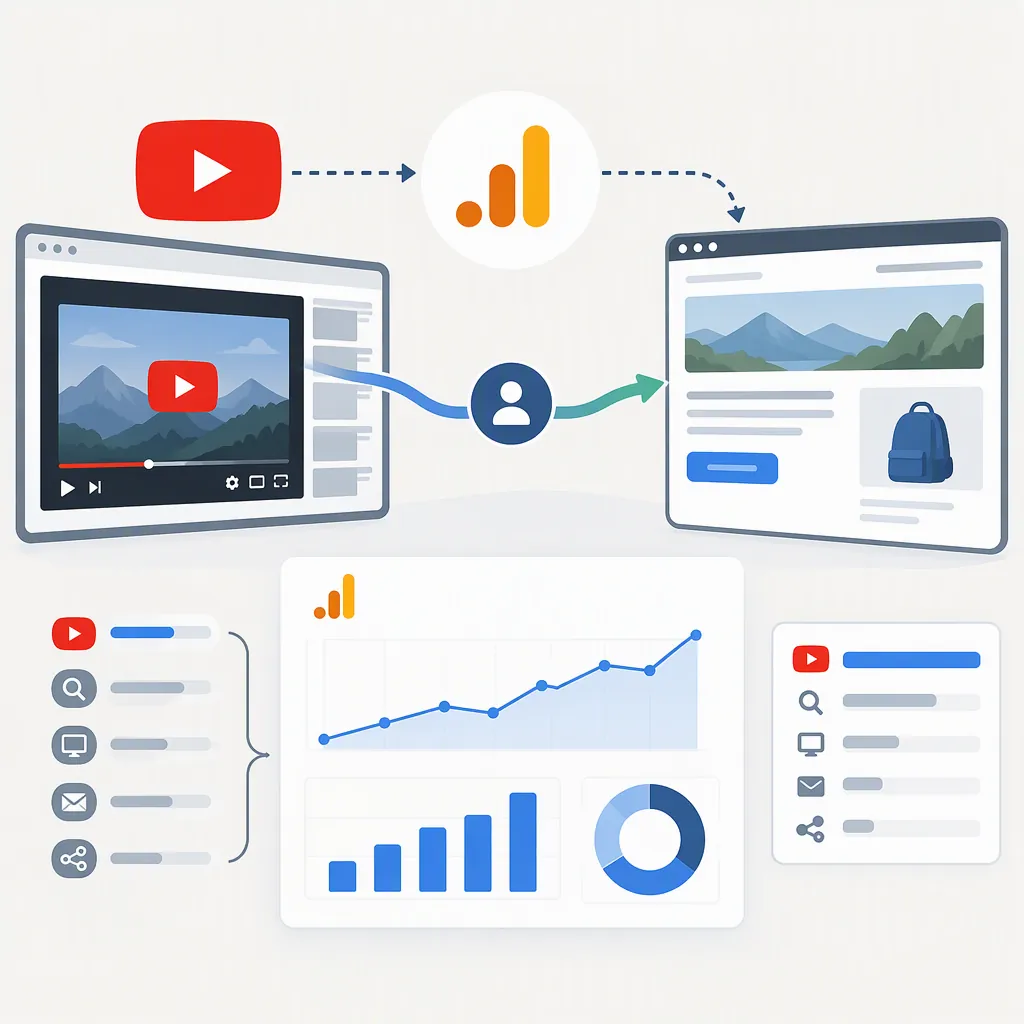
Ga4 YouTube Tracking: Website Attribution and External Analysis
GA4 YouTube tracking separates arrival source, embedded-video engagement, and website outcomes. Enhanced Measurement can collect video_start, video_progress, and video_complete for supported YouTube players embedded on your website. Those events measure website player interactions—not whether the visitor arrived from YouTube. [c1] [c2]
To interpret YouTube-related website results, validate the arrival evidence, collect a distinct outcome event, and keep any independent YouTube-side report separate from GA4 engagement data.
Evidence boundary: The references support event setup, debugging, and engagement reporting. They do not establish a complete campaign-tagging or attribution-model configuration, a YouTube channel-report retrieval procedure, or an automated channel-data integration. The workflow below distinguishes supported setup steps from a proposed manual comparison structure; those integration steps remain incomplete.
Define What You Want to Attribute
A report labeled “YouTube performance” can combine several different questions:
| Question | Evidence to examine | What not to infer |
|---|---|---|
| Did a website visit originate from YouTube? | Recorded website source information and landing-page context. | An embedded-video start does not establish the arrival source. |
| Was an embedded YouTube video watched? | Validated website video events, with video and page context. | Website player events are not channel-wide viewing totals. |
| Did a website outcome follow? | A separately defined outcome event and the relevant website event sequence. | A sequence alone does not prove the video caused the outcome. |
| How does website activity compare with YouTube-side activity? | Separate datasets with documented video identities, periods, and metric definitions. | Similar totals do not establish a shared audience or user-level connection. |
The documented Enhanced Measurement setup collects interactions with embedded YouTube players on a website. It is not a documented import of YouTube channel analytics. [c1] [c2]
Define and Validate the Website Outcome First
Before testing a YouTube-to-website journey, decide what website action counts as an outcome and ensure it has a distinct, working event. A video start is not a substitute for a completed signup or purchase.
Example: Create an Event for a Thank-You Page
For a website that redirects successful newsletter subscribers to a dedicated thank-you page, Analytics Mania describes creating an event from incoming page views: [c1]
- Open Admin → Events → Create event → View more options.
- Enter a clear event name, such as
thankyou_page_visit. - Add both matching conditions:
event_nameequalspage_viewpage_locationcontains/thank-you/
- Keep Copy parameters from the source event enabled if those parameters are needed.
- Save the event, complete a test subscription, and check the resulting event in DebugView or Realtime. [c1]
Adapt the page condition to the actual completion page. Use this approach only when that page meaningfully represents the intended outcome. A thank-you-page visit is still a recorded page-based event; do not automatically describe every occurrence as a verified new subscriber.
Receiving an event and marking it as a key event are separate steps. If the event should be treated as a key event, Analytics Mania describes marking the dedicated event with the star icon in Admin → Events. Do not mark all page_view events as key events just to capture one completion page. [c1]
If the outcome does not produce a distinct page view, this thank-you-page method is not the appropriate setup. Define and implement the actual action before proceeding.
Check YouTube-To-Website Arrivals
Start with the link journey, not the embedded player.
- Record the placement and destination. Note where the website link appears on YouTube and its exact destination. Keep different placements distinguishable in your measurement notes.
- Enable debugging. Analytics Mania documents three options: the GA debugger Chrome extension, sending
debug_modewith the events being tested, or GTM Preview mode. [c1] - Follow the actual link. Open the website destination from its YouTube placement.
- Inspect the received events. In Admin → DebugView, select the correct test device and examine
page_locationandpage_referrerwhen present. Both are listed as default event parameters in Analytics Mania’s guide. [c1] - Check Realtime. Inspect the observed visit and available source information. The referenced Realtime workflow includes traffic-source cards and a user snapshot for examining an event stream. [c1]
- Complete the outcome. Perform the intended website action and confirm that its distinct outcome event arrives. Allow for possible DebugView delays before concluding that collection failed. [c1]
This is a collection test, not a persistent attribution report. A received page_referrer value or one Realtime visit should not be substituted for the source dimension used in ongoing reporting.
YouTube-To-Website Test Record
- YouTube link placement: ___
- Exact website destination: ___
- Test date and time: ___
- Debugging method and selected device: ___
- Received
page_location: ___ - Received
page_referrer, or missing: ___ - Realtime source field and value observed: ___
- Intended outcome and received event: ___
- Unexpected or missing collection: ___
- Status: collection confirmed, incomplete, or unresolved.
If source information is missing or unexpected, retain that discrepancy. Do not assign the visit to YouTube because the destination page contains a YouTube video.
Read Recorded Sources Alongside Website Outcomes
For continuing analysis, the source field must be explicit. In a source/medium troubleshooting reply, Analytics Mania recommends Session source/medium, rather than the unqualified Source/medium field. That supports naming the session field precisely, but it is not a complete attribution-reporting procedure. [c1]
Use the following reporting specification as a minimum checklist, not as a verified click-by-click attribution configuration:
| Item | What to record |
|---|---|
| Report location | The actual report or exploration used in your property. |
| Source dimension | The full displayed name, such as Session source/medium, rather than “source.” |
| YouTube selection | The exact observed values included, with the filter rule documented. |
| Analysis period | Date range and time-zone basis. |
| Website context | Landing-page field and value, if available in a compatible report. |
| Outcome | The distinct event name and whether the displayed metric is event count or key-event count. |
| Unresolved coverage | Missing source values, unavailable fields, or collection discrepancies. |
Do not prescribe a single source/medium value for every YouTube placement. Inspect the values actually recorded, document which ones you include, and keep unresolved traffic separate. The supplied evidence does not verify a particular acquisition-report location or a complete source-to-outcome report configuration.
Before combining fields, confirm that the report supports them together. Separate totals for arrivals and outcomes do not, by themselves, establish which outcomes belong to which arrival group.
Hypothetical Interpretation
Suppose a separately validated report shows the following. The values below are illustrative, not observed results:
| Recorded source grouping | Landing page | Website visits | thankyou_page_visit event count |
|---|---|---|---|
| Documented YouTube-related selection | /newsletter |
120 | 9 |
| Source unresolved | /newsletter |
20 | 1 |
If the report’s grouping and metric definitions support this relationship, a qualified summary is:
During the selected period, the documented YouTube-related source group contained 120 website visits and 9 recorded thank-you-page events for the newsletter landing page. Another 20 visits had unresolved source information.
This does not establish nine unique subscribers, incremental conversions caused by YouTube, or outcomes attributable to a specific video. The thank-you-page event setup measures the defined page condition; its interpretation depends on that condition accurately representing completion. [c1]
Prepare a Manual External Comparison
External analysis can place an independent YouTube-side report beside website data without claiming that GA4 imported channel analytics. The referenced tracking instructions describe website embedded-player collection only. [c1] [c2]
Prerequisite: You must already have a separately obtained YouTube-side report and website report. The supplied references do not document how to retrieve or connect the channel report.
Once those reports are available, this proposed manual workflow makes the comparison reproducible:
- Keep the original reports unchanged. Work in a separate spreadsheet or analysis table.
- Create a video mapping table. Record a stable video identifier, its title in each dataset, any associated website link placement, and the destination page. Leave uncertain mappings unresolved.
- Record each dataset’s period and time zone. Compare matching periods where possible; otherwise state the mismatch.
- Preserve metric definitions. Keep channel-side metric names separate from GA4 player events and website outcomes.
- Keep different measurement levels in separate tables. Video-level viewing data should not acquire source-level website outcomes merely because the reports share a date range.
- Produce a labeled comparison. Include only supported mappings and flag missing fields instead of inventing connections.
Suggested Output Structure
| Table | Suggested fields | Purpose |
|---|---|---|
| Video and placement map | Video ID, titles, placement label, website destination, mapping status | Document known relationships. |
| YouTube-side activity | Video ID, period, time zone, original metric name, value | Preserve independent viewing data. |
| Website arrivals and outcomes | Period, source dimension, source value, landing page, outcome event, metric, value | Preserve website reporting context. |
| Embedded-player engagement | Period, video identity, page context, event name, Event Count, Total Users | Describe website player interactions. |
Do not join website source totals to every video in a period. If there is no verified video-to-placement mapping, the comparison must remain aggregate. Cross-system user matching and automated import remain unresolved; this manual structure does not supply either capability.
Enable and Validate Embedded YouTube Events
For a website already collecting GA4 data:
- Open Admin → Data Streams and select the website’s web stream.
- Enable Enhanced Measurement, open its settings, and confirm that Video Engagement is enabled. [c1] [c2]
- Inspect the embedded player URL. Analytics Mania identifies
enablejsapi=1as required for its described automatic tracking and warns that some implementations need additional work. [c1] - Enable debugging and select the correct device in Admin → DebugView.
- Play the video, continue through progress milestones, and reach the end. Inspect
video_start,video_progress,video_complete, and their received parameters. [c1]
If using Google Tag Manager, check tag firing separately from GA4 receipt. A GTM or data-layer event is not proof that Analytics received the event. When replacing automatic collection with manual tracking, disable the matching Enhanced Measurement collection to avoid duplicates. [c1]
Repeat-event behavior also needs testing. GOV.UK documents a custom tracker whose start, completion, and 25%, 50%, and 75% progress events fire once per video on a given page. The documentation warns that it may be out of date; this is not a universal GA4 rule. [c3]
Embedded Player Validation Checklist
- Record the page and embedded video.
- Identify automatic or manual collection.
- Confirm Video Engagement settings and player API configuration.
- Enable debugging and select the test device.
- Check start, progress, and completion events and parameters.
- Repeat playback and document repeat-event behavior.
- Check for overlapping collection before accepting counts.
Build a Separate Video Engagement Report
After validating collection, use the exploration workflow described by Marin: [c2]
- Open Explore → Blank and choose the date range.
- Import Event Name, Page Title, and Video Title as dimensions.
- Import Event Count and Total Users as metrics.
- Put Video Title in Rows and both metrics in Values.
- Add Event Name → Exactly Matches →
video_startas a filter and apply it. - Examine
video_progressandvideo_completewith separate exact event filters. [c2]
Retain page context when distinguishing website placements. Under the start-event filter, Event Count measures recorded starts, while Total Users measures users who recorded the event. Do not call the start count unique viewers or channel views. [c2]
If a custom parameter arrives in DebugView but is unavailable in reports, check Admin → Custom Definitions. Receiving a custom parameter does not automatically make it available throughout GA4 reporting; Analytics Mania describes registering event-scoped custom dimensions using the exact parameter name. [c1]
Keep this engagement report beside—not in place of—the arrival and outcome analysis.
FAQ
Does a Video Start Mean the Visitor Came from YouTube?
No. In the documented setup, it records an embedded-player interaction on the website. Check arrival evidence separately; the player event does not establish the traffic source. [c1] [c2]
Which Source Field Should I Record?
Record the full dimension name. Analytics Mania recommends Session source/medium rather than unqualified Source/medium in a troubleshooting reply. That recommendation is not a complete attribution configuration or proof that a referrer value equals a reporting source. [c1]
How Can I Track a Newsletter Completion Without Counting Every Page View?
For a dedicated thank-you page, create a distinct event matching both event_name equals page_view and the appropriate page_location condition. Validate it, then mark that event—not all page views—as a key event if needed. [c1]
Does Enhanced Measurement Connect YouTube Channel Analytics to Ga4?
The documented setup collects website embedded-player events. It does not document a channel-data import. A manual comparison with an independently obtained report is a separate analysis, not a GA4 connection. [c1] [c2]
How Can I Check Events Without Gtm Preview?
Analytics Mania documents the GA debugger Chrome extension or sending debug_mode with the events being tested. Then inspect events and parameter values in Admin → DebugView, selecting the correct device and allowing for possible delays. [c1]
Can These Events Prove a YouTube Video Caused a Conversion?
No causal method is established by these references. They support event collection and engagement reporting. Keep recorded arrival sources, embedded-video activity, and website outcomes distinct; an observed sequence alone does not demonstrate causation. [c1] [c2]