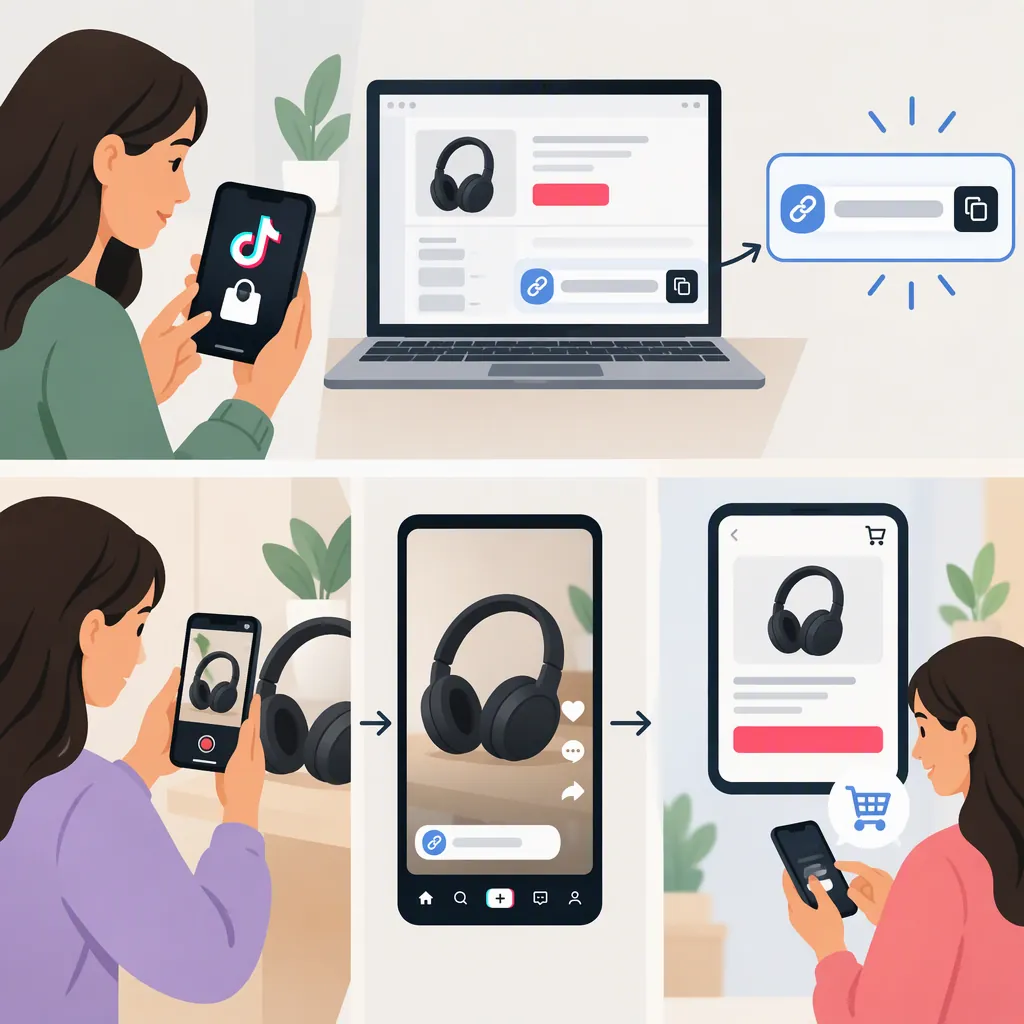
How to Create and Use TikTok Shop Affiliate Links
To create a TikTok Shop affiliate link, look for TikTok Shop for Creators in your account’s creator tools, open the Product Marketplace, and select a product available to you. Then use the product’s link-generation option, if provided, or attach the product to your video through the available Shop tools. These are different outcomes: a shareable URL is not the same as a shoppable product tag. The referenced third-party guide supports this general workflow, but not a verified current sequence of buttons. [c1]
Understand Which Linking Result You Need
Affiliate programs use unique links or codes to identify referrals and attribute eligible purchases under their terms. The guide describes obtaining TikTok Shop affiliate links and tagging products in videos. [c1]
Before starting, distinguish these two results:
| Result | What you are preparing | What to check |
|---|---|---|
| Shareable affiliate URL | A URL obtained through the selected product’s available affiliate-link controls | Whether it opens the intended listing and is permitted in your intended placement |
| Video product attachment | A Shop product connected to your video through the available product-tagging workflow | Whether the attachment is present and points to the product discussed |
Do not substitute a pasted caption URL for a Shop product attachment. The guide discusses product tagging separately from ordinary URLs and does not establish that the two methods are interchangeable. [c1]
External affiliate links are a separate route. The guide also describes merchant or network URLs placed in an available profile website field. That is not the next step in the TikTok Shop workflow. The supplied evidence does not confirm whether a Shop-generated URL can be used in a profile or distributed outside TikTok; check the terms applicable to that specific link before reusing it. [c1]
Find the Product and Review Its Terms
The guide gives the general path Creator Tools → TikTok Shop for Creators → Product Marketplace, followed by selecting products and obtaining affiliate links. Use it as an orientation, not as an exact current interface map. [c1]
- Check creator access. Look for TikTok Shop for Creators in your account’s tools. If it is missing, review the current access and eligibility information presented in TikTok.
- Find the exact listing. Match the product name, seller or shop, and relevant variant to the product you intend to discuss.
- Review the displayed offer. Check commission terms, product details, and any promotion restrictions before creating content.
- Choose your result. Follow the shareable-URL workflow or the video-attachment workflow below, depending on what your account provides and where you intend to publish.
Evidence boundaries: This article relies on one third-party guide, not an official eligibility or interface specification. The guide includes both a 1,000–5,000-follower pilot description and a separate 5,000-follower FAQ minimum, so it does not support a universal threshold. It also does not verify current button labels, establish seller registration as a necessary creator step, or guarantee that every account can generate a shareable URL. Its coverage does not establish TikTok Shop’s current attribution window, reporting delay, or cancellation and return rules. [c1]
Create the Link or Attach the Product
Workflow A: Obtain a Shareable Affiliate Url
The guide says creators can select products in the marketplace and obtain affiliate links, but it does not document the exact link-generation controls. [c1]
Use this short workflow where your account provides that option:
- Open the intended product’s available affiliate-link or sharing controls.
- Obtain the URL provided through those controls. Do not construct a tracking URL yourself.
- Save the URL with the product identity and its intended placement.
- Open the URL where possible and check that it reaches the intended listing.
- Review whether the link’s terms permit the placement you plan to use.
Completion result: You have a platform-provided affiliate URL associated with the selected product, plus a checked destination and an intended placement.
Unconfirmed step: The supplied source does not identify the current button used to generate or copy that URL. If no such option appears, this workflow remains incomplete; do not assume a product attachment automatically supplies a reusable URL.
Workflow B: Add a Shop Product to a Video
The guide describes tagging TikTok Shop products when creating videos so viewers can reach the product from the content. [c1]
For this result:
- Prepare a video that accurately identifies the selected product.
- Use the available Shop product-tagging or attachment workflow for that video.
- Select the intended listing, checking the seller and variant where shown.
- Preview the content and confirm that the product attachment is present.
- Open the attachment where possible and verify its destination.
Completion result: Your video has the intended Shop product attachment, rather than merely a URL written in its caption.
Unconfirmed step: The supplied source does not verify the current editor entry point or attachment-button labels. Follow the controls presented in your account rather than relying on an assumed screen sequence.
Explain the Affiliate Relationship
As a publishing practice, explain the commission relationship clearly near the recommendation. For example:
“I may earn a commission from eligible purchases through this link.”
Adapt the wording to the actual arrangement and placement. If you are using a product attachment rather than a URL, the explanation should reflect that. Do not imply that you purchased, tested, or received the product unless that is true.
Review the disclosure requirements that apply to your content and location, including any relevant settings presented by TikTok. This example is not a compliance guarantee, and the supplied reference is not a complete legal disclosure guide.
Keep the content consistent with the linked listing. Identify the correct product and variant, and remove claims that your available evidence cannot support.
Use One Publishing Checklist
Use this checklist for either a shareable URL or a video product attachment:
- Select: Confirm the product identity, seller or shop, and relevant variant.
- Review: Read the displayed commission terms and promotion restrictions.
- Generate or attach: Obtain the provided URL or add the intended Shop product to the video.
- Confirm placement: Check that the chosen placement is permitted; do not apply external-link instructions automatically to a Shop URL.
- Disclose: Explain the affiliate relationship and review applicable disclosure requirements.
- Test: Check that the URL or attachment is present and opens the correct destination where possible.
- Retest: After any correction or final content edit, repeat the destination check.
Optional record: Save the product identity, link type, placement, destination, date checked, disclosure wording, and correction or retest result. Add commission terms or unresolved questions if you need a fuller record.
The guide specifically recommends testing profile-link clickability on a mobile phone. For Shop content, checking the product attachment and destination is a practical publishing review—not proof that a purchase will receive commission credit. [c1]
Troubleshoot an Incomplete Link or Attachment
| Problem | Next check |
|---|---|
| TikTok Shop for Creators is missing | Review your account’s current access and eligibility information. |
| No shareable-URL option appears | Check whether the intended content supports a product attachment instead. Do not invent a tracking URL. |
| The destination is wrong | Replace the URL or attachment through the intended listing’s available controls, then retest. |
| The product attachment is missing | Reopen the content editor and verify the attachment before publishing. |
| Commission attribution is unclear | Review the applicable program terms and available reporting. |
A successful destination test confirms navigation. It does not establish whether a particular purchase is eligible for commission; referral tracking and payment depend on the applicable program terms. [c1]
FAQ
Where Do I Get a TikTok Shop Affiliate Link?
The guide points to Creator Tools, TikTok Shop for Creators, and the Product Marketplace. Select a product and use the affiliate-link controls available to your account; exact current button labels are not verified by the source. [c1]
Can I Paste an Affiliate Link into a TikTok Caption?
Do not rely on a pasted URL to function as a clickable Shop product tag. The guide says ordinary video or caption URLs generally are not clickable and discusses product tagging as a separate method. [c1]
Can I Put a TikTok Shop Affiliate Url in My Bio or Share It Elsewhere?
The supplied evidence does not confirm those placements for Shop-generated URLs. Its profile-link guidance concerns external affiliate links, so check the terms for your specific Shop link before distributing it elsewhere. [c1]
How Many Followers Do I Need?
This source does not provide a reliable universal minimum because its eligibility descriptions differ. Check the current requirements presented in your TikTok account. [c1]
Does a Working Link Prove That I Will Receive a Commission?
No. It confirms that the destination opens, not that a purchase meets commission conditions. Review the applicable terms and reporting for attribution and payment information. [c1]