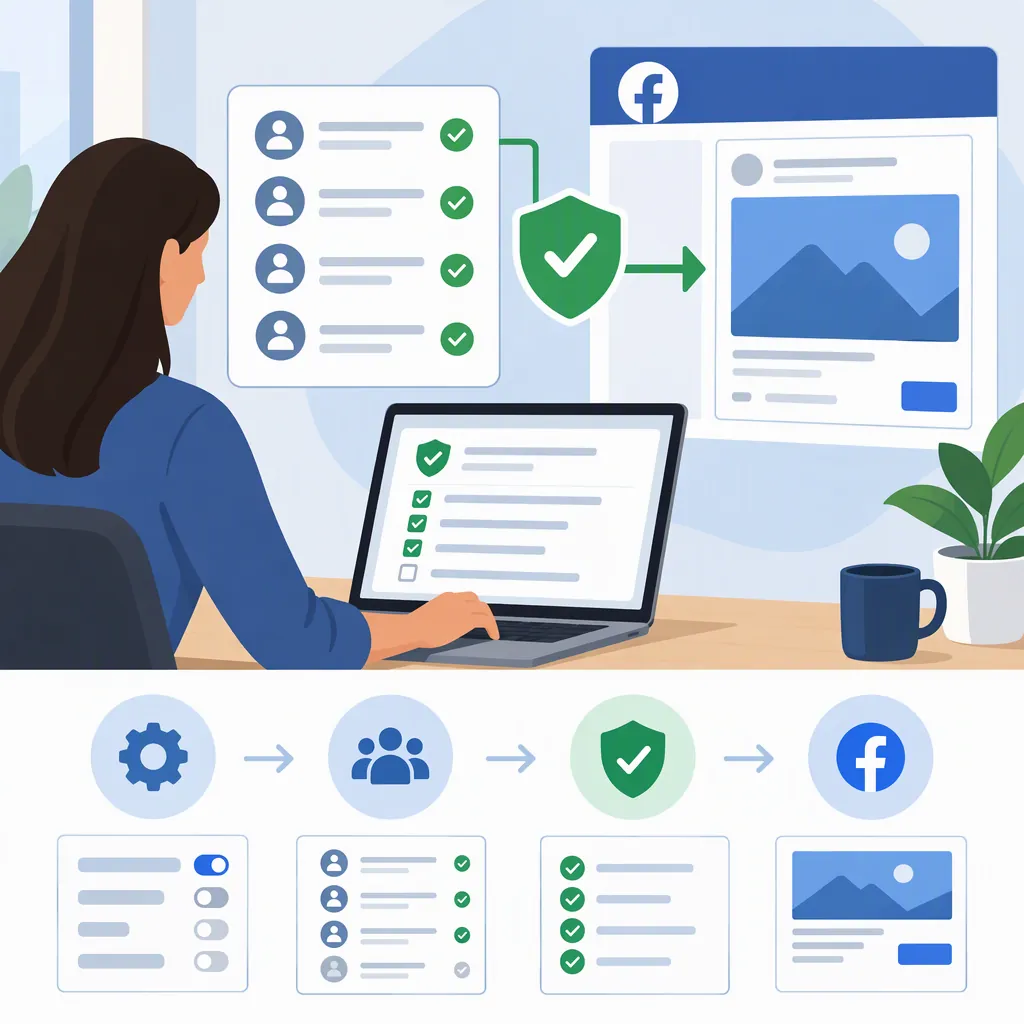
Whitelisting Facebook Ads: Permissions and Setup
Whitelisting Facebook ads means a creator authorizes a brand to run paid ads using the creator’s identity while the brand manages the campaign in Ads Manager. The provided 2026 setup guide describes this through account-level permissions in Meta’s Partnership Ads Hub. Agree on content rights and approval limits before granting access, then verify the partner, configure the ad, and review its identity and creative before publishing. These are third-party instructions, not verified current Meta documentation. [c1] [c2]
What Facebook Ad Whitelisting Authorizes
In this context, “whitelisting” describes permission to advertise using a creator’s identity—not adding someone to an audience list. The advertiser manages campaign settings such as budget, targeting, creative, and performance reporting. The older guide also calls this arrangement “creator licensing.” [c1] [c2]
The 2026 guide describes account-level permission: after approval, the advertiser can create ads with that partner without requesting permission for every additional ad. It distinguishes using an existing creator post from uploading new creative for an ad that does not appear on the creator’s organic feed, often called a dark post. [c2]
Do not treat technical access as an unlimited content license. As a practical safeguard, document which assets, edits, identities, and campaign dates the creator has agreed to authorize.
Agree on Rights Before Granting Access
The 2026 guide recommends clear contractual guidelines because ads run using the creator’s identity. It specifically suggests approval rights and boundaries around the creator’s style, tone, and voice. [c2]
Use a written authorization record to separate the commercial agreement from the platform permission. Recommended fields include the advertiser, permitted assets, Facebook or Instagram identities, usage period, compensation, allowed edits, approval process, and any negotiated exclusivity. Also agree on who will stop campaigns and remove access when the arrangement ends.
These are planning recommendations, not a complete legal agreement. Where rights or exclusivity are consequential, obtain advice appropriate to the agreement and jurisdiction.
Authorization Record Template
- Creator and authorized advertiser: [names and account identifiers]
- Approved Facebook and Instagram identities: [list]
- Approved content: [asset names or post identifiers]
- Paid-use period: [start and end dates]
- Permitted placements and territories: [scope]
- Allowed edits: [copy, crops, audio, captions, or other changes]
- Approval process: [reviewer and required sign-off]
- Compensation: [agreed terms]
- Exclusivity, if any: [category, territory, and duration]
- Campaign stop and access-removal responsibility: [owner and deadline]
Request and Review Account-Level Permission
The following workflow follows the provided March 2026 third-party guide. Menu labels and available features may differ; the references do not establish current eligibility for a particular account. [c2]
- Brand: In Ads Manager, open All tools, then Partnership Ads Hub under Advertise.
- Select Add partnership, find the creator’s username, and select the intended partner account.
- Select the brand account that will partner with the creator and send the request.
- Creator: Review the requester and intended scope before accepting. The guide says requests can be accepted through Partnership Ads Hub or the Facebook or Instagram app. Its detailed acceptance path is for Instagram: profile menu → Creator or Business tools → Partnership ads → Ad partners → Pending requests.
- Brand: Confirm acceptance before building the ad. A pending request is not completed authorization. [c2]
Check linked accounts carefully. The guide says accepting a request can authorize both Facebook and Instagram when the creator’s accounts are linked. Confirm that this matches the agreed scope before approval. [c2]
Use platform permission requests rather than sharing login credentials. If the available tools differ from this walkthrough, pause and inspect the account’s current help and permission screens rather than granting broader access to bypass the issue.
Configure the Partnership Ad
After permission is accepted, the 2026 guide describes this Ads Manager workflow: [c2]
- Create a campaign in the brand’s Ads Manager account and configure the objective, budget, schedule, and audience.
- At the ad level, enable Partnership ad.
- Under Identity, select Edit and choose the partner as the second identity. Review the available identity-display options rather than assuming the creator alone will appear.
- For approved published content, choose Use existing post, then Select post.
- For approved new creative, choose Create Ad, select a format, and complete the text and media fields. [c2]
Before publishing, preview the ad across intended placements. The older Facebook guide specifically recommends using Ads Manager’s preview tool. Check the displayed identity, creative, destination, and schedule against the written authorization. [c1]
Authorization enables a workflow; it does not establish that an ad will outperform brand-only creative. The provided sources are not sufficient evidence for a guaranteed performance improvement.
Pre-Publish Review Checklist
- Confirm the creator accepted the intended advertiser’s request.
- Confirm the selected creator identity matches the agreement.
- Confirm the post or uploaded asset is approved for paid use.
- Review all edits and destination links.
- Preview each intended placement and identity display.
- Check budget and campaign dates against agreed limits.
- Record required creator approval before publishing.
Handle Setup Differences and End-Of-Term Access
The references describe different setup routes. The September 2022 guide uses Business Manager partner access to a Facebook Page with Create Ads permission; the March 2026 guide uses Partnership Ads Hub. Do not assume those routes are interchangeable or that either menu sequence is available to every account. [c1] [c2]
If the creator or content is missing, check the selected account, permission status, and identity selection first. For missing existing posts, the 2026 guide suggests checking the second identity or using the identity filter. Do not resolve missing content by substituting an unapproved asset. [c2]
At the agreed end date, review active campaigns, stop uses outside the authorization period, and verify whether partner access remains enabled. Keep the agreement, approvals, and a record of the closeout. These are recommended operational controls; the provided references do not document a current Facebook-specific revocation path.
Evidence limitation: This article relies on third-party public guides. No official Meta documentation was provided, so current eligibility, exact permission scope, and interface availability should be verified in the relevant account.
FAQ
Is Whitelisting the Same as Partnership Ads?
The terms overlap in the supplied guidance. Whitelisting describes the authorization arrangement, while the 2026 guide uses Meta’s Partnership Ads Hub and Partnership ad setting to implement account-level access. That does not mean every partnership-ad arrangement grants the same scope of permission. [c2]
Will Every Whitelisted Ad Appear on the Creator’s Feed?
No. The 2026 guide describes uploading new creative for dark posting without publishing it to the creator’s organic feed. It also describes using an existing creator post. Confirm which approach is authorized before creating the ad. [c2]
Does the Creator Need to Approve Every Ad?
The 2026 guide says accepted account-level permission allows additional ads without further platform permission requests. However, the parties can still agree that each creative or edit requires approval. Record that review requirement separately from the platform authorization. [c2]
Can a Facebook Authorization Also Include Instagram?
According to the 2026 guide, accepting an account-level request can authorize both accounts when Facebook and Instagram are linked. Review the request and linked identities before accepting; do not assume the permission is Facebook-only. [c2]